AL Synchronize Databases - User guide
How to set up and use the app in Business Central.
1. Concepts in one minute
- A Node is the connection to one external database: type (PostgreSQL or Microsoft SQL), server, port, database and credentials.
- A Node Group (SDB) groups the nodes served by one instance of the local services and defines their polling pace (Restart Interval, Refresh Interval, Record Download Number).
- A Node Interface links ONE Business Central table to ONE table on the node: field list, filters, direction (Export to DB / Import from DB) and synchronization fields.
- The Synchronize Buffer is the queue (and, at the same time, the ledger) of the operations to run on the external database: each record carries its ready-made SQL statement.
- The actual database work is done by two local Windows services, installed with the AppLibra License Manager: "DD - Esporta da Business Central" (export) and "DD - Importa in Business Central" (import). Business Central never opens direct connections to the external database: the services talk to Business Central over the app's Web API and to the target database over its native connection.
The export flow in short: data change in BC -> global trigger -> buffer row with the SQL ready -> the export service reads the buffer over the Web API, runs the SQL on the external database and marks the row as done (Skip).
2. Prerequisites
- Business Central version 25.0 or higher, online (SaaS) or on-premises.
- The AppLibra dependencies installed automatically with the app: AL License and Trial Management, AL Role Center.
- The AppLibra License Manager (the local manager of the AppLibra apps, the same one used for AL Bridge / AL Message Passing) installed on a Windows machine that can reach both the Business Central Web API and the target database. From there you install and start the services "DD - Esporta da Business Central" (export) and/or "DD - Importa in Business Central" (import), configured with the Web API URL, company, credentials and the ID of the Node Group to serve.
- A dedicated Business Central user for the services, with Web API access.
- On the external database: a login with DDL rights (table creation) and DML rights (insert/update/delete) on the target database.
3. Setup
3.1 Activate the license
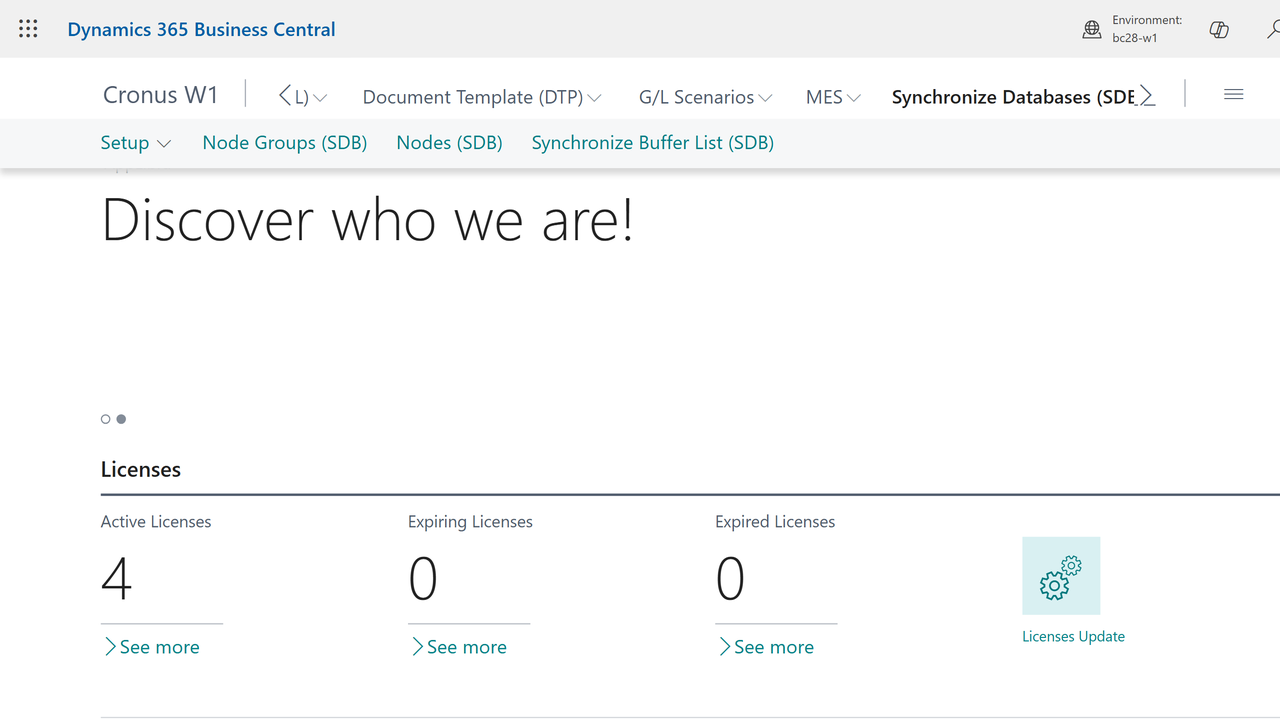
Search for Synchronize Database Setup in Tell Me (Alt+Q), open it and run Add License to activate the app (trial or full). The app pages are also reachable from the Synchronize Databases section of the AppLibra Role Center.
3.2 Node Group (SDB)
Search for Node Groups (SDB). A Node Group (the NAS group) is the "contract" between Business Central and one instance of the local services:
| Field | Purpose |
|---|---|
| ID | Group identifier. It is the ID you enter in the local service configuration: that service works ONLY the nodes and interfaces of this group. |
| Restart Interval | Length of one service work cycle. At each cycle restart the service re-reads the configuration: nodes, intervals and passwords. |
| Refresh Interval | Pause between one polling pass and the next within the cycle. |
| Record Download Number | Maximum number of buffer rows downloaded per pass (default 500). |
If missing, the Node Group is created automatically when the first node is saved (with a 1-hour Restart Interval and a 100 ms Refresh Interval); review the values anyway.
3.3 Local services
From the AppLibra License Manager, services section, install:
- DD - Esporta da Business Central (export): reads the buffer and writes to the external database; it also handles table creation/drop (see 3.6).
- DD - Importa in Business Central (import): reads from the external database the rows flagged by the third-party system and brings them back into Business Central.
You need both only when the flow is bidirectional. Each service instance is bound to one company and one Node Group.
3.4 Create a Node
Search for Node and create a card for each target database:
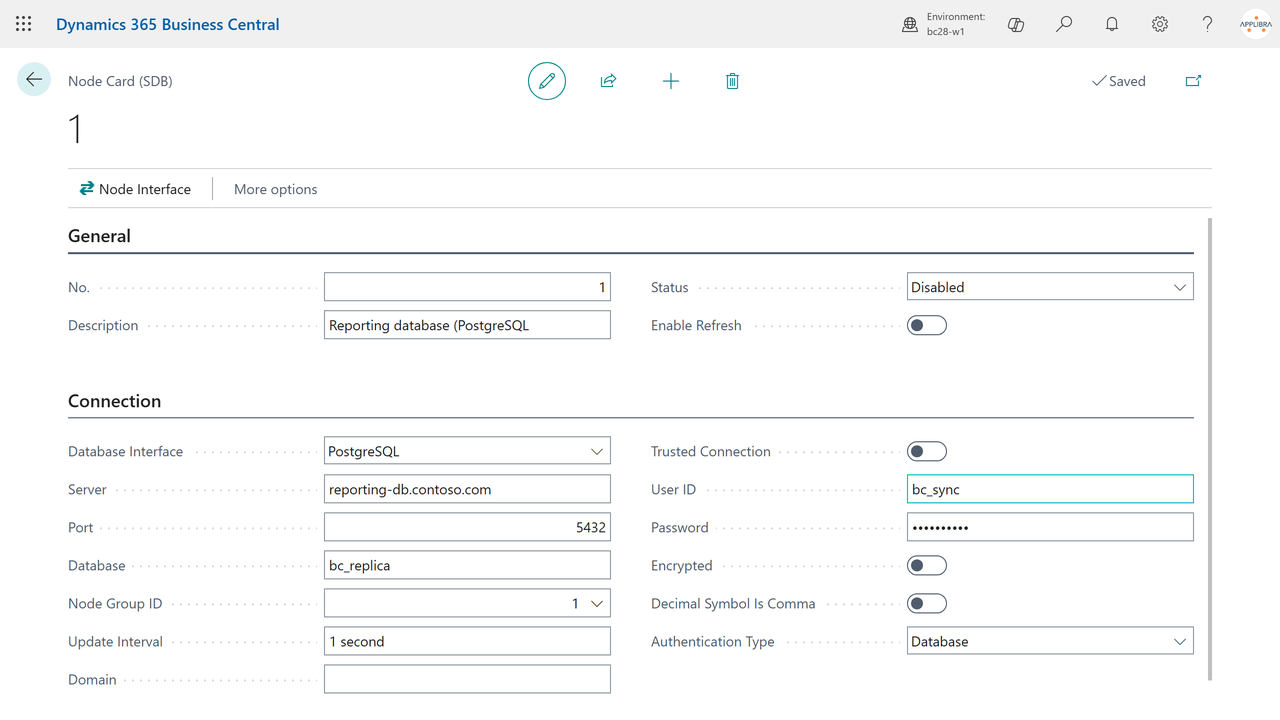
| Field | Purpose |
|---|---|
| No. / Description | Node identifier and description. |
| Synchronize Type (Database Interface) | The target engine: PostgreSQL or Microsoft SQL. It drives the generated SQL syntax and the identifier quoting. |
| Server / Port / Database | Coordinates of the external database. |
| User ID / Password | Credentials used by the service to connect. The password is stored in Business Central Isolated Storage and handed to the service over the Web API. |
| Trusted Connection / Domain | Windows authentication (Microsoft SQL only): enabling Trusted Connection requires the domain. |
| Authentication Type | Web or Windows. |
| Encrypted | Requires connection encryption to the database. |
| Decimal Symbol Is Comma | Handling of the decimal separator when formatting values. |
| Node Group ID | The Node Group (SDB) that serves this node. |
| Update Interval | Pace (in milliseconds) at which the service polls this node, when not specified on the interface. |
| Status | Disable/Enable. With Enable the connection fields become read-only; enabling requires a valid Node Group ID and an Update Interval. |
The bottom of the node card shows the Node Interface Log with the most recent errors reported by the service (see section 6).
3.5 Table Setup
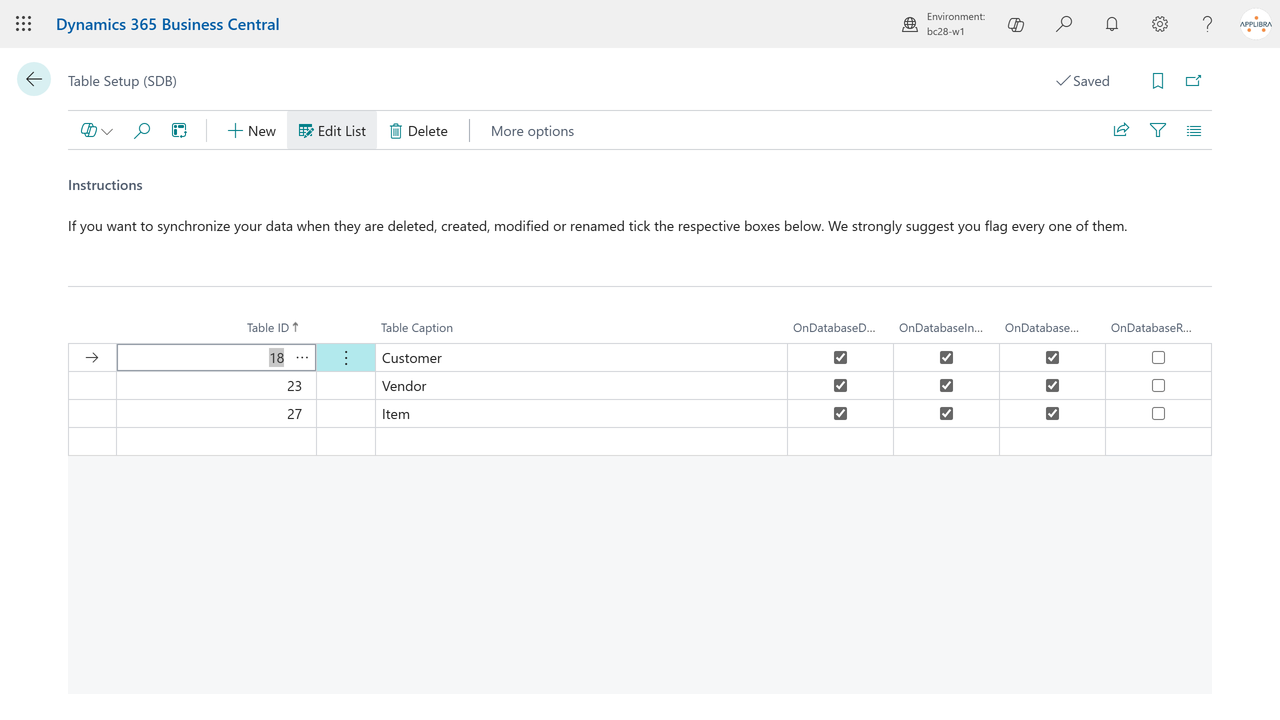
Search for Table Setup and register the Business Central tables to synchronize, choosing which events feed the buffer:
| Field | Purpose |
|---|---|
| Table ID / Table Caption | The BC table (lookup over all objects). |
| OnDatabaseInsert / OnDatabaseModify / OnDatabaseDelete / OnDatabaseRename | Which database triggers to activate for the table. Enabling all of them is recommended. |
Table Setup is the prerequisite of the interface: the interface Table ID field links to the tables registered here. When the last interface on a table is deleted, its Table Setup row is removed too.
Note: the platform reads the trigger configuration when the company is opened. After adding a new table, sessions that were already open may not capture changes until they are reopened.
3.6 Create a Node Interface
From the node card run Node Interface and create one row per table; then open the Node Interface Card:
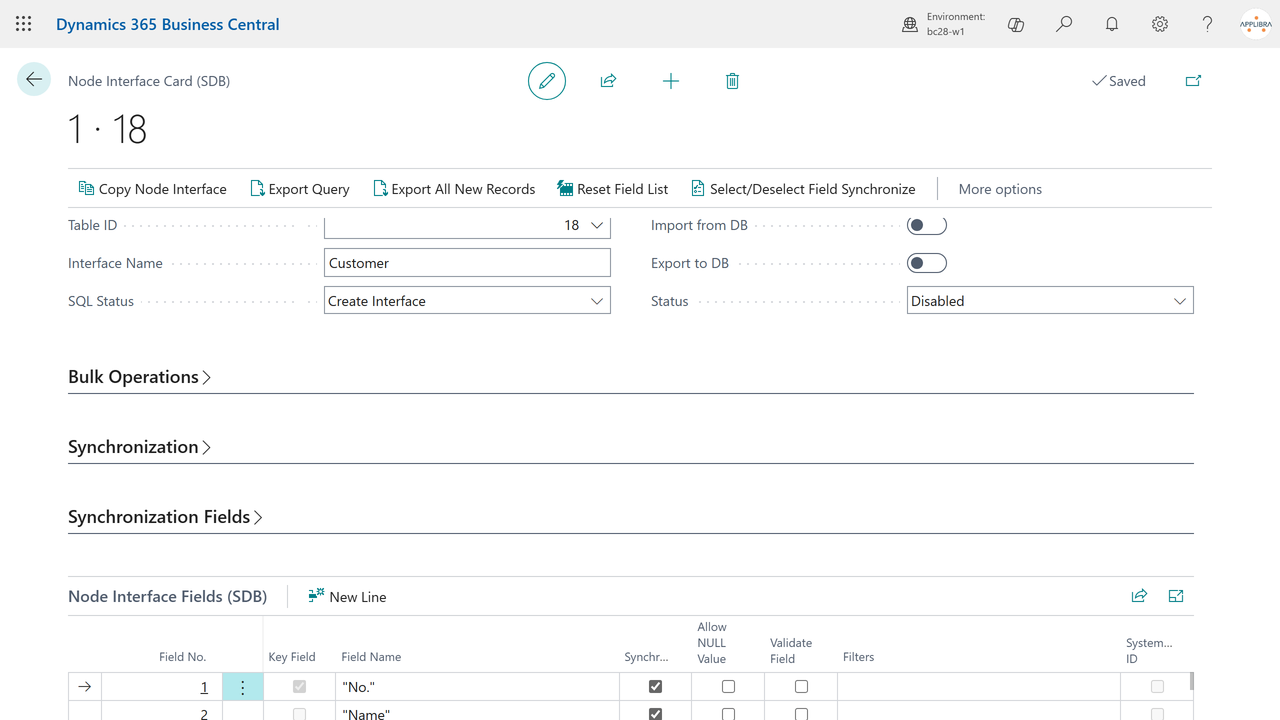
- Table ID: pick the table (among those in Table Setup). The Interface Name defaults to the table caption: it is the name of the table that will be created on the external database. Review it right away, before creating the table (the interface cannot be renamed).
- On creation the app generates the field list automatically: the primary key fields are flagged Key Field and always synchronized; the other fields are listed but not selected.
- In the subform tick Synchronize on the fields to bring to the external database. The Select/Deselect Field Synchronize action inverts the selection of all non-key fields (with the interface disabled). Reset Field List regenerates the field list from scratch (useful after schema changes on the BC table); careful: it wipes any per-field customization.
- Optional, per field:
- Filters: export only records whose field has one of the given values (alternative values separated by
|, e.g.10000|20000). - Validate Field: on import, run the BC field validation.
- Allow NULL Value: the external column is created as nullable and "empty" BC values (0, empty string, false...) are exported as NULL.
- Filters: export only records whose field has one of the given values (alternative values separated by
- Set the direction: Export to DB (BC -> external) and/or Import from DB (external -> BC), and the interface Update Interval.
Naming: recommendations for PostgreSQL
The identifiers generated by the app are always quoted: "name" on PostgreSQL, [name] on Microsoft SQL. On PostgreSQL a quoted identifier is case-sensitive: "Customer" and customer are two different objects, and to query "Customer" you will always have to type the quotes with matching case. On PostgreSQL nodes it is therefore best to use all-lowercase names without spaces (e.g. customer, sales_invoice_line) both for the Interface Name and for any customized field names: hand-written queries on the database stay simple. Field names can be edited directly in the subform (the quoting is re-applied automatically).
Synchronization fields
With Use synchronization fields on (the default), the external table gets five service columns that drive the bidirectional protocol:
| Column (default name) | Meaning |
|---|---|
| externalId | Primary key of the external table (uuid); it maps the external row to the BC record System ID through the buffer. |
| serverModification | Set to true by every write coming from BC. |
| clientModification | Set to true BY THE EXTERNAL SYSTEM to request the import of the row into BC. |
| serverDeletion / clientDeletion | Same, for deletions; clientDeletion = true makes BC delete the record. |
The column names can be customized in the five "... Field name" fields of the card. Importing from the external database requires the synchronization fields; without them the interface is export-only, with insert/update by primary key.
Other interface options
| Field / action | Purpose |
|---|---|
| Import Single Row | On import, process one row per pass (throttling). |
| Select rows with NOLOCK | Microsoft SQL only: read the rows to import with NOLOCK (dirty reads possible; use with care). |
| Post On After Data Import | After importing a row, raise a business event (OnPostAfterImport) for custom processing (e.g. posting). |
| Delete On Post After Import | After the post-import processing, delete the record in BC and the row on the external database (requires Post On After Data Import). |
| Log SQL | Log every queued statement in the Synchronize SQL Log table (see section 6). |
| Header Table Id / Bulk | Header/lines bulk operations: the line statements are appended to the header statement (Header Table Id on the line interface points to the header interface, flagged Bulk). |
| Copy Node Interface | Copy the configuration (fields included) from an interface of the same table on another node. |
| Export query | Download the current SQL script of the interface (the generated CREATE TABLE). |
| Execute truncate | Queue a TRUNCATE TABLE of the external table and clear the interface buffer. Irreversible on the target database. |
Do not use the "Export All Records" field: it is obsolete and was never implemented; its replacement is the Export All New Records action (section 4.2).
3.7 SQL Status lifecycle (who creates the external table)
The interface SQL Status field governs the creation of the table on the external database. The table is NOT created by Business Central: the local service creates it.
- On creation the interface is New: in this state it cannot be enabled.
- When the configuration is done, set SQL Status = Create Interface (or Drop and Recreate Interface to rebuild from scratch, or Drop Interface to remove the external table).
- Enable the interface (Status = Enable). The service matching the interface direction (export or import) sees the status, asks Business Central for the script (CREATE TABLE with synchronization columns and indexes, or DROP), runs it on the external database inside a transaction and updates the status:
- Create / Drop and Recreate -> Created;
- Drop -> New (and the interface goes back to disabled).
- From Created the interface is operational. Any SQL Status value other than Created automatically disables the interface.
If the status stays on Create Interface, the service is not working it: check that it is running, that it serves the right Node Group, and look at the Node Interface Log for connection or SQL errors.
3.8 Enable the synchronization
- Enable the node (Status = Enable on the node card).
- Enable the interfaces (Status = Enable, with SQL Status = Created).
Buffer rows carry their own Status mirroring node+interface: only with both enabled are the rows Enable and picked up by the service. Disabling the node or the interface pauses the synchronization without losing the queue.
4. Daily use
4.1 Automatic incremental export
Once running, no action is needed: every insert, modify or delete on the configured tables (per the Table Setup flags) queues a buffer row with the SQL statement already generated (INSERT ... ON CONFLICT ... UPDATE on PostgreSQL, the equivalent on Microsoft SQL; DELETE for deletions). The export service runs it and marks the row.
The interface filters are applied at the source: records that do not pass the filters never enter the buffer.
4.2 Export All New Records (initial load)
On the Node Interface Card, action Export All New Records (Functions group): it queues for export every record of the table that has never been exported by this interface.
- The existing buffer is preserved: records already exported (Skip rows) and records already queued are skipped.
- It is therefore safe to run again: it does not re-send data already in the target.
- It requires node and interface enabled (otherwise the rows would be created disabled and the service would never see them).
- When done, a message summarizes how many records were queued out of the total.
Use it after enabling the interface for the first time to load the existing data, or to catch up records created while the interface was disabled.
4.3 Import from the external database
With Import from DB on, the external system requests synchronization toward Business Central by flagging its own rows:
- the external system writes/updates the row in the external table and sets clientModification = true (or clientDeletion = true to have the record deleted in BC);
- the import service selects the flagged rows (one per pass when Import Single Row is on) and sends them to Business Central: the record is created or updated field by field (with validation where Validate Field is on), or deleted when clientDeletion;
- the service resets the external row to the "synchronized" state (serverModification = true, client flags cleared) or physically deletes it when Delete On Post After Import is on;
- when Post On After Data Import is on, Business Central raises the OnPostAfterImport business event on the imported record, to trigger custom processing (e.g. posting a document).
External rows without a valid externalId are ignored: importing requires the synchronization fields.
4.4 Synchronize Buffer
Search for Synchronize Buffer List to monitor the queue. Each row links a BC record (System ID, with drill-down to the record) to its external identity (External ID) and carries an Action Type:
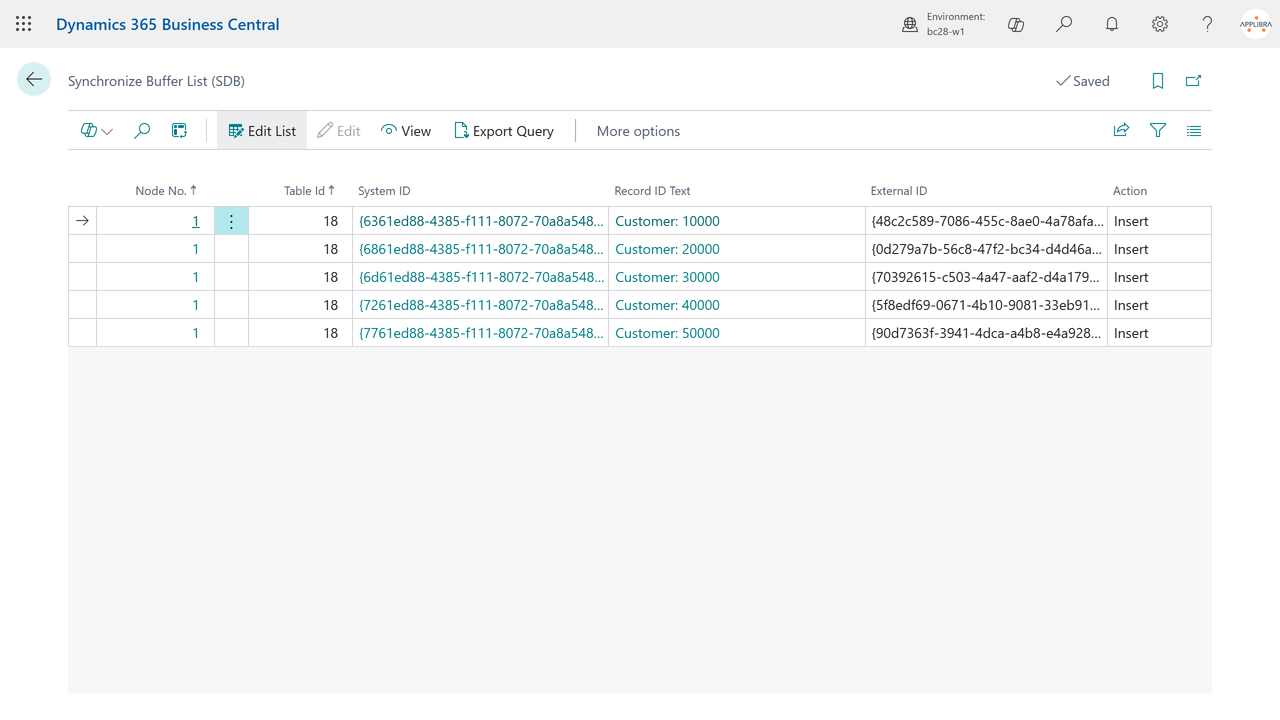
| Action Type | Meaning |
|---|---|
| Insert / Modify / Delete / Truncate | Operation waiting to be executed on the external database. |
| Skip | Already executed. The row remains as a ledger entry: it maps System ID <-> External ID and tells the app the record was already exported. |
| Bulk in Progress | Row of a bulk interface being appended to its header. |
After execution, Insert/Modify/Truncate rows turn to Skip; Delete rows are removed from the buffer. The Export query action downloads the SQL of the selected row, useful to see exactly what will be executed.
Do not clear the buffer by hand: the Skip rows are the memory of what was already exported.
4.5 Web API
The app exposes the API pages the services consume (group api/applibra/bridge/v2.0): nodes, node interfaces, buffer and Node Group (NAS). No configuration is needed inside Business Central beyond the user for the services.
5. Logs and monitoring
- Node Interface Log: the errors reported by the services (connection, SQL), per node and per interface. It is shown at the bottom of the node card and, when the interface is enabled, at the bottom of the Node Interface Card, most recent first.
- Synchronize SQL Log: with Log SQL on for the interface, every queued statement is logged with timestamp and SQL content. Use it selectively for debugging: it grows fast.
- Synchronize Buffer List: the live queue (section 4.4).
6. Tips and troubleshooting
- I changed the node password but the service does not connect. The service reads the credentials at the start of its work cycle and caches them until the service restarts or the cycle ends (the Node Group Restart Interval). Restart the service from the License Manager, or wait for the next cycle.
- The interface cannot be enabled. With SQL Status = New enabling is blocked: set Create Interface and let the service create the external table (SQL Status = Created) - see 3.7.
- Records do not reach the external database. Check in order: node Status = Enable; interface Status = Enable; Export to DB on; Table Setup flags on for the table; the node's Node Group is the one configured in the service (a service only works its own group); buffer rows with Status = Enable; Node Interface Log for SQL errors.
- SQL Status stuck on Create Interface. The service is not running, it serves another Node Group, or the connection/DDL fails: check the Node Interface Log and the service log in the License Manager.
- Manual queries on PostgreSQL do not find the table or the fields. The identifiers are created quoted and are therefore case-sensitive:
SELECT * FROM "Customer"is notselect * from customer. Best recreate the interface with lowercase names (see 3.6). - Changes not captured by a session opened earlier. The trigger configuration is read when the company is opened: have users reopen their sessions after adding new tables.
- Select rows with NOLOCK is not shown. It is available only on Microsoft SQL nodes; PostgreSQL does not support it.
7. Support and resources
- Publisher: AppLibra
- Website: https://applibra.com
- Apps catalog: https://applibra.com/apps
- Privacy policy: https://applibra.com/privacy-policy
- Terms of use: https://applibra.com/terms