AL G/L Scenarios - User guide
How to set up and use the app in Business Central.
AL G/L Scenarios adds parallel, scenario-filtered general ledgers to Business Central. This guide covers setup and daily use for the two scenario types (Simulation and Management), the adjustments journals (accruals, deferrals, reclassifications) and the management deferral wizard.
1. Concepts in one minute
- A scenario is a parallel set of ledgers (G/L, VAT, customer and vendor entries) that runs next to the official books.
- Simulation scenario: a document or journal that carries the scenario posts only into the scenario - a what-if that leaves no trace in the official ledger.
- Management scenario: it mirrors every standard G/L posting and adds its own accruals and deferrals, so its balance is official balance + adjustments.
- The scenario ledgers are never the item ledger: scenarios carry accounting, not inventory.
- The chart of accounts shows a second balance (the scenario) next to the standard one.
2. Prerequisites
- Business Central 28.0 or higher (Cloud/SaaS).
- The dependencies installed: AL License and Trial Management, AL Message Passing, AL Document Template, AL Role Center.
- Permissions: assign the AL G/L Scenarios permission set to the users.
You reach the app from Tell Me (search "G/L Scenarios", "Scenarios", "Adjustments Journal"), from the G/L Scenarios group in the Accountant and Accounting Manager role centers, and from the AppLibra role center (Shift+F12 -> Explore other roles -> AppLibra).
3. Setup
3.1 Activate the license
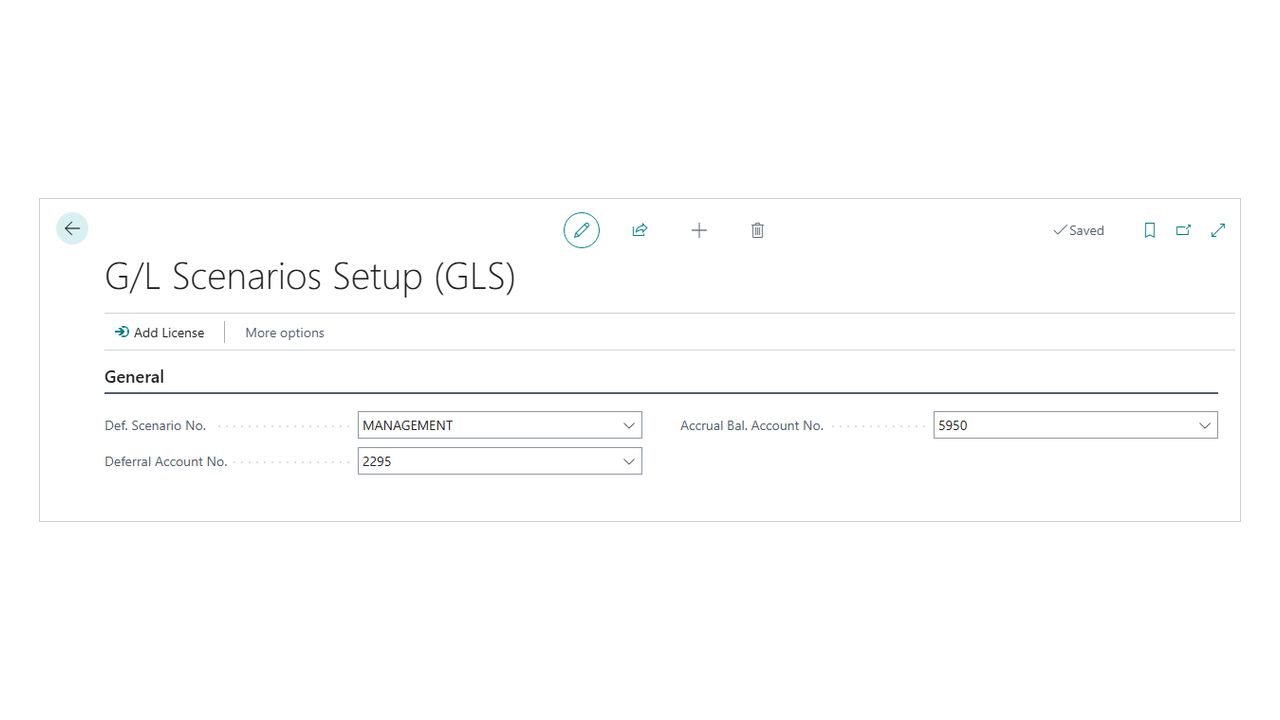
Open G/L Scenarios Setup (the record is created on first open and a trial is registered automatically). Use Add License to enter a license when you have one.
3.2 Setup (GLS)
On G/L Scenarios Setup, fill in:
- Def. Chart of Acc. Scenario No. - the scenario shown by default in the chart of accounts columns (a view default: the Scenario Filter on the page switches it on the fly, and it may be of either type).
- Def. Simulation Scenario No. and Def. Management Scenario No. - the typed defaults: the first feeds the what-if scenario journal templates, the second feeds the adjustments journal templates and the accrual and deferral wizards.
- The four adjustment accounts: Prepaid Expenses Account No. (deferred costs), Accrued Expenses Account No. (invoices to be received), Accrued Income Account No. (invoices to be issued) and Deferred Income Account No. (deferred revenues). The wizards propose them by side.
3.3 Create scenarios
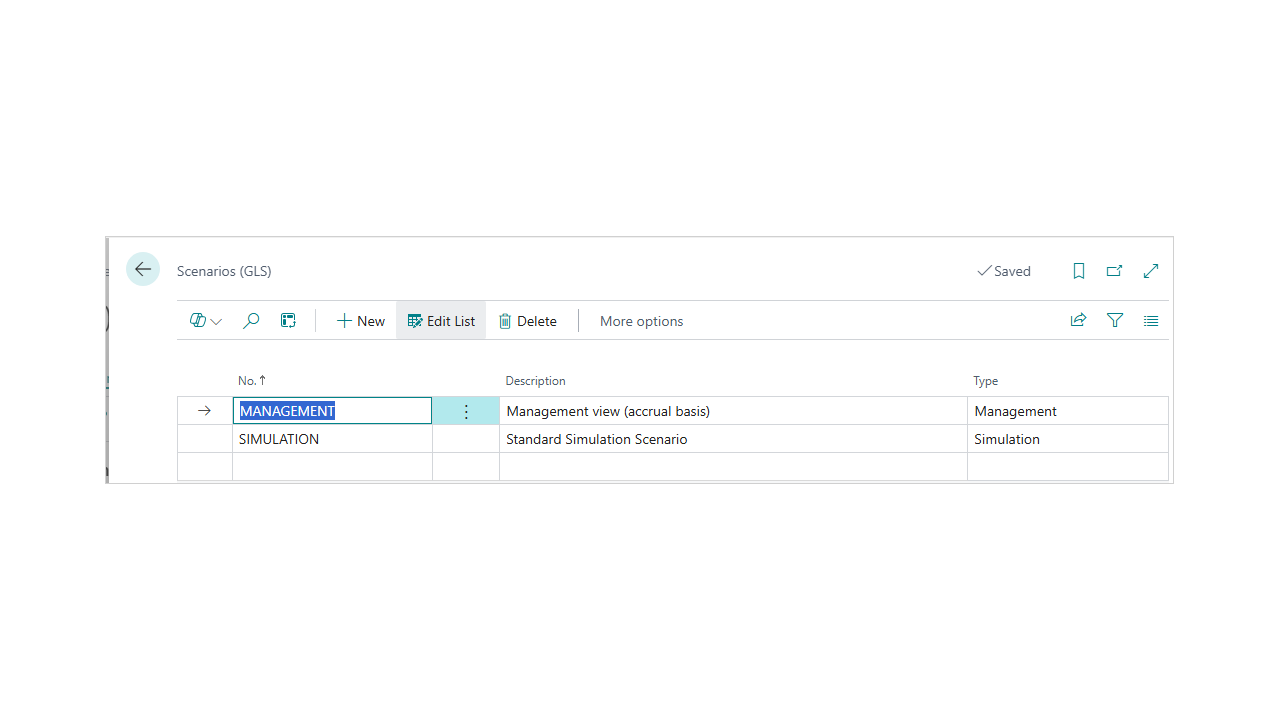
Open Scenarios and create the scenarios you need, choosing a Type:
- Simulation for what-if documents;
- Management for the accrual-basis management view.
3.4 Document templates (for simulation)
To send a document into a simulation scenario, use AL Document Template:
- In Document Template Setup, enable templates for the document type.
- Create a sales or purchase template with No G/L Ledger Entry = Yes (required) and, in the G/L Scenarios group, Scenario No. = your simulation scenario.
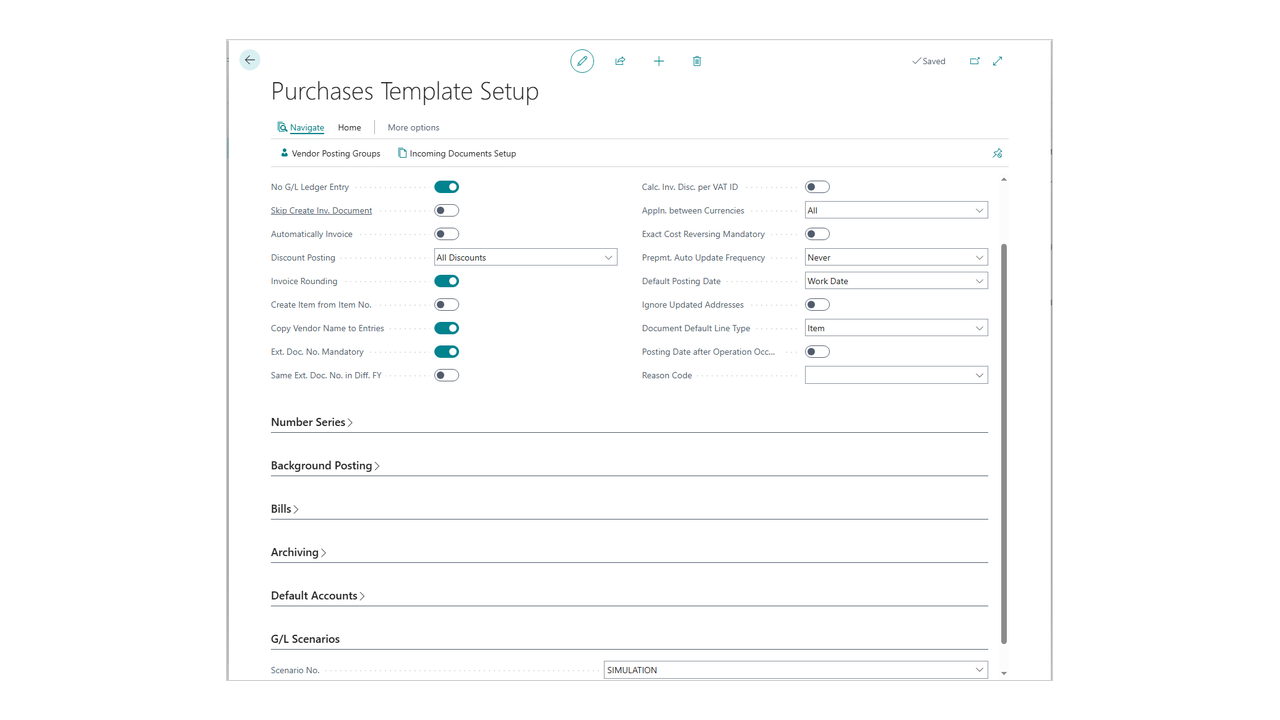
Note (electronic invoicing): a scenario document still creates the real posted document. On environments with e-invoicing, consider the template's Skip Create Inv. Document option for simulations.
4. Daily use
4.1 Simulation: a what-if invoice
- Create a new sales or purchase document; the template selector opens - pick the simulation template. The header shows Scenario No. (read-only, highlighted).
- Fill in the customer/vendor and the lines as usual.
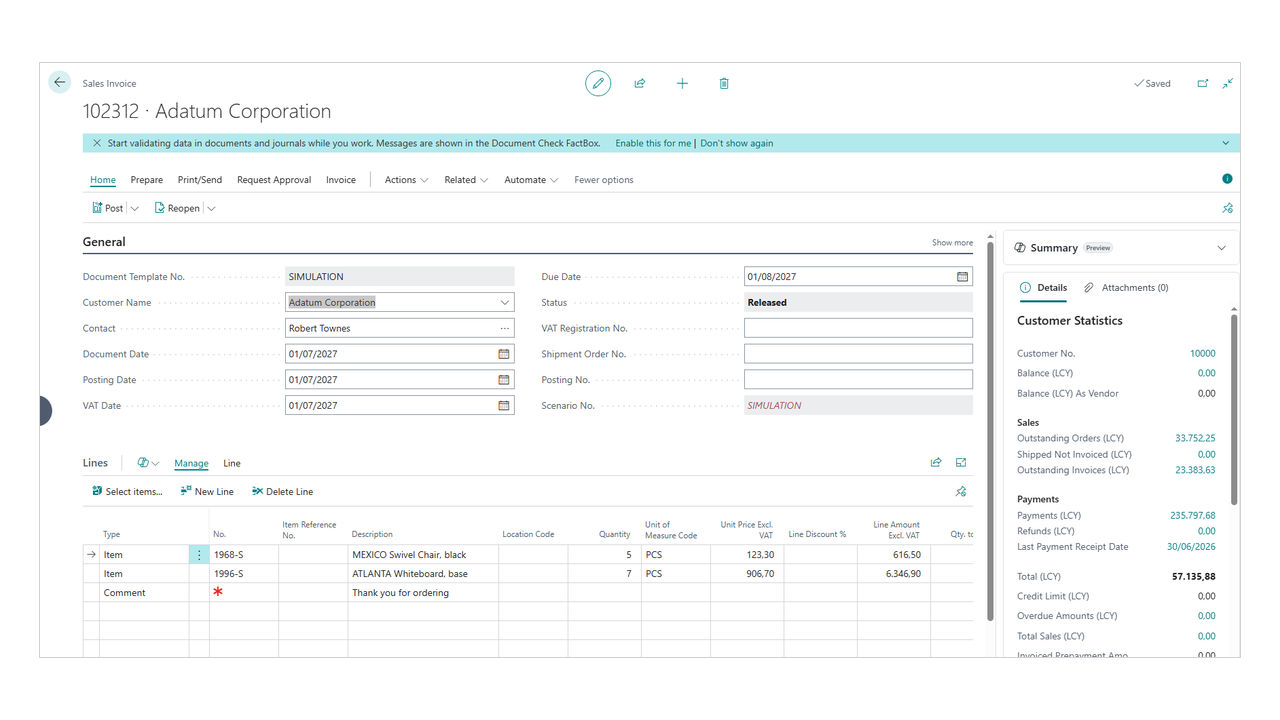
- Preview posting (Ctrl+Alt+F9): the Posting Preview (GLS) opens with the entries that will land in the scenario.
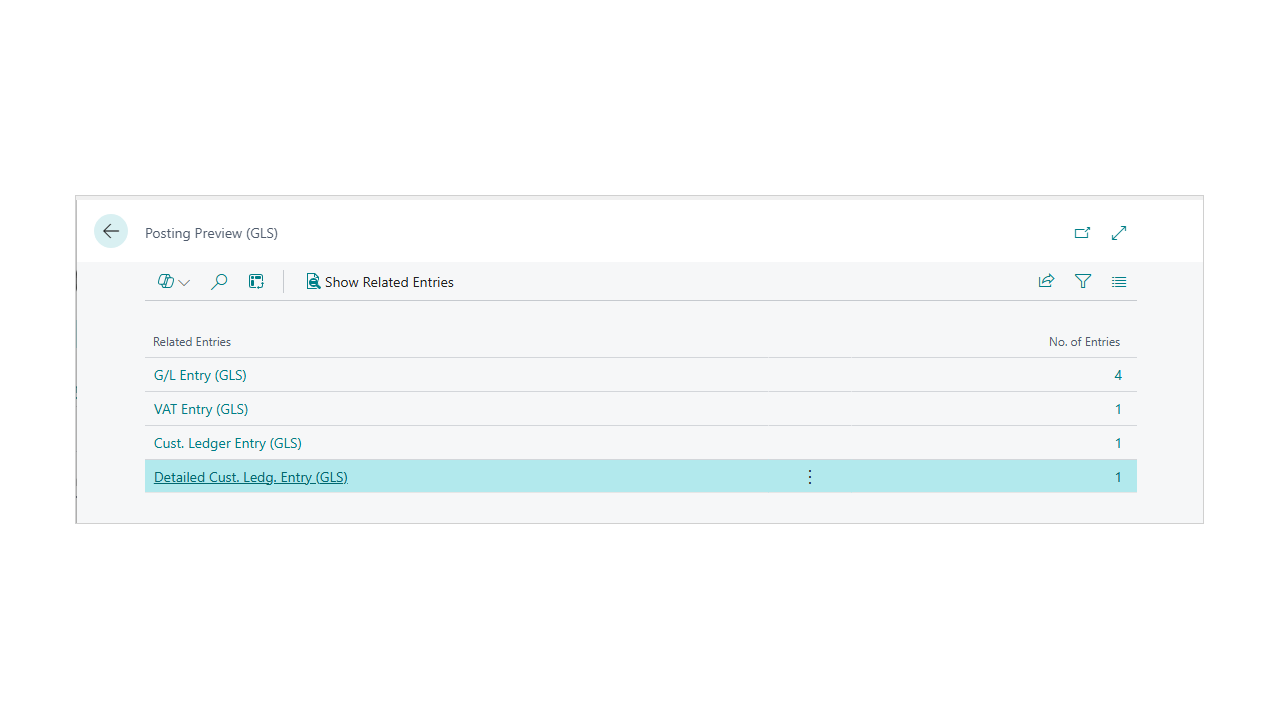
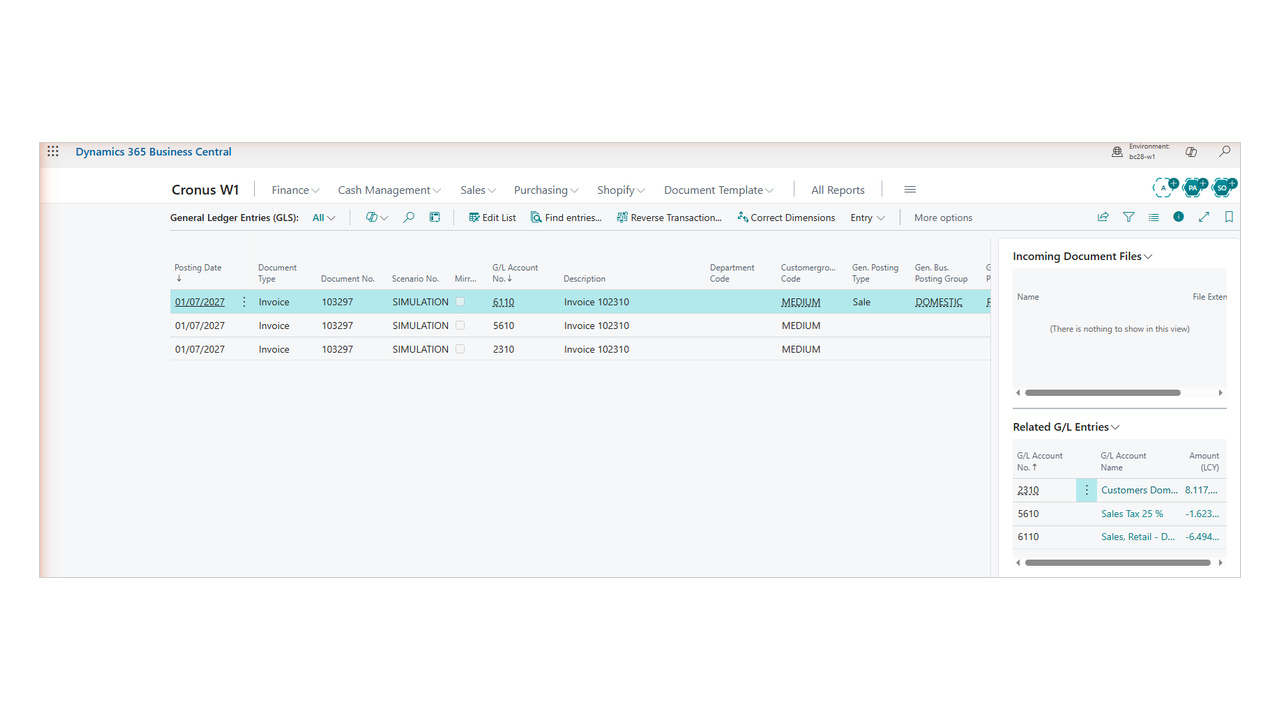
- Post. The entries go only into the scenario ledgers; the real posted document is created; the official ledgers stay empty for this document. Open General Ledger Entries (GLS) to see them, with the Scenario No. column.
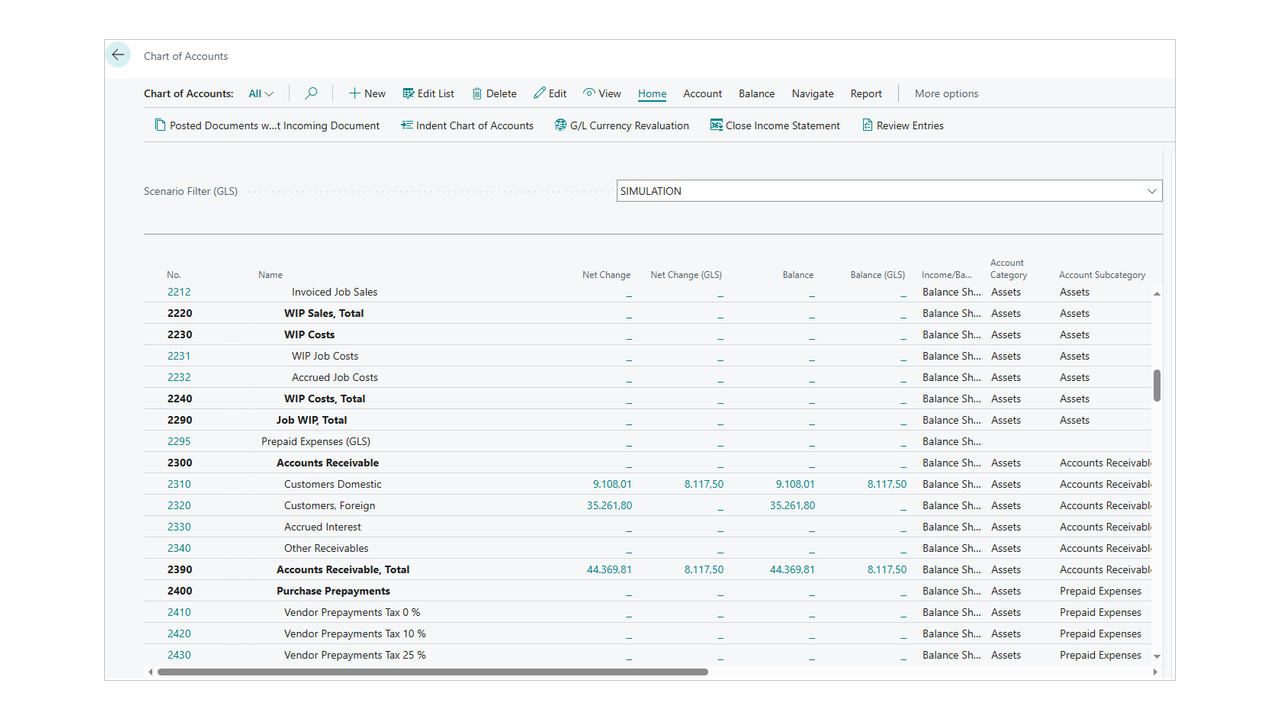
- Chart of accounts: the scenario columns (Net Change (GLS), Balance (GLS)) show the simulated figures next to the standard ones, which stay zero for this document. Use the Scenario Filter (GLS) at the top to switch scenario.
4.2 Management: mirror the official books
- Create a Management scenario.
- Run Initialize Management Scenario (GLS): choose the scenario (optionally a date/account filter) and run it to fill the scenario with a copy of the standard G/L. The report is idempotent - already-reflected entries are skipped, so you can run it again at any time; use Empty Scenario First to restart from a clean copy.
- From now on, every standard posting is mirrored into the scenario automatically (entries flagged Mirrored).
- Set Def. Chart of Acc. Scenario No. to the management scenario so the chart of accounts compares the official balance and the management balance by default.
4.3 Management deferral: spread an amount already invoiced
When a posted invoice carries an amount whose competence spans several months, spread it in the management scenario:
- Open the posted purchase invoice (a cost, prepaid expenses) or the posted sales invoice (a revenue, deferred income) and choose Defer in Scenario.
- The dialog is prefilled (income statement account, amount, date, document; the deferral account from setup, by side). Set the No. of Periods and confirm.
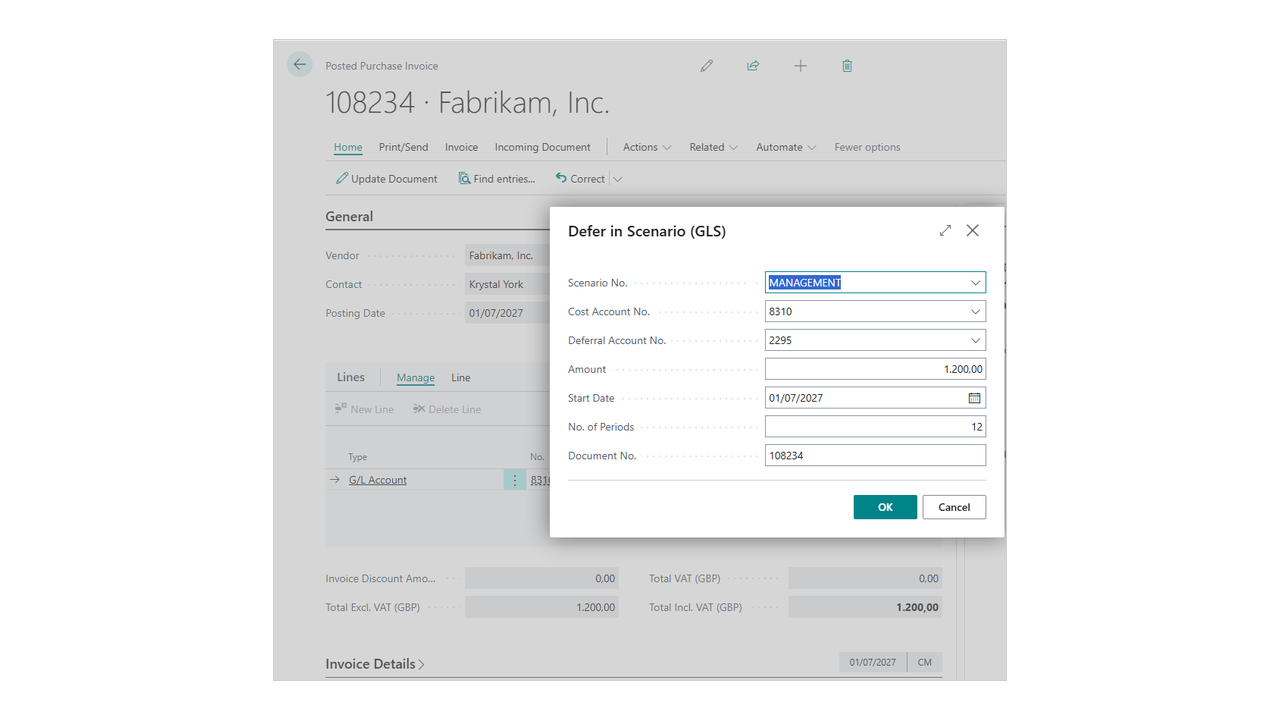
The wizard generates the deferral lines - the removal entry plus one quota per period - in the RISCONTI batch of the Adjustments Journal: review them and post the batch. The fiscal G/L stays as posted; the management balance shows the competence amount month by month.
4.4 Adjustments journals: accruals and reclassifications
Scenario adjustments are ordinary journals bound to the management scenario, with the semantics on the batch: RATEI (accruals), RISCONTI (deferral lines from the wizard) and RICLASS (manual management reclassifications). The journals provision themselves on first open.
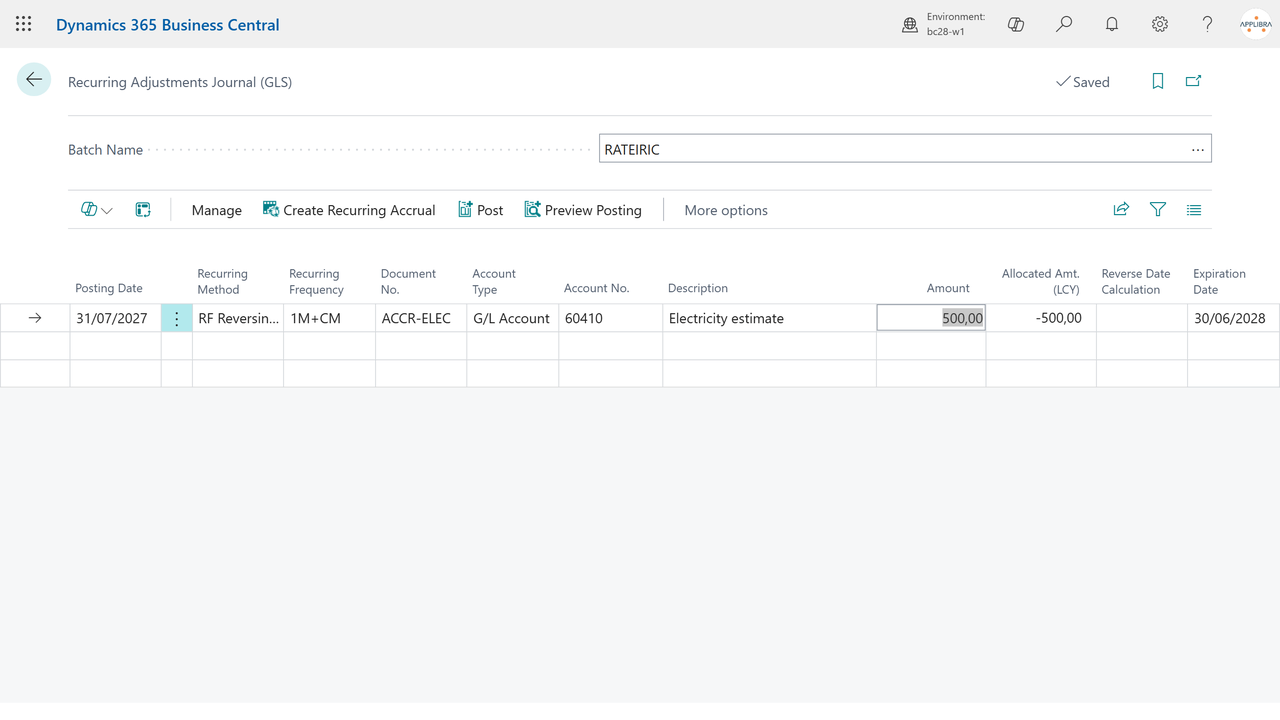
A recurring monthly estimate (a cost or revenue accrued every period until the invoice arrives): open the Recurring Adjustments Journal (GLS) and use Create Recurring Accrual. It creates ONE self-advancing line (RF Reversing Fixed): every posting run books the accrual at period end and its automatic reversal the day after, then the line moves to the next month end by itself, until the expiration date. Post the batch as part of your period-end routine.
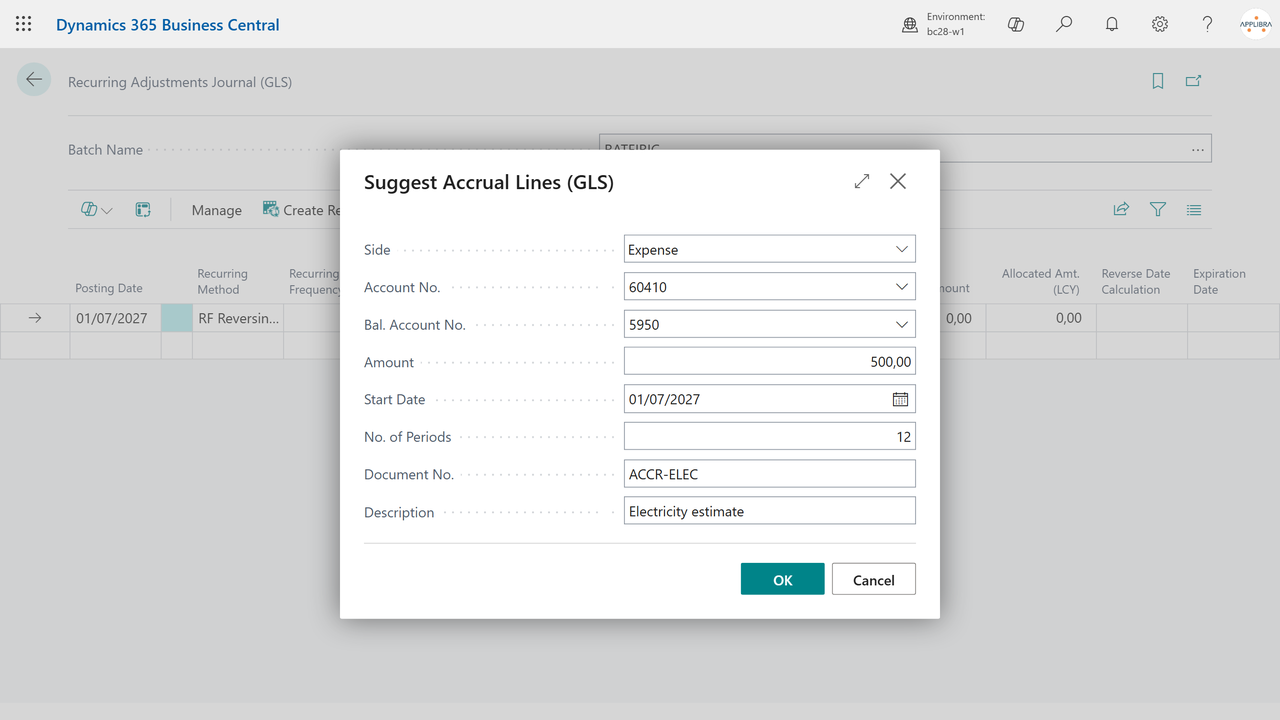
A progressive accrual toward a maturity (quotas that accumulate until the invoice is expected): open the Adjustments Journal (GLS) and use Suggest Accrual Lines. It generates one quota per period plus the negated reversals, all released at the maturity date; the last quota absorbs the rounding. Review and post.
For both, pick the Side: Expense debits the cost account against accrued expenses (invoices to be received); Income debits accrued income (invoices to be issued) against the revenue account. The balance sheet account defaults from setup.
A reclassification (moving a cost between accounts in the management view only): type the lines by hand in the RICLASS batch and post.
4.5 Reading the results
- Chart of accounts: statutory balance and scenario balance side by side; the drill-down on the scenario side separates the Mirrored entries (the reflected official G/L) from the adjustments (accruals, deferral quotas).
- Find Entries on a document number lists the scenario entries as well.
- General Ledger Entries (GLS) and the other GLS ledger pages carry the Scenario No. column.
5. Where to find it
- Tell Me: search the object name or "G/L Scenarios", "Scenarios", "Adjustments Journal".
- Role centers: a G/L Scenarios group in the Accountant and Accounting Manager role centers (Setup, Scenarios, Adjustments Journal, Recurring Adjustments Journal, Initialize Management Scenario).
- AppLibra hub: Shift+F12 -> Explore other roles -> AppLibra.
- Manual Setup: the setup page is registered under Manual Setup.
6. Tips and troubleshooting
- "Nothing to post" on a normal preview. On earlier builds the standard preview reported nothing to post for scenario documents; the current build opens the Posting Preview (GLS) instead.
- The scenario has duplicates after initialization. The initialize report is idempotent on the current build; if you suspect leftovers from an older build, run it with Empty Scenario First.
- A document must go to both books and scenario. That is what a Management scenario is for (it mirrors the official posting); a template scenario is either/or by design (No G/L Ledger Entry).
- Italian fiscal mechanics in simulations. Legacy non-deductible VAT, multiple installments, withholding and split payment are not replicated inside simulation scenarios; use simple invoices for simulations. Mirroring, accruals and deferrals are localization-neutral.
7. Support and resources
- Publisher: AppLibra - https://applibra.com
- Apps catalog: https://applibra.com/apps
- Privacy policy: https://applibra.com/privacy-policy
- Terms of use: https://applibra.com/terms