AL Advanced Discounts and Pricing
AL Advanced Discounts and Pricing - User guide
How to set up and use the app in Business Central.
1. Concepts in one minute
Standard Business Central gives a sales or purchase line one discount percentage. Negotiations often do not work that way: a customer gets "10 plus 5 minus 2", a price is agreed line by line and must not be recalculated, an invoice discount comes from the payment terms and someone adds a point by hand.
AL Advanced Discounts and Pricing adds three things on top of the standard calculation, and leaves the standard behaviour untouched wherever you do not use them.
- Compound discount: a discount written in cascade form, such as
10+5-2. The app resolves it into the single equivalent percentage and writes that into the standard Line Discount % field, so every standard total, posting and report keeps working. - Forced values: a compound discount or a unit price that wins over whatever the price list would produce, until you clear the field.
- Advanced invoice discount: an invoice discount that comes from the payment terms, can be topped up by hand, and follows the originating orders when an invoice is built from several shipments.
The compound discount also travels: it ends up in the electronic invoice and in the printed documents, not only on screen.
2. Prerequisites
Microsoft Dynamics 365 Business Central, version 28.0 or higher, online (SaaS) and on-premises. AppSource covers online environments; on-premises is distributed and installed directly by AppLibra, through the AppLibra License Manager.
The app installs together with AL Foundation App, AL Message Passing, AL License and Trial Management and AL Role Center, which come with it.
One setting is on the customer, not in this app, and it is the most common reason for "the discount does not apply": on the customer card, under Invoicing, Allow Line Disc. must be on. Without it Business Central refuses any line discount, this app included.
3. Where to find it
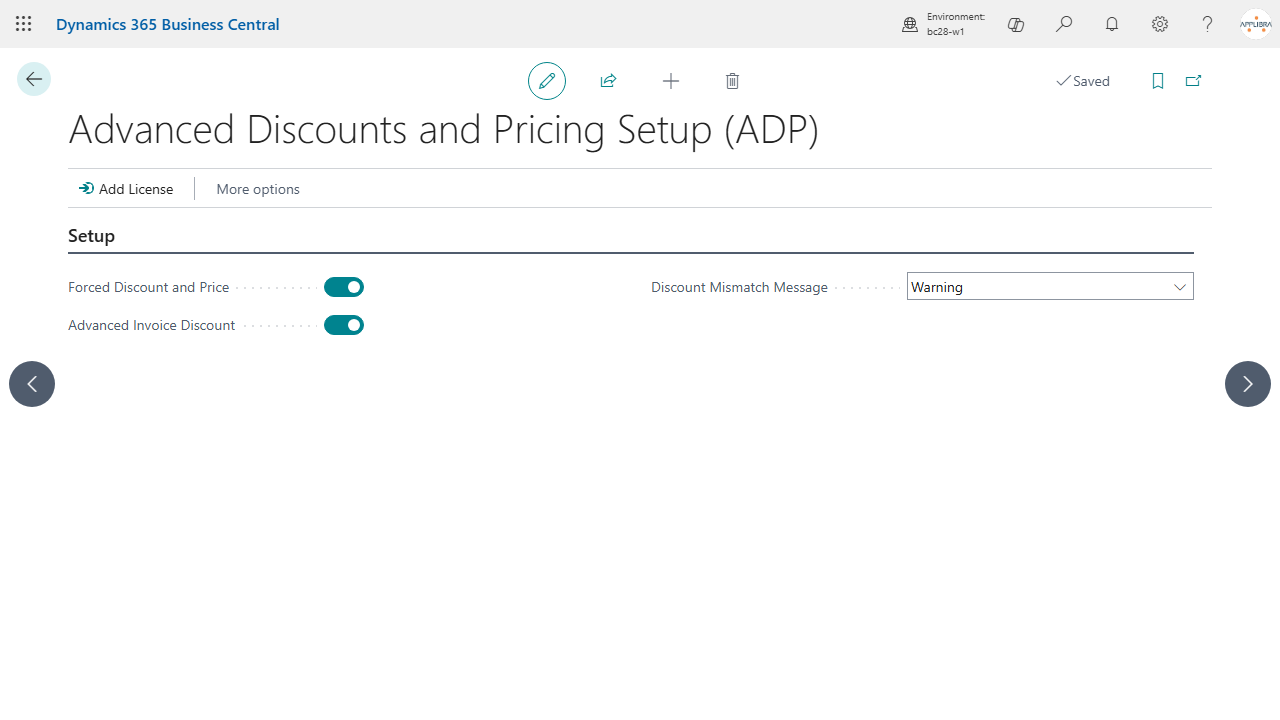
The setup page is called Advanced Discounts and Pricing Setup (ADP). You reach it in three ways:
- Tell Me: search for the page name, or for
ADP, or forALPto see every AppLibra app. - Your own role centre, in the Advanced Discounts and Pricing (ADP) group.
- The AppLibra hub role centre, in the shared Setup section. You reach the hub with Shift+F12, Explore other roles, AppLibra.
The fields on documents do not need to be looked for: they appear on the sales and purchase documents you already use, described in section 5.
4. Setup
Open Advanced Discounts and Pricing Setup (ADP). There are six settings in three groups: Sales and Purchases, each with the two switches that say which agreed prices are binding, and Invoice Discount, with the two settings that govern it.
Binding prices
The price and the discount agreed on a document can be made binding on the document that comes from it. There are two steps, and each has a switch in the Sales group and one in the Purchases group, with the same name, so you turn on only what you need.
| From blanket order to order | From order to invoice | |
|---|---|---|
| Sales group | Binding Blanket Order Price | Binding Order Price |
| Purchases group | Binding Blanket Order Price | Binding Order Price |
Binding Blanket Order Price. When it is on, an order line made from a blanket order line gets the price and the discount of that line in its forced fields, so they stay as agreed whatever is done to the order line afterwards. The same happens when you tie an order line to a blanket order line by entering its number by hand. When it is off, Business Central still copies the price of the blanket order line, but nothing protects it, and the line takes the default compound discount of the order, if there is one.
Binding Order Price. When it is on, an invoice line taken from a shipment, or from a receipt on purchases, gets the price and the discount of its order line in its forced fields. When it is off, the invoice line takes the default compound discount of the invoice, if there is one.
These switches do not turn the forced fields on or off. A Forced Unit Price or a Forced Compound Discount typed on a line always works, whatever the four switches say: the switches only decide whether the app fills those fields for you. Leave them all off if you only want the compound discount and the forced values you type yourself.
If you update from a version that had one switch only, called Forced Discount and Price: that switch is now Binding Order Price in the Sales group, and Binding Blanket Order Price in the same group starts with the same value. The two switches of the Purchases group start off.
Invoice discount
Invoice Discount from Orders. Affects sales invoices that have lines taken from shipments. When it is on, the invoice discount is calculated from the discount already distributed over the lines of the originating orders, in proportion to the quantity taken on the invoice, and the result is written in Manual Invoice Discount % of the invoice: the orders win, even if the payment terms of the invoice would say otherwise. The calculation is made when you take the lines with Get Shipment Lines on the invoice page, and made again when the invoice is released, also by posting. So it holds also when the invoice has changed in the meantime, for example with a reduced quantity, and for invoices whose lines were created in another way, such as those of AL Combine Shipments. A line added to the invoice by hand brings no discount: the discount of the orders stays the same amount, on a larger total. It works the same way with Calc. Inv. Discount on or off in Sales & Receivables Setup; the exception is customers with standard invoice discounts, described further on.
If Invoice Discounts Differ. Decides what happens when the lines taken from shipments come from orders whose invoice discount % differs from one order to another or, with Invoice Discount from Orders off, from the one on the invoice. Four choices: Message warns and continues, Error blocks, Confirm asks whether to continue, Nothing does nothing. The comparison is made on the percentages of the headers, payment plus manual. With Invoice Discount from Orders on, the invoice takes the discount of the orders anyway, so only the orders are compared with one another: an invoice that does not have the discount of its one order yet is not a mismatch. Start from Message and move to Confirm once you have seen how often it happens on your data. This check too is made with Calc. Inv. Discount on or off. It is made when you take the lines with Get Shipment Lines on the invoice page, not at release.
Opening this page the first time also starts the trial period, through AL License and Trial Management.
5. Daily use
On the document header
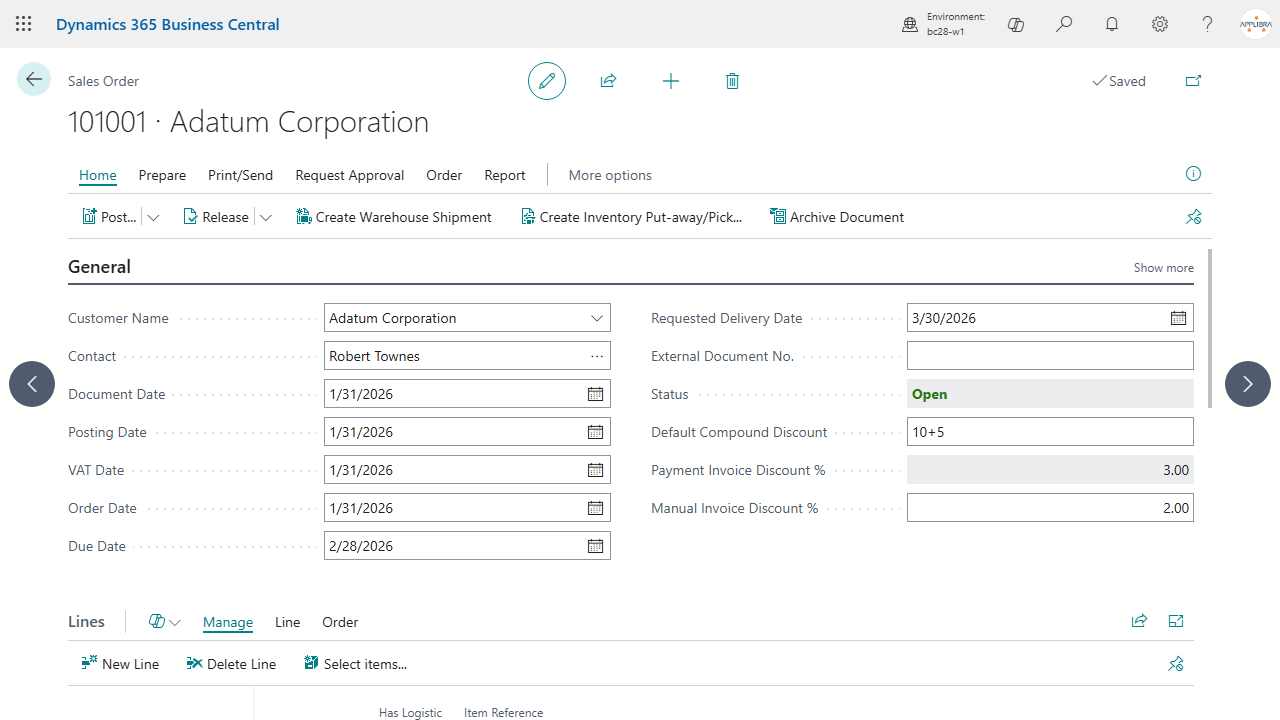
Three fields sit in the header of the documents. Default Compound Discount is on every sales and purchase document: quotes, blanket orders, orders, invoices, credit memos and returns. The two invoice discounts are on sales only, on the same documents.
Default Compound Discount is the compound discount proposed on every new line of the document. Changing it also updates the lines whose Forced Compound Discount still carries the previous value, so raising a negotiation from 10+5 to 12+5 does not mean going through the lines one by one. Lines where somebody typed a different discount by hand are left alone, which is the point.
The same field exists on the customer card, and from there it lands on that customer's new documents, so a standing agreement is typed once.
Payment Invoice Discount % is the invoice discount that arrives from the payment terms of the document. You do not type it here: you set it on the payment terms, and every document that uses them carries it.
Manual Invoice Discount % is what you add by hand on top. The two together form the invoice discount of the document. On an invoice, with Invoice Discount from Orders on, once there are lines taken from shipments the app calculates the field from the orders and it cannot be changed; it can also be negative. With Invoice Discount from Orders off it stays yours: you type it and the page applies it to the lines.
Customers with standard invoice discounts. When Calc. Inv. Discount is on in Sales & Receivables Setup and the customer has lines on the Cust. Invoice Discounts page, Business Central calculates the invoice discount of that customer's documents, at every recalculation and at release. On those documents the app writes nothing, and the two fields above must stay at zero: a document that has a percentage, from the payment terms or typed by hand, is neither released nor posted, and the error says what to do. On the document page a message says so as soon as the percentage arrives, for example when you choose the customer or the payment terms. To use the customer's discounts, set Manual Invoice Discount % to zero and give the customer payment terms with no invoice discount. To use the percentages of the document, delete the customer's invoice discounts or turn off Calc. Inv. Discount. In every other case the two do not touch: customers with no lines on Cust. Invoice Discounts use the percentages of the app also with Calc. Inv. Discount on.
On the document lines
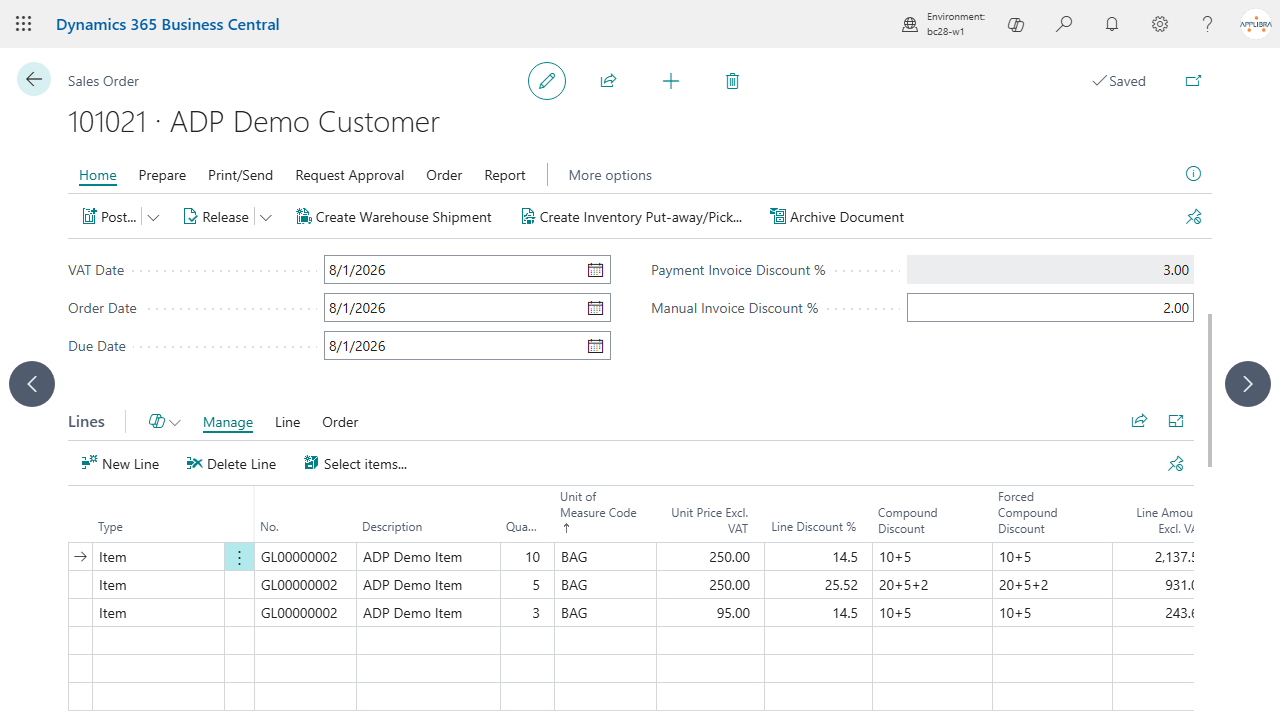
Three fields sit at the end of each line.
Compound Discount shows, and does not let you edit, the discount actually applied to the line, written in compound form. If it reads 10+5, the standard Line Discount % field reads 14.5, which is what 10+5 really means: five percent off what is left after ten percent, not fifteen.
Forced Compound Discount is where you type. Write 20+5+2 and the line takes that discount, whatever the price list says, for as long as the field has a value. To go back to the standard discount or to pick one from the price list, clear this field first: while it holds a value it wins.
Forced Unit Price does the same for the price. Type an amount and the line uses it instead of the price Business Central would find. Clear it and standard pricing comes back. While it holds a value Business Central does not search the price lists for that line, so the line discount is not looked up again either: it stays as it is on the line.
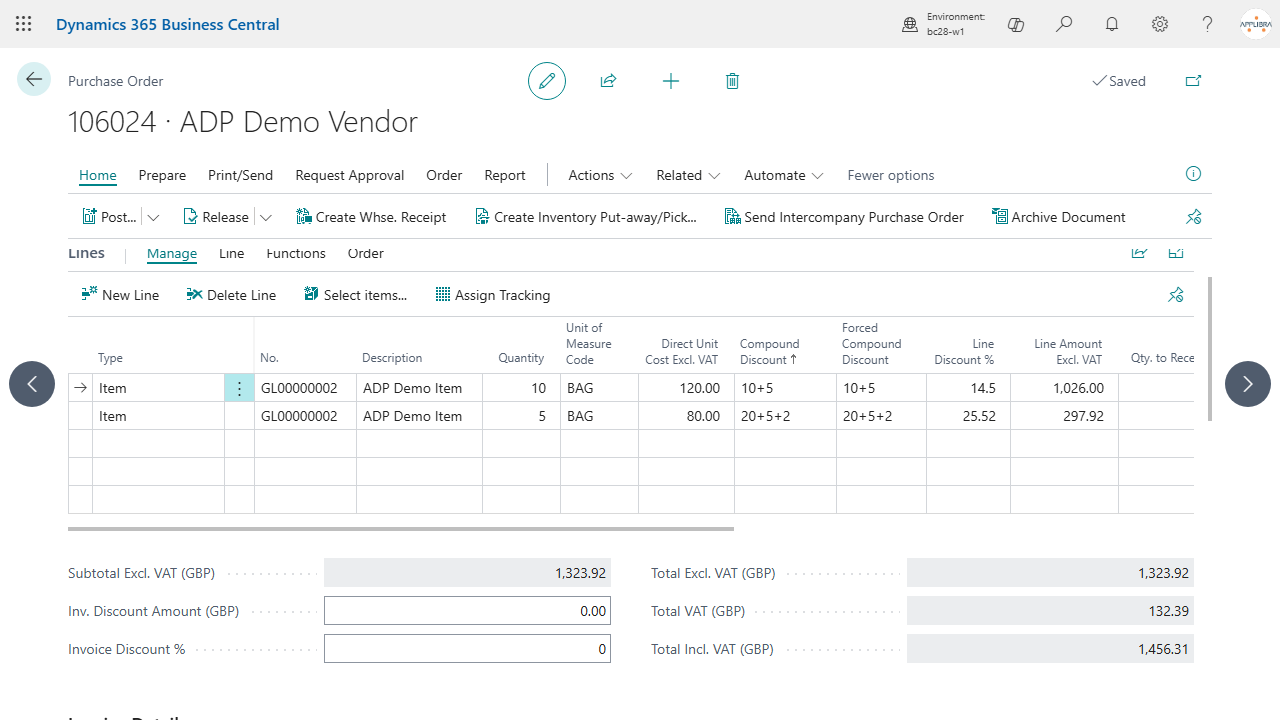
Purchases work the same way, with the same field names, on purchase quotes, blanket orders, orders, invoices, credit memos and returns.
On price list lines
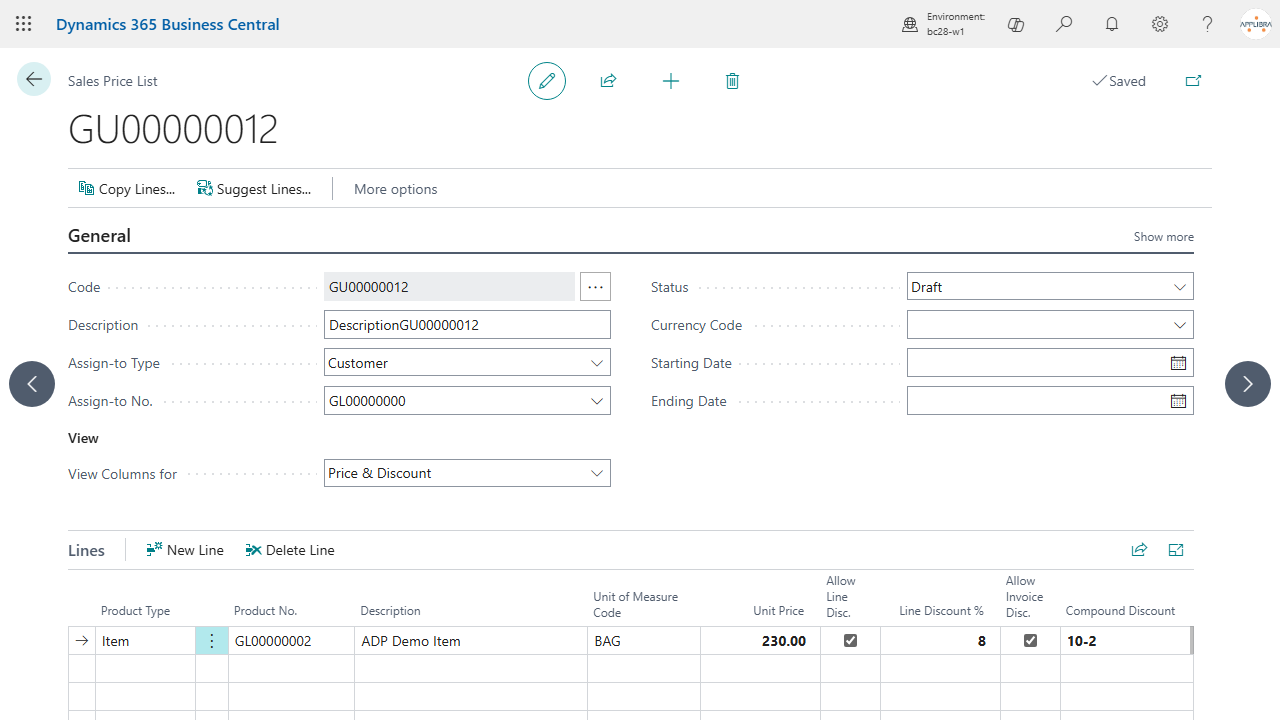
A price list line carries a Compound Discount of its own, visible on the sales and purchase price list pages, on the price line lookup and on the price list line review. When you pick that line for a document, the compound discount comes along with the price.
This is worth knowing if you also use AL Hierarchical Price List: that app governs the structure of the price list and who it applies to, this one governs the price and the discount of the single line. The two live on the same price list line and do not overlap.
After posting
Posted documents show the same fields, read only, with the values that were applied when the document was posted. The compound discount also reaches the electronic invoice, as a discount or surcharge element, and the printed documents, as the line discount text. So what the customer reads on the invoice is the discount as it was negotiated, 10+5, and not only the resolved percentage.
6. Limits and notes
The compound discount is a text field with its own parsing, kept separate from the standard discount on purpose: the standard field keeps holding the resolved percentage, so nothing downstream has to learn a new format.
Signs are read in order and each step applies to what is left after the previous one. 10+5 is not fifteen percent, it is 14.5. A minus sign is a surcharge, so 10-2 takes ten percent off and then adds two percent back.
Forced Unit Price and Forced Compound Discount work whatever the setup switches say. If a discount you typed seems to be ignored, the customer's Allow Line Disc. is the first thing to check.
The Default Compound Discount of a document goes on every new line, with one exception: a line that comes from a blanket order line or from a shipment or receipt, when the switch of that step is on, keeps the discount of the line it comes from.
The invoice discount already distributed on an order line, or on a blanket order line, passes to the line that comes from it as long as the price and the discount of the line stay the same. That is the case when the switch of that step is on; when it is off, it is the case if the new document has no Default Compound Discount or if the line already has it. If instead the Default Compound Discount of the new document takes the place of the discount of the line, the amount of the line changes and its invoice discount is set to zero: it has to be calculated again on the document, as when a line discount is changed by hand.
With AL Catch Weight Management installed, the forced unit price is in the unit in which the line looks for its price. On a line that has an accounting unit of measure, KG or piece, it is a price per that unit, and the price of the line follows it: on a carton of 12 pieces whose accounting unit of measure is the piece, a forced unit price of 2 gives 24 per carton. On every other line it is a price per unit of measure of the line, as it has always been.
Two roles come with the app: AL Advanced Discounts and Pricing - User for daily work, which can read the setup but not change it, and AL Advanced Discounts and Pricing - Administrator, which adds full control of the setup. The role centre shows the setup action to everybody, so a user with the operational role only will get a permission error if they click it. That is standard Business Central behaviour.
7. Support and resources
- Product page and help: https://applibra.com/apps/al-advanced-discounts-and-pricing
- Support: through the channel agreed in your contract, or the contact on the product page.
- The app is distributed by AppLibra on Microsoft AppSource.