AL Combine Shipments - User guide
How to set up and use the app in Business Central.
1. Concepts in one minute
- A combine shipment code is a named set of grouping fields. Two posted shipments end up on the same invoice when ALL the fields of the code match.
- The setup lines are the catalogue of shipment fields available for grouping. The Mandatory lines always apply; a code adds its own fields on top of them.
- The code is assigned on the Customer card, travels to the sales order and to the posted shipment, and stays editable on both.
- The Combine Shipments (CSH) report reads the posted shipments of a period and creates one invoice per distinct combination of the grouping values, as drafts or posted.
- On the combined invoice the customer master data has the final word: revalidated fields such as payment terms come from the customer card, not from the order.
2. Prerequisites
- Microsoft Dynamics 365 Business Central version 28.0 or later, Cloud (SaaS).
- Languages available: en-US and it-IT.
- The app installs together with its AppLibra dependencies: AL Message Passing, AL Role Center and AL License and Trial Management.
- Licensing: creating the setup record starts a one-month trial. The report checks the license at the start of every run; after the trial expires the run stops at the license check until a license is in place.
- Permissions: assign ALPCS-USER (AL Combine Shipments - User) to operators who run the combine, and ALPCS-ADMIN (AL Combine Shipments - Administrator) to whoever maintains the setup and the codes. ALPCS-ADMIN includes everything in ALPCS-USER.
An operator with only ALPCS-USER who opens the setup gets a standard Business Central permission error: that is expected, the setup requires ALPCS-ADMIN.
3. Setup
Search Combine Shipment Setup (CSH) in Tell Me, or start from the guided setup lists: in Assisted Setup the app appears as "Set up AL Combine Shipments", in Manual Setup as "Combine Shipment Setup (CSH)". The wizard AL Combine Shipments Assisted Setup (CSH) walks you through Welcome, Introduction and the Terms of Use (confirm I understand and accept these terms.); in its setup step, choose Add Suggested Fields to create the default combine shipment code and the suggested setup fields.
The setup has two parts:
- The header, with Def. Combine Shipment No. (the code used for customers that have no code of their own) and Assisted Setup Completed.
- The Combine Shipment Setup Lines (CSH): the catalogue of posted shipment fields available for grouping. Each line has Mandatory, Sequence, Field Name, Sales Inv. Field Name (the invoice header field that receives the value) and Validate Invoice Header Field (whether the value is validated on the invoice header or just assigned).
Add Suggested Fields (an action of the wizard's setup step) fills the catalogue with the suggested starting point: Bill-to Customer No., Sell-to Customer No., Ship-to Code, Customer Price Group and VAT Bus. Posting Group. It is a modifiable starting point: you can add any sales header field, and the mapping is validated against the real tables, so a grouping field must exist both on the posted shipment and on the sales invoice header. 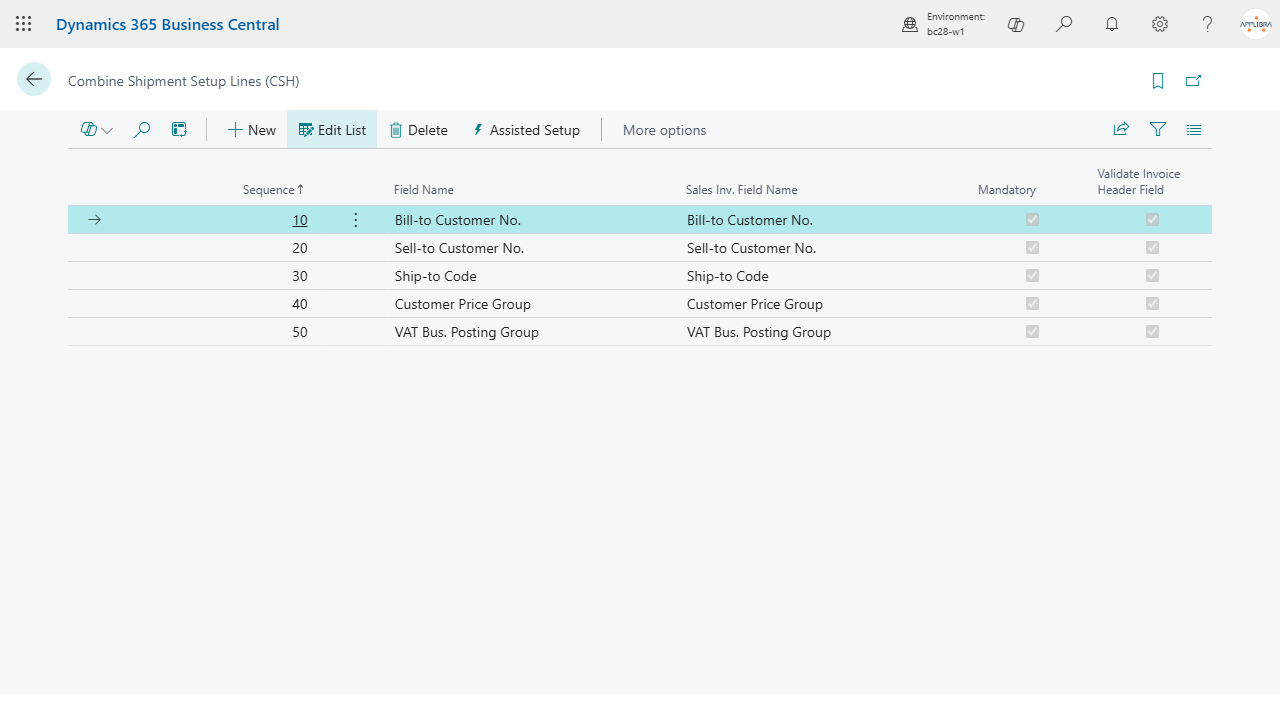
Sequence rule: the report validates the fields on the invoice header in Sequence order, and the mandatory customer fields come first (sequences 10-30). Give the fields of your codes a Sequence AFTER all the mandatory setup lines, for example 100 and up. A code field placed at or below the mandatory sequences still splits the invoices correctly, but its value gets overwritten on the invoice header by the customer defaults.
4. Combine shipment codes
Open Combine Shipment List (CSH) to see the codes and Combine Shipment Card (CSH) to edit one. A code has No., Description and Status, plus its lines: the grouping fields picked from the non-mandatory part of the setup catalogue, each with Sequence, Field Name, Sales Inv. Field Name and Validate Invoice Header Field. 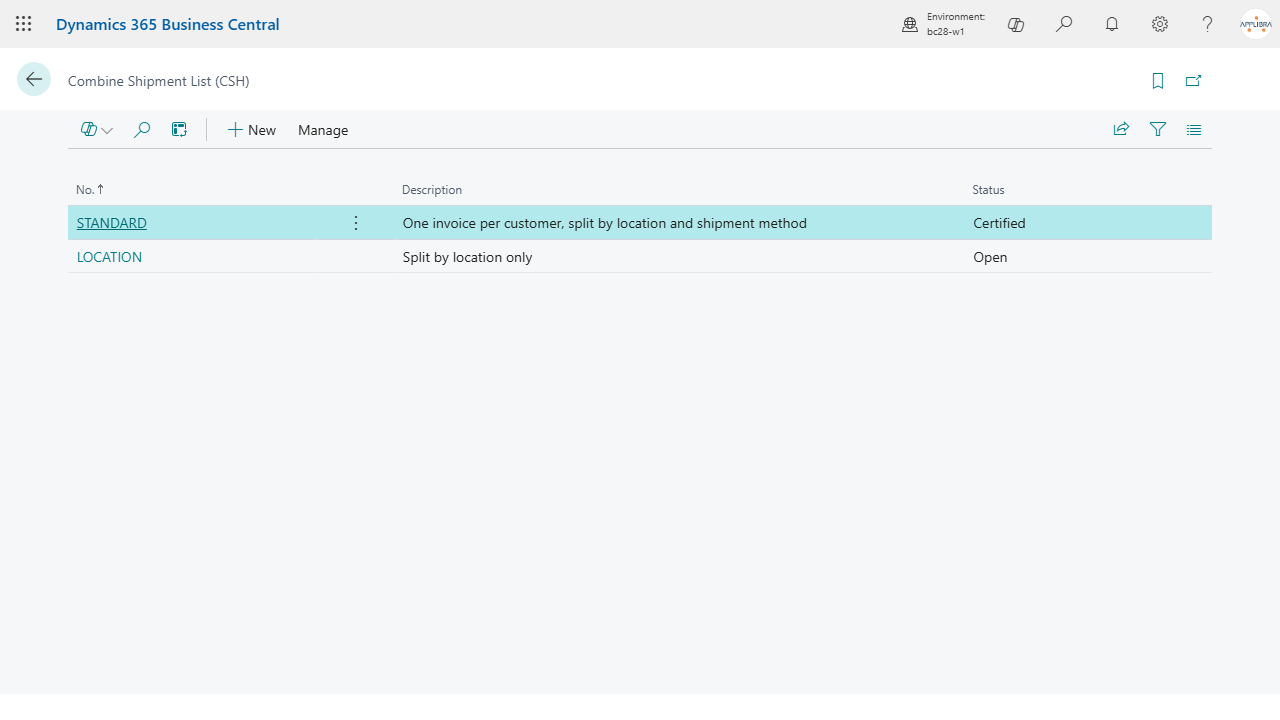
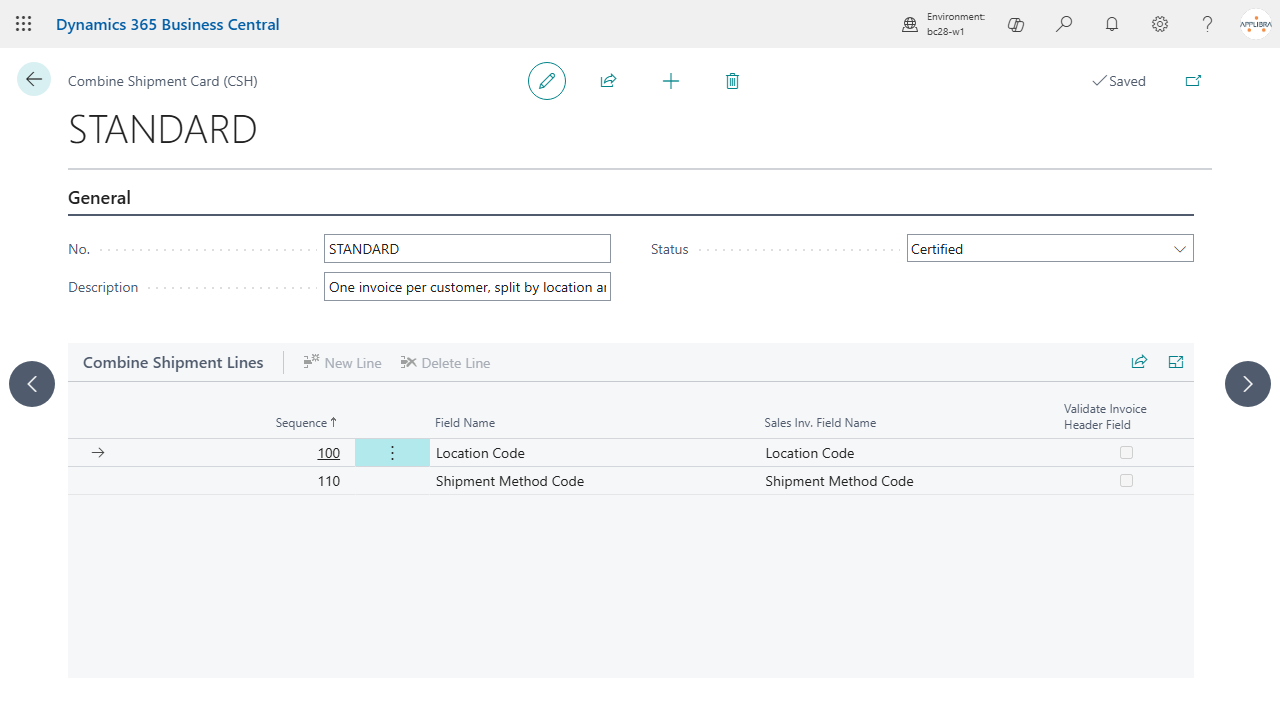
Certified when its field list is final: certifying validates the mapping of the lines and locks them against further changes. Make it part of your procedure before handing the code to operations: the run itself does not check the status.
5. Daily use
5.1 Customer, order, posted shipment
Assign the code in Combine Shipment No. on the Customer card, at the bottom of the Invoicing FastTab: it is the only field the run reads to group a customer's shipments (the standard Combine Shipments toggle belongs to standard combined invoicing and is not read by the app). When you create a sales order the code is copied from the customer (both when the sell-to customer is entered and when the bill-to customer changes, falling back to the setup default), and it stays editable on the order, in the Shipping and Billing FastTab (use Show more if hidden). 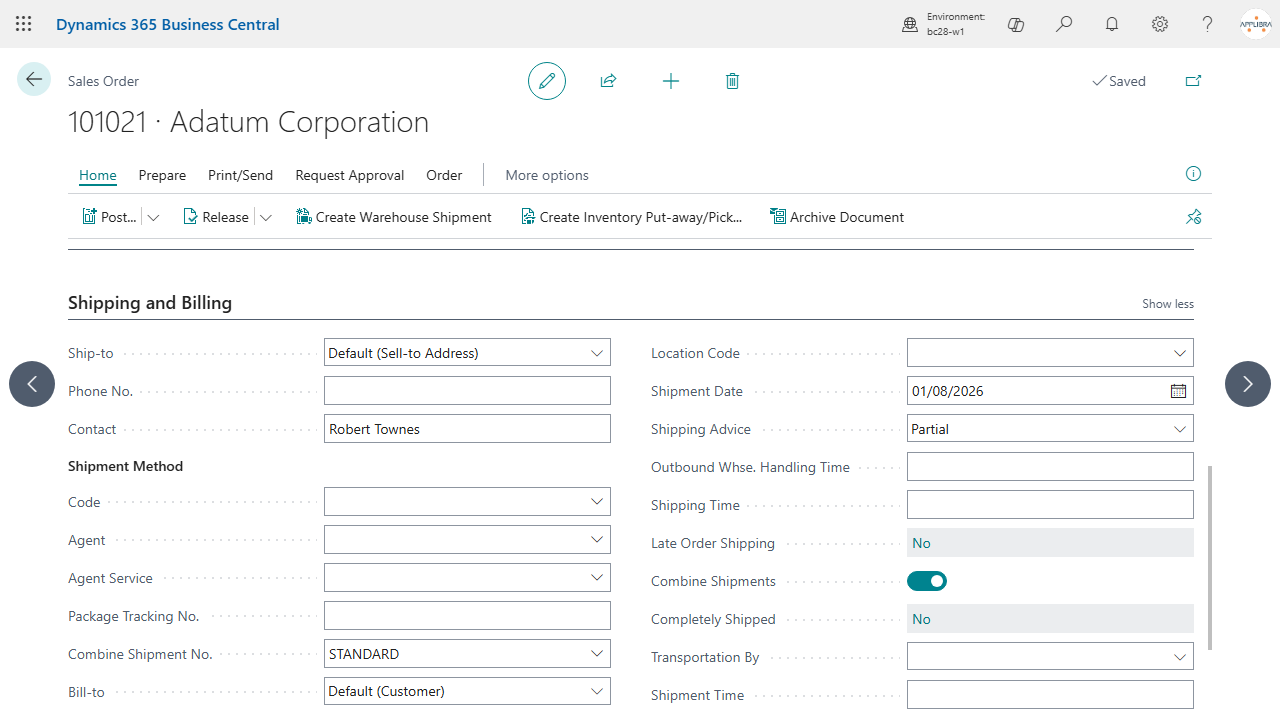
5.2 Run Combine Shipments
Run the report Combine Shipments (CSH). The request page offers:
- Combine From Date and Combine To Date: the period of the shipments to combine.
- Posting Date and Document Date of the invoices to create. Both must be filled in; Posting Date defaults to the work date and Document Date to the Posting Date. An empty date stops the run with an error.
- Calc. Inv. Discount: defaults to the value in Sales & Receivables Setup; you can always turn it off for the single run, while you can turn it on only when the setup field is off.
- Post Invoices: post the created invoices immediately, or leave them as drafts to review first.
- Filters on Sell-to Customer No. and Bill-to Customer No. to restrict the batch.
The entered values are saved for the next run. 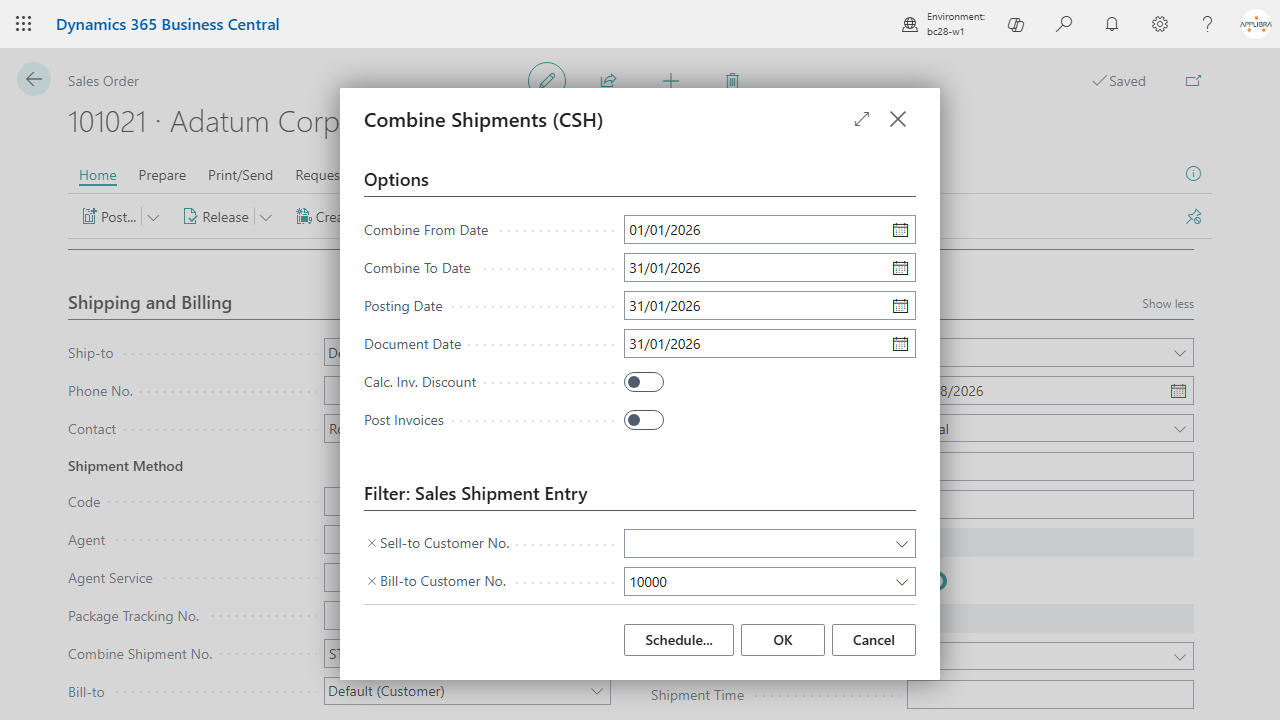
All or Invoice are skipped.
5.3 The combined invoice
The result is one sales invoice per distinct combination of the grouping values in the period, with those values carried into the invoice header. Keep in mind:
- The customer master data has the final word. The revalidation of the mandatory fields resets payment terms, payment method and salesperson from the customer card, so the combined invoice follows the master data even where an order carried different values. In normal production this is invisible, because order and master data coincide.
- Free-text lines of the shipments are not copied to the combined invoice, by design: they carry no customer or grouping fields, so they cannot be attributed safely. Each shipment keeps its own heading line on the invoice, so the shipments remain distinguishable.
6. Italian localization
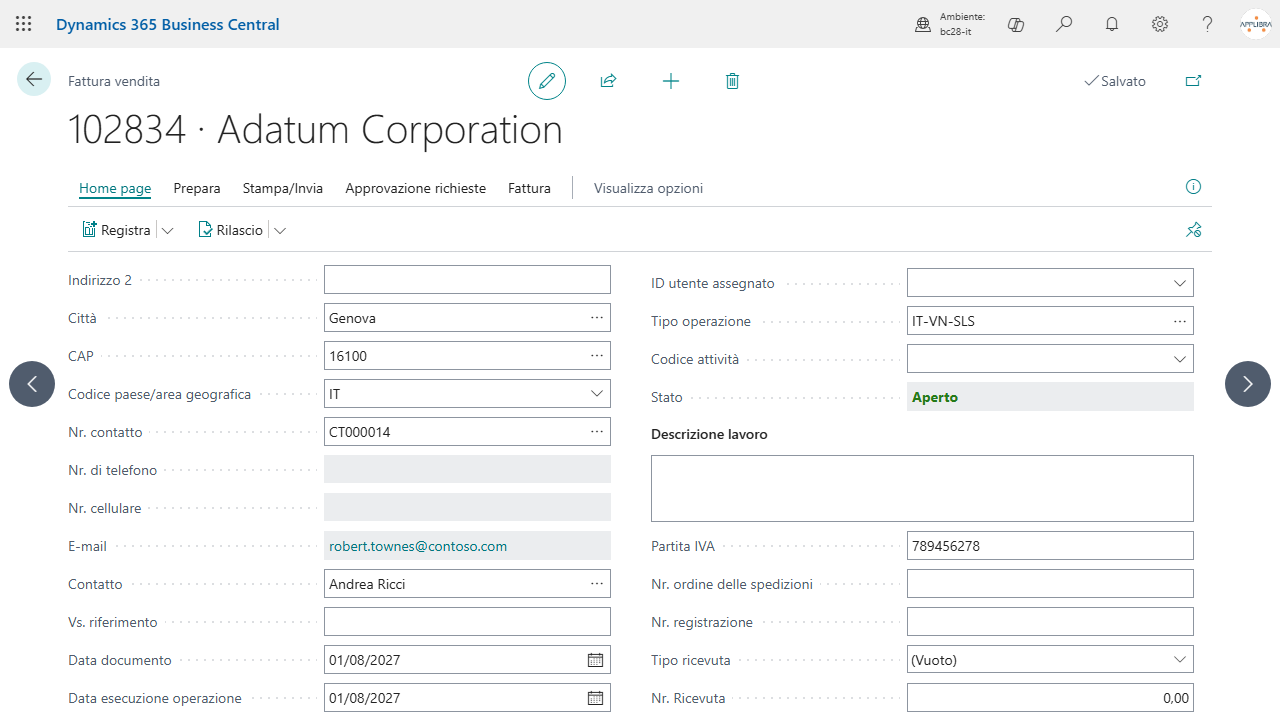
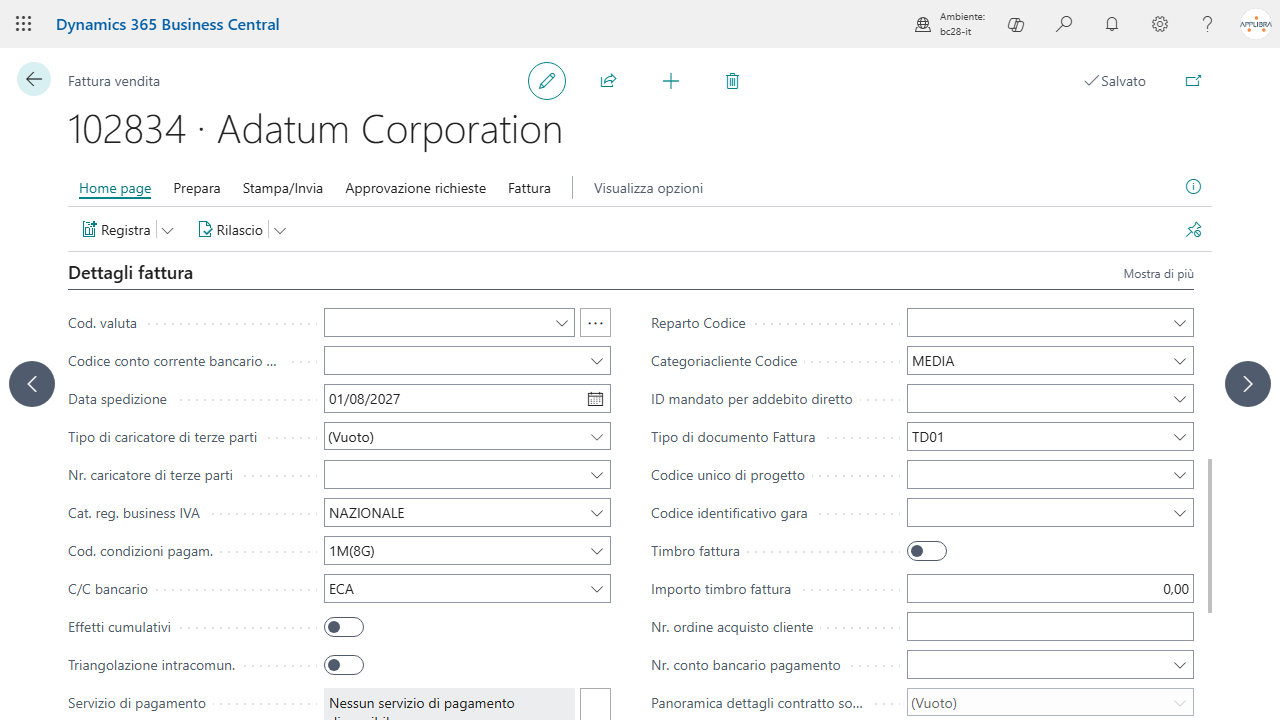
The companion app AL Combine Shipments IT adds the Italian deferred-invoicing rules on top of the base app; its behavior is visible only with the Italian localization of Business Central. It groups the shipments also by operation type (the sezionale), makes the Operation Type mandatory for the run, confines the run period within one month, carries the operation occurred date, the bank, CUP and CIG to the invoice header, hooks the VAT exemption handling, and forces the fattura (e-invoice) document type on the combined invoices. With the Italian localization the request page also shows the Operation Type and Forced Fattura Document Type options. 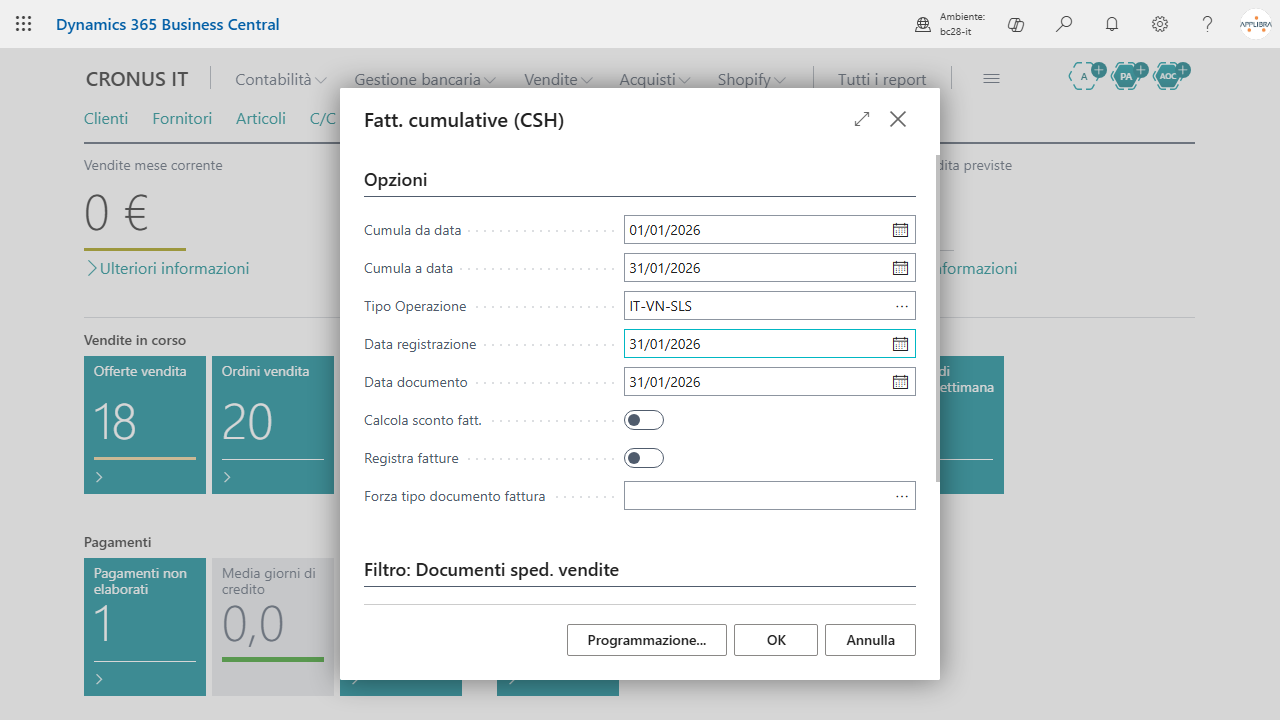
7. Where to find it
- Tell Me: search "CSH", or directly "Combine Shipment Setup (CSH)", "Combine Shipment List (CSH)", "Combine Shipments (CSH)" (the report).
- Role center: the Combine Shipments (CSH) group (the app installs the AppLibra role center; press Shift+F12, choose Explore other roles, then AppLibra).
- On master data and documents: Combine Shipment No. on the Customer card, on the sales order, and on the posted sales shipment (editable via Posted Sales Shipment - Update).
8. FAQ and limits
- The run stops with an error on the dates. Posting Date and Document Date are both required on the request page; fill them in and run again.
- A customer's shipments are not invoiced. Customers blocked with
AllorInvoiceare skipped by the batch. Check that the posted shipments carry a Combine Shipment No. and a quantity shipped not yet invoiced. Also check the license: after the one-month trial expires the run stops at the license check. - Do I have to certify a code? Yes, as a working rule:
Certifiedlocks the field list so the grouping cannot change between runs. The run does not block anOpencode by itself, so certify before handing the code to operations. - My grouping value does not reach the invoice header. Check the Sequence of the code line: it must come after the mandatory setup fields, for example 100 and up.
- Payment terms on the invoice differ from the order. By design: the combined invoice follows the customer master data on the revalidated mandatory fields.
- Text lines of the shipments are missing on the invoice. By design: free-text lines are never copied; each shipment keeps its heading line on the invoice.
- Can I group by any field? By any field that exists both on the posted shipment and on the sales invoice header; the mapping is validated when you enter the setup line.
- Running the batch twice. Safe: only quantities shipped and not yet invoiced are picked up, so nothing is duplicated.
- An operator cannot open the setup. Expected with ALPCS-USER only: setup and codes require ALPCS-ADMIN. The legacy permission set was replaced by these two; the upgrade moves its assignments to ALPCS-ADMIN.
- After upgrading from the 25 line, new users of a license lack the app permissions. The upgrade moves the direct assignments of the legacy AL COMBINE SHIPMENTS permission set, and its inclusions in your own permission sets, to ALPCS-ADMIN. It cannot update the permission sets given to new users by license (License Configuration page): if you used the legacy set there, choose ALPCS-USER or ALPCS-ADMIN in its place.
9. Support and resources
- Publisher: AppLibra - https://applibra.com
- Apps catalog: https://applibra.com/apps
- Privacy policy: https://applibra.com/privacy-policy
- Terms of use: https://applibra.com/terms