AL Fatturazione Elettronica - User guide
How to set up and use the app in Business Central.
1. Concepts in one minute
- Active cycle is what you issue: a posted sales invoice or credit memo becomes a FatturaPA XML file, with a progressive number, listed in Active Cycle Documents (FEL) and saved in the active cycle folder.
- Passive cycle is what you receive: the XML or signed P7M files of your vendors are read from the passive cycle folder, listed in Passive Cycle Documents (FEL), matched to a vendor and turned into a purchase invoice or credit memo.
- AL Bridge carries the files between Business Central and the folders on your network, through its local agent, and decodes the signed P7M envelopes and the attachments with its cloud services. Without it the passive cycle does not work and the active cycle files are not saved in a folder.
- The intermediary is whoever takes your files to SdI and brings back the receipts. The app prepares and stores the file; an intermediary connector, if you install one, reports the delivery status back.
- The fiscal data lives on the standard documents. Document type (TipoDocumento), CUP, CIG, recipient code, split payment and stamp duty are fields of customers, sales documents and posting groups, proposed automatically and checked when you release a document.
- The fiscal reports (VAT settlement, G/L book, VAT register) are the standard Business Central 29.0 IT reports, rebuilt with the differences the app needs: split payment, page numbering, PDF and Excel output.
- Everything is under Electronic Invoicing (FEL) in the Accountant role center, and every page and report can be found with Tell Me by typing FEL. The documents of the two cycles and the setup are also in the AppLibra hub, which every profile reaches with Shift+F12, Explore other roles, AppLibra.
2. Before you start
- Microsoft Dynamics 365 Business Central, version 29.0 or higher, online (SaaS) and on-premises. AppSource covers online environments; on-premises is distributed and installed directly by AppLibra, through the AppLibra License Manager.
- An Italian company: the app relies on the Italian localization of Business Central (Fattura document types, Fattura PA number series, VAT registers, operation types).
- Required apps, installed with it: the free base of the AppLibra platform, that is AL Foundation App, AL Message Passing and AL Role Center; AL Message Passing IT; AL License and Trial Management; AL Bridge, the connector infrastructure, needed for the passive cycle (and for saving the active cycle files in a folder), with its local agent installed at your site.
- An intermediary for SdI, or at least a folder where its files arrive and from where it collects yours.
- License. Open Electronic Invoicing Setup (FEL) and choose Add License: it installs the one-month trial, counted from the day the setup was created. If a license already exists, nothing changes.
- Where to find the app: Extension Management, entry "AL Fatturazione Elettronica", publisher AppLibra.
3. Setup
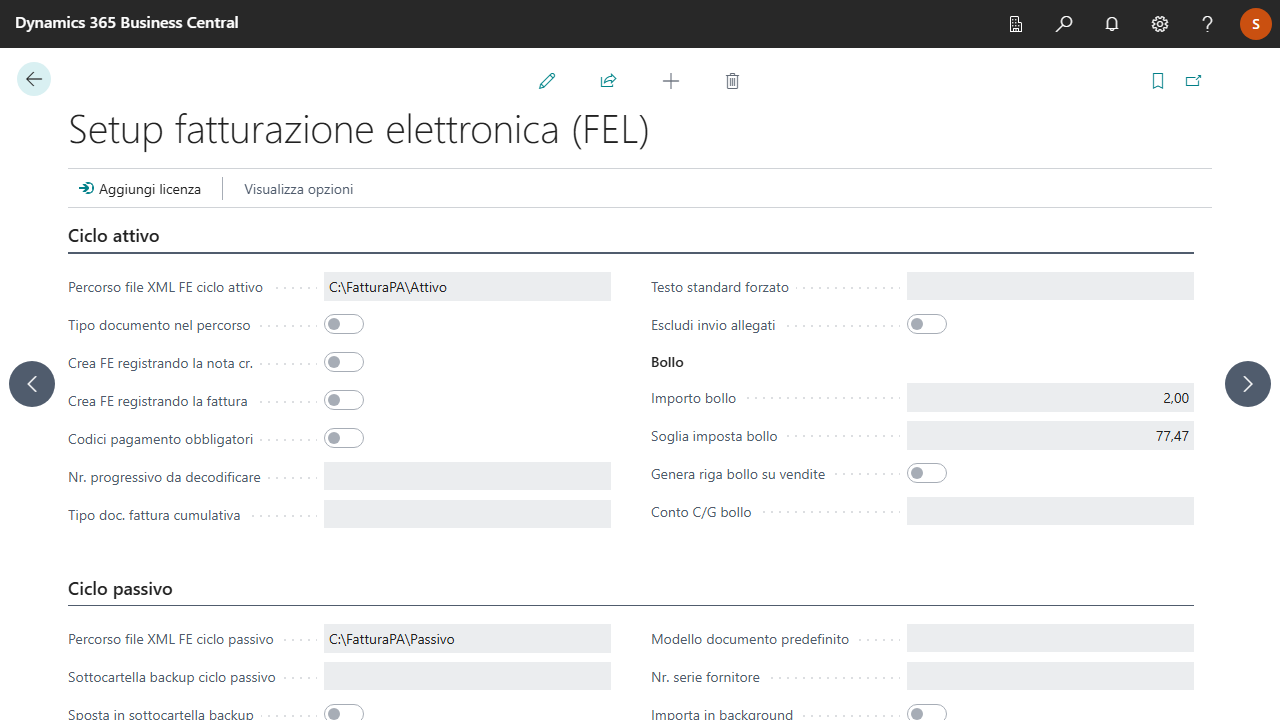
AppLibra can also provide a RapidStart configuration package (code FE) with document sending profiles, electronic document formats, payment methods and a starting setup.
3.1 Active Cycle
| Field | What it does |
|---|---|
| FE Active XML File Path | Folder where AL Bridge saves the XML files you issue, in subfolders named after the database and the company, created when you enter it. Empty: no file is saved. |
| Include Fattura Document Type in Path | Saves the files in one more subfolder per document type (TD01, TD04, ...). |
| Create FE on Sales Invoice Posting / Create FE on Sales Cr. Memo Posting | Generates the XML automatically when a sales invoice or credit memo is posted. Off: use Generate XML Invoice on the posted document. |
| Mandatory Payment Codes | A missing payment method code or payment terms code blocks the XML of a posted invoice; off, it is only a warning. |
| Progressive No. to Decode | Type the five characters after the underscore in a file name to see the matching number of the Fattura PA series. |
| Default Combine Shipment Fattura Doc. Type | Document type for the invoices that a dedicated extension creates from combined shipments, when no other type can be determined. |
| Forced Standard Text | Standard text added at the end of every sales document on release, if its extended text is enabled for that document type; with FE Add to Invoice it also goes in the XML as Causale. |
| Exclude Send Attachment | Leaves the attachments of the posted document out of the XML; off, each attachment is embedded in the Allegati section. |
Stamp: Stamp Amount (proposed 2.00), Stamp Threshold (proposed 77.47), Generate Stamp Line on Sales and Stamp G/L Account. See section 9.
3.2 Passive Cycle
| Field | What it does |
|---|---|
| FE Passive XML File Path | Folder from which AL Bridge reads the received XML and P7M files, in subfolders named after the database and the company, created when you enter it. |
| Passive XML Backup Subfolder / Passive XML Error Subfolder | Where files imported without errors, and files that fail, are moved, in a monthly folder such as 2026-10. Empty: the monthly folder is created directly in the passive cycle folder. |
| Move to XML Backup Subfolder / Delete After Backup To Subfolder | Imported files are always moved, so they leave the import folder; the two options make the backup subfolder mandatory. |
| Passive ZIP Subfolder | A subfolder for ZIP files, created by AL Bridge, for the apps that work with them. |
| Vend. Gen. Bus. Posting Group, Vend. VAT Bus. Posting Group, Vendor Posting Group, Vendor No. Series | Used for the vendors you create from a received document. Existing vendors are not changed. |
| Use Receipt Date as Purchase Posting Date | The purchase document takes the receipt date as posting date; otherwise the posting date of the received document, or the work date. |
| Default Template Document No. | A purchase document template that the documents created from received invoices carry with them; with AL Document Template you choose it among its templates (section 12). |
| Import Passive Documents in Background | Creates, if missing, a job queue entry for Import Passive Cycle Documents (FEL) and sets it to Ready; off, it stops it. The entry runs every day from 08:00 to 20:00, every 60 minutes; you can change it in Job Queue Entries. It imports the files AL Bridge has already read; reading the folder is a separate step (section 6.3). |
| Import Passive Documents on Page Opening | Imports the files already read by AL Bridge every time Passive Cycle Documents (FEL) opens. |
| Passive XML as Attachment / Passive Attachment as Attachment | Saves the received XML, and the attachments it contains (several in one ZIP), as attachments of the purchase document. |
| Payment Lines from XML | The due dates and amounts of the XML replace the payment lines of the purchase document; due dates before the document date are moved to that date. |
| Manage Vendor IBAN / Initial Vendor Bank Acc. Code | The IBAN of the XML becomes the bank account of the purchase document, created on the vendor if missing, with codes that continue from the vendor's last one or from the initial code. |
3.3 Self-Invoice and Competence
| Field | What it does |
|---|---|
| Self-Invoice Template Name / Self-Invoice Batch Name | Cash receipts journal and batch (AUTOFATT) where the lines that close a posted self-invoice are prepared. |
| Self-Invoice Customer No. | The customer of the self-invoices: a customer with your own company's data. |
| Self-Invoice Text Code | Standard text added at the end of self-invoices: %1 is the VAT business posting group description, %2 the vendor name, %3 and %4 the vendor document number and date. |
| Self-Invoice G/L Account | Account of the self-invoice lines; empty, each line uses the account of the purchase line. Required for reverse charge. |
| Split Payment Text Header Code | Standard text added at the end of split payment sales documents on release. |
| Default Vendor Tax Regime | RegimeFiscale of the vendor in self-invoices, when the vendor has none. |
| Enable Competence, Default Competence Invoice G/L Acc., Default Competence Cr. Memo G/L Acc., Automatic Competence Lines, Competence Template Name, Competence Batch Name | See section 8. |
3.4 Fiscal Reports
| Field | What it does |
|---|---|
| VAT Identifier Code on VAT Register Lines | The lines of the VAT register show the code of the VAT identifier instead of its description. Off (the default) they show the description, which tells the title of a non-taxable or exempt operation. |
| Last Printed VAT Settlement Page | The last printed page of the VAT settlements of the year. See section 10.1. |
4. Customers, vendors and posting groups
4.1 Customer card
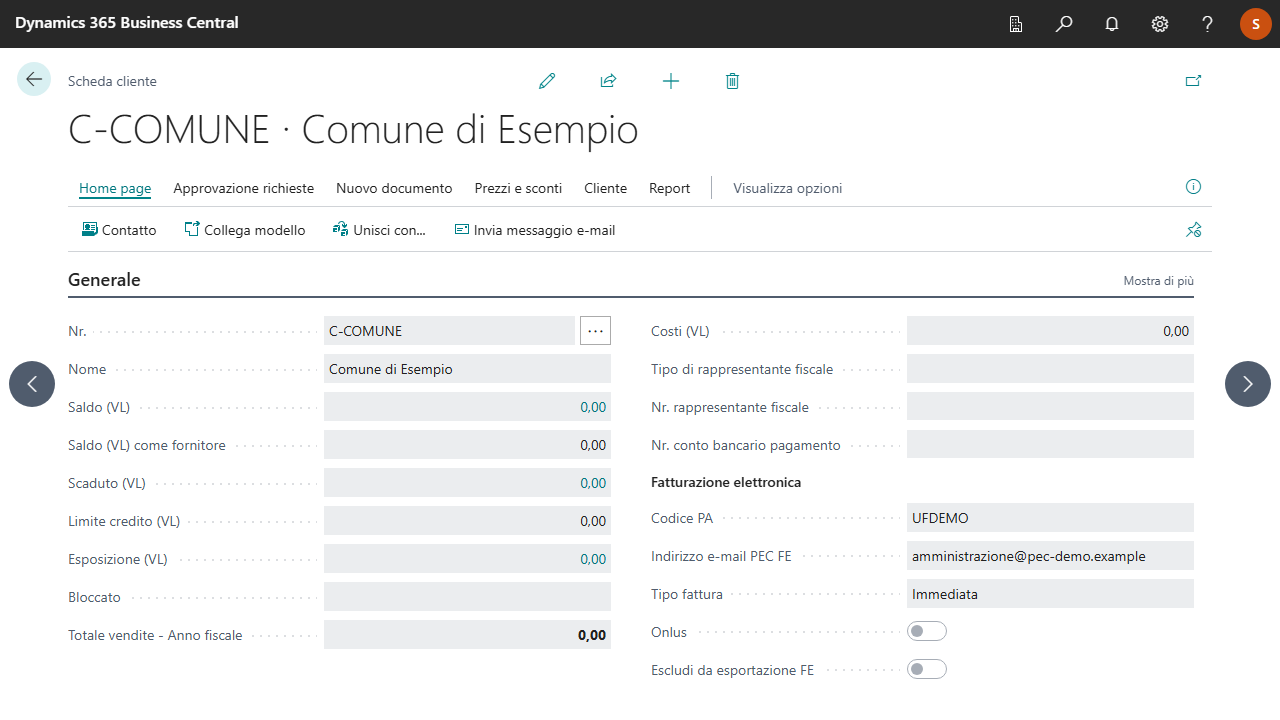
- PA Code: the recipient code (CodiceDestinatario). Italian customers without it are exported with 0000000 and their PEC address, foreign customers with XXXXXXX (San Marino 2R4GTO8).
- FE PEC E-Mail Address: the PEC address, exported when the code is 0000000.
- Invoice Type: Immediate (TD01), Deferred (TD24, the only type that allows Combine Shipments) or Accompany (the shipment takes the invoice number). It is copied to the sales documents.
- Withholding Tax Code: invoice lines on the withholding tax payable account of that code are exported as DatiRitenuta.
- FE Destination Code: exported with the delivery name when the customer has a TipoDato line (section 4.2). A ship-to address with its own FE Destination Code takes precedence.
- Onlus: a non-profit customer without VAT registration number; its fiscal code is used.
- Exclude from FE Export: no XML for this customer's documents. It is copied to the sales documents, where it can be changed.
Customer templates have the Invoice Type too: a customer created from a template takes it.
4.2 Customer Electronic Invoicing Setup (FEL)
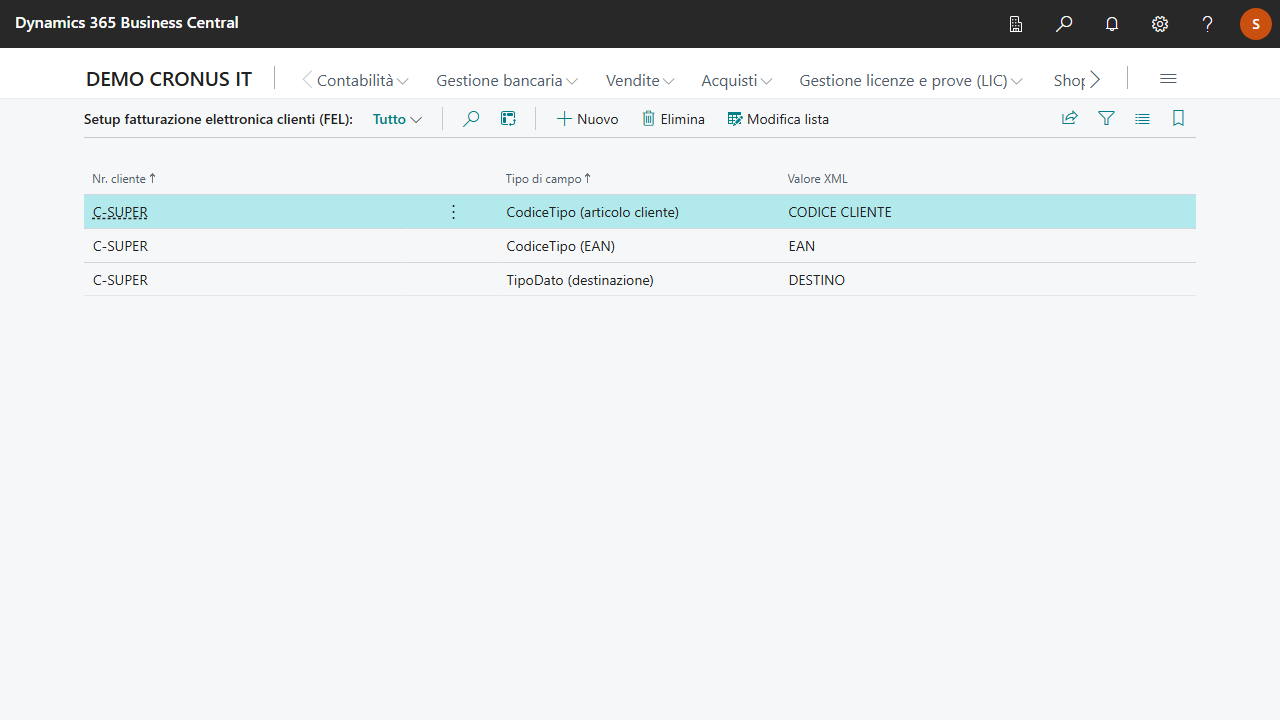
- CodiceTipo (Our Item), CodiceTipo (Customer Item), CodiceTipo (EAN): the CodiceTipo written next to our item number, the customer's item reference or the EAN code. An EAN line with a blank customer applies to all customers.
- TipoDato (Destination): writes the destination code (customer or ship-to address) with this TipoDato, at most 10 characters.
4.3 Vendor card
- Default for Received E-Invoices: this vendor gets the received invoices with its VAT registration number or fiscal code. Only one vendor per VAT registration number can have it. The app sets it when you create or link a vendor from a received document.
- Tax Regime: the RegimeFiscale of the vendor in the self-invoices you issue for it.
4.4 Posting groups, document types and payment terms
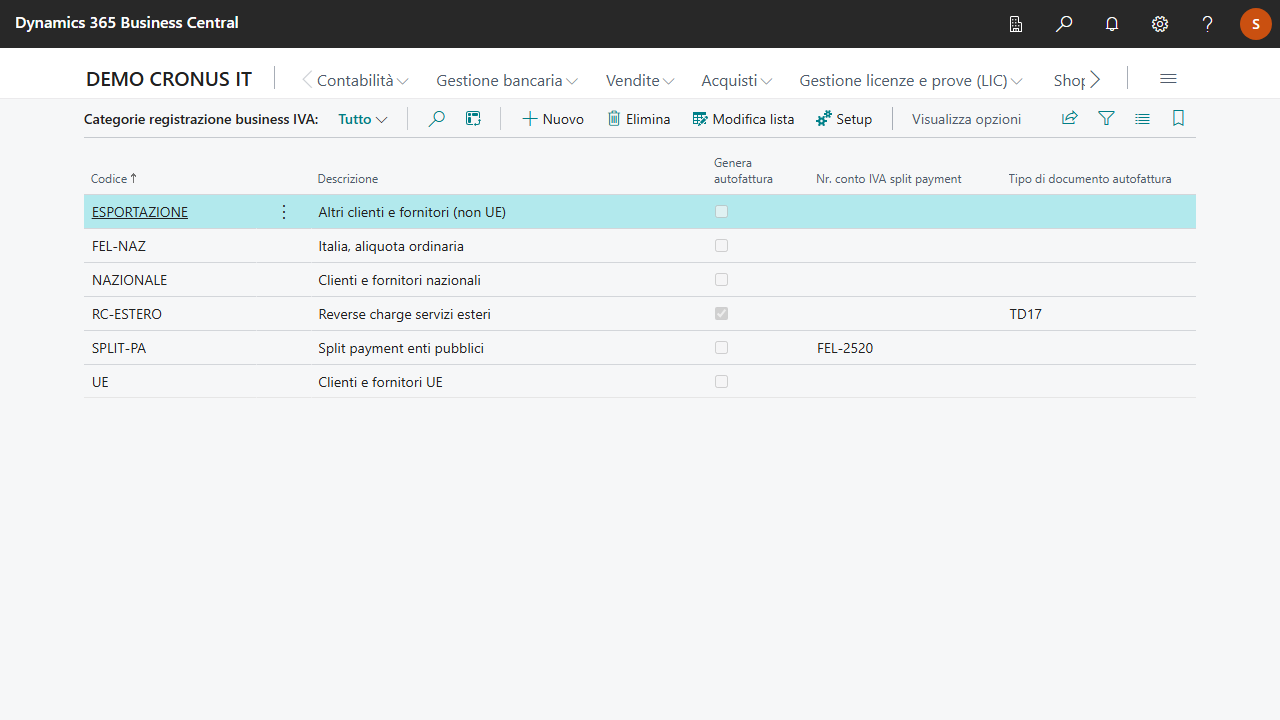
- VAT Business Posting Groups: Generate Self-Invoice and Self-Billing Document Type (section 7), FE Exclude Self-Billing Doc. Type (self-invoices exported as ordinary invoices), VAT Split Account No. (section 9), Default Sales Cr. Memo Operation Type and Default Purch. Cr. Memo Operation Type (the VAT register number series for credit memos and return orders).
- VAT Posting Setup: FE Stamp (the base counts toward the stamp duty threshold) and FE Exclude from Self-Invoice (the purchase lines are not copied to the self-invoice).
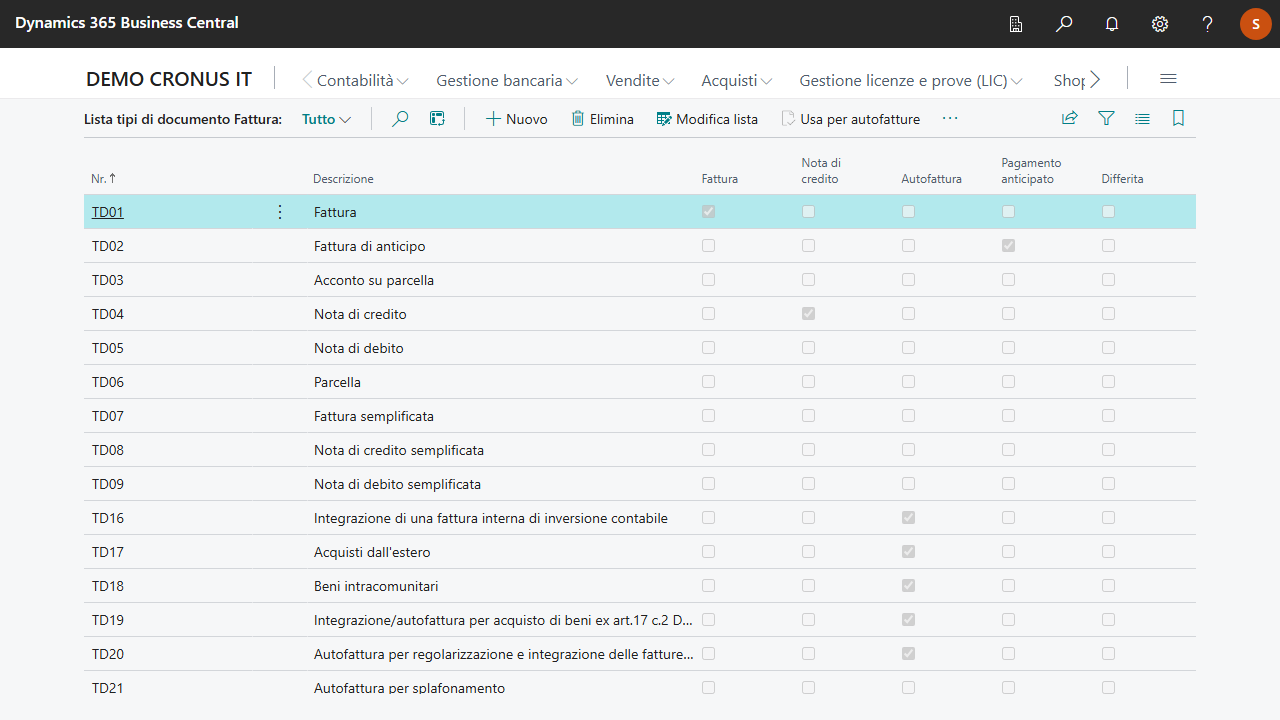
- Fattura Document Types: Generate Fattura Document Type List adds the types TD01 to TD27 that are missing, with their flags; the types already there, those added by hand (TD28, for example) included, are not changed, except that a type the app has not handled yet takes its Deferred flag once. Use for Invoices, Use for Credit Memos, Use for Deferred Invoices and Use for Self-Billing turn the flags on and off: the first type with a flag is the one proposed on the documents.
- Payment Terms: Add VAT First Payment adds a first payment line for the VAT amount (its Payment Type is VAT Amount); the other lines share the rest.
- Payment methods and payment terms need the Italian codes of the localization (Fattura PA payment method, Fattura payment terms code), which go into DatiPagamento.
- Extended Text: FE Add to Invoice exports the lines of that text in the XML; texts without it stay out of the file.
- Sales & Receivables Setup: the Fattura PA number series gives the progressive numbers of the files.
- Company Information: PEC E-Mail Address, the PEC of your company, for printing on your documents; it is not written in the XML.
5. Active cycle: issuing electronic invoices
5.1 On the sales document
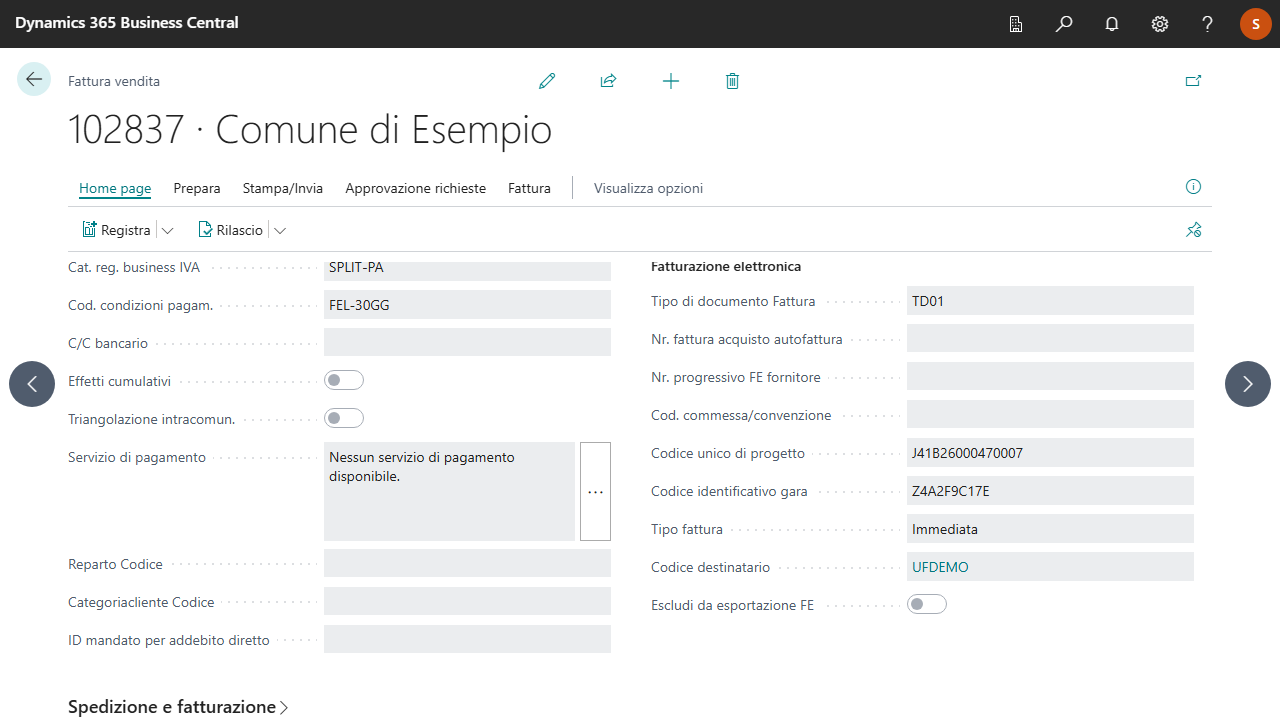
- Fattura Document Type (TipoDocumento), proposed from the document, the invoice type and the payment terms. Release stops if it is empty.
- CUP and CIG (the Italian Fattura project and tender codes) and Job Order/Agreement Code, exported in the purchase order data and, with an agreement code, in DatiConvenzione.
- Invoice Type, copied from the customer.
- Recipient Code, read from the customer, on the invoice.
- Exclude from FE Export, copied from the customer, on invoices, orders and credit memos.
When you release the document, the app checks the electronic invoicing data, adds the stamp line if due, and adds the split payment and forced standard texts.
5.2 Post and generate the XML
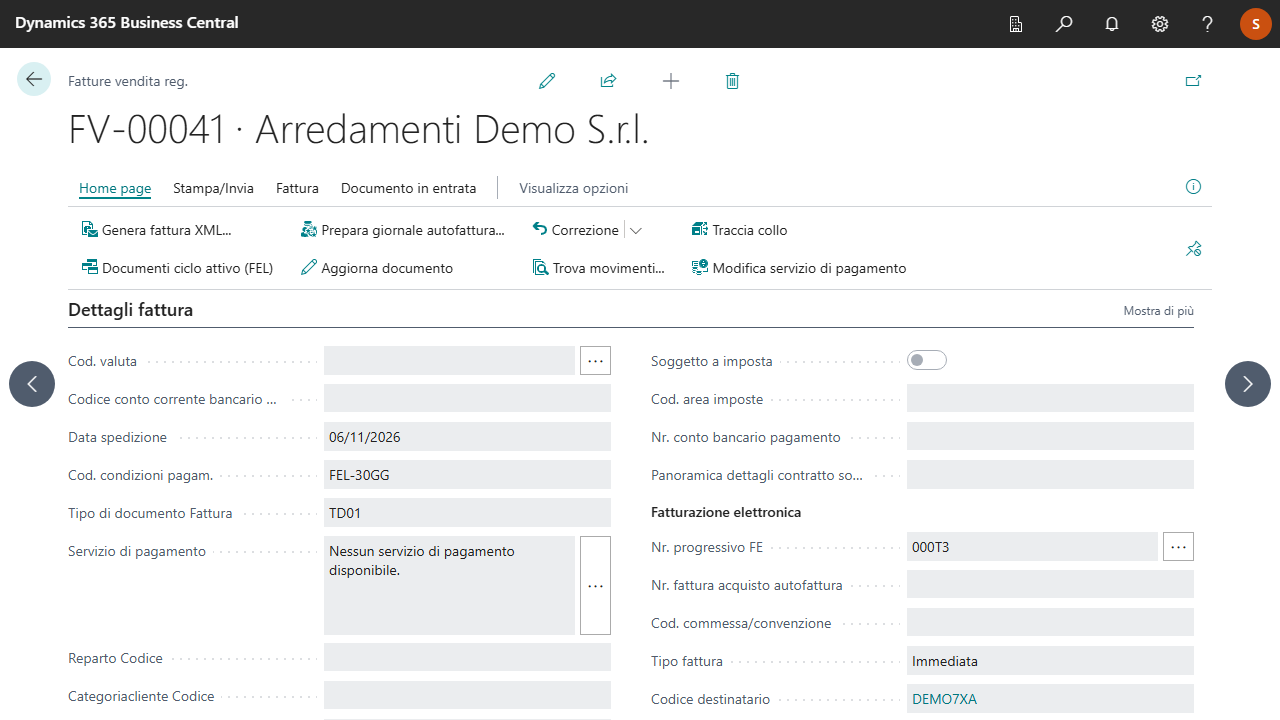
- Post the sales invoice or credit memo.
- If Create FE on Sales Invoice Posting (or the credit memo option) is on, the XML is generated at once. Otherwise open the posted document and choose Generate XML Invoice.
- The first export assigns the FE Progressive No. from the Fattura PA series. The file is named with the country code and fiscal code of your company, an underscore and the progressive number, and AL Bridge saves it in the active cycle folder.
What goes into the XML: the document type, the customer and its recipient code or PEC, the lines, VAT summary, exemptions and habitual exporter data (from the VAT exemption setup of the localization), payment data from the payment lines and the bank, CUP, CIG, agreement code and customer order number, extended texts with FE Add to Invoice, the stamp duty, the split payment, withholding taxes, and the attachments of the posted document unless excluded.
5.3 Active Cycle Documents (FEL)
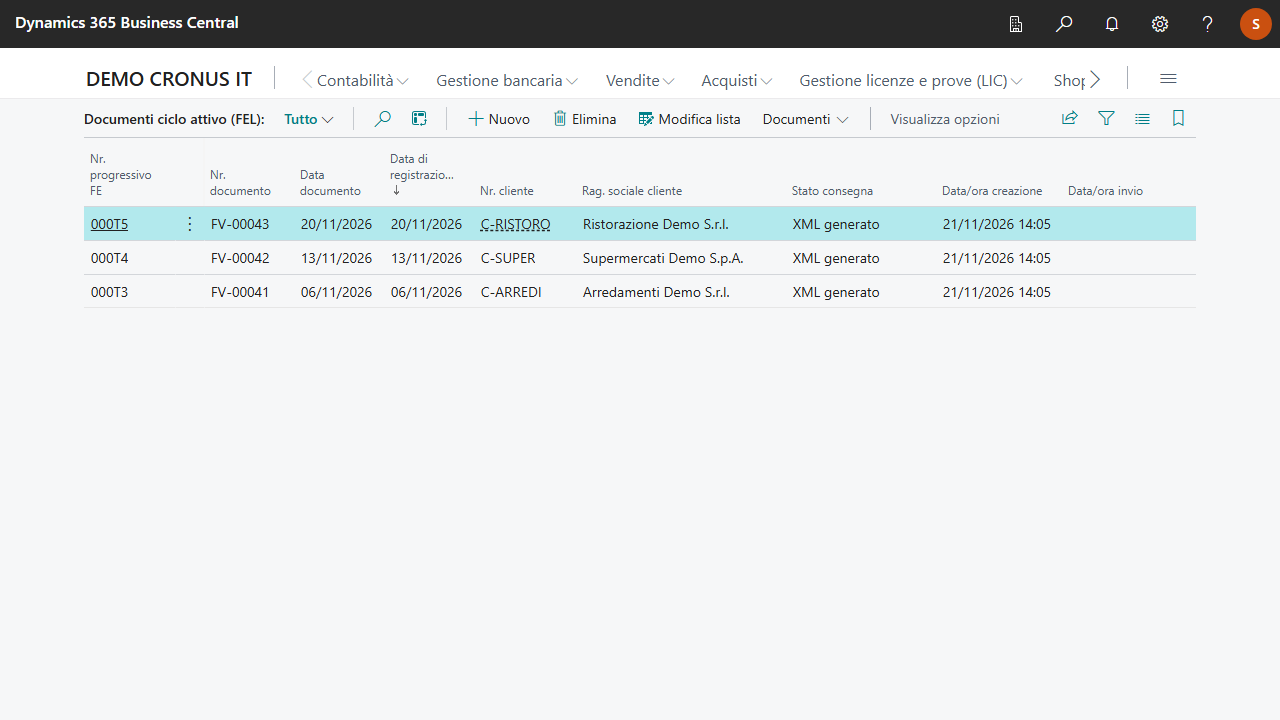
- Export FE Document downloads the XML of the selected line, or a ZIP with the files of all the selected lines.
- Download HTML Invoice and Download Ministerial HTML Invoice turn the XML into a readable invoice, with the alternative or the ministerial stylesheet, through the web service set up in AL Bridge (Webservice Setup).
5.4 How the file reaches SdI
The file in the active cycle folder is taken to SdI by your intermediary, by whatever means it offers (collection from the folder, upload, PEC). With AL Arxivar the file goes to Arxivar instead, which takes it to SdI (section 12). If you install a connector app of the intermediary that works with AL Fatturazione Elettronica, it sends the file and updates the Delivery Status (Sent to Provider, Delivered to SdI, Rejected from SdI, and so on), shown also on the posted invoice. Without a connector the status stays Generated XML.
5.5 Correct and send again
- To change fiscal data on a posted invoice (document type, CUP, CIG, agreement code, customer order number, exclusion) use Update Document on the posted invoice.
- To issue the file again with a new progressive number, choose Reset FE Progressive No. on the same page, confirm with OK, then Generate XML Invoice.
- On a posted self-invoice, clearing Vendor FE Progressive No. in Update Document removes its export file, so that it can be generated again.
6. Passive cycle: receiving vendor invoices
6.1 How the files arrive
Your intermediary or your PEC mailbox puts the received XML and P7M files in the passive cycle folder. AL Bridge reads the folder through its local agent, decodes the signed P7M and extracts the attachments with its cloud services. The app then imports what AL Bridge has read into Passive Cycle Documents (FEL): each file is imported on its own, so a file in error goes to the error list and the others go on. With AL Arxivar, the invoices received through Arxivar arrive in the list by themselves (section 12).
6.2 Passive Cycle Documents (FEL)
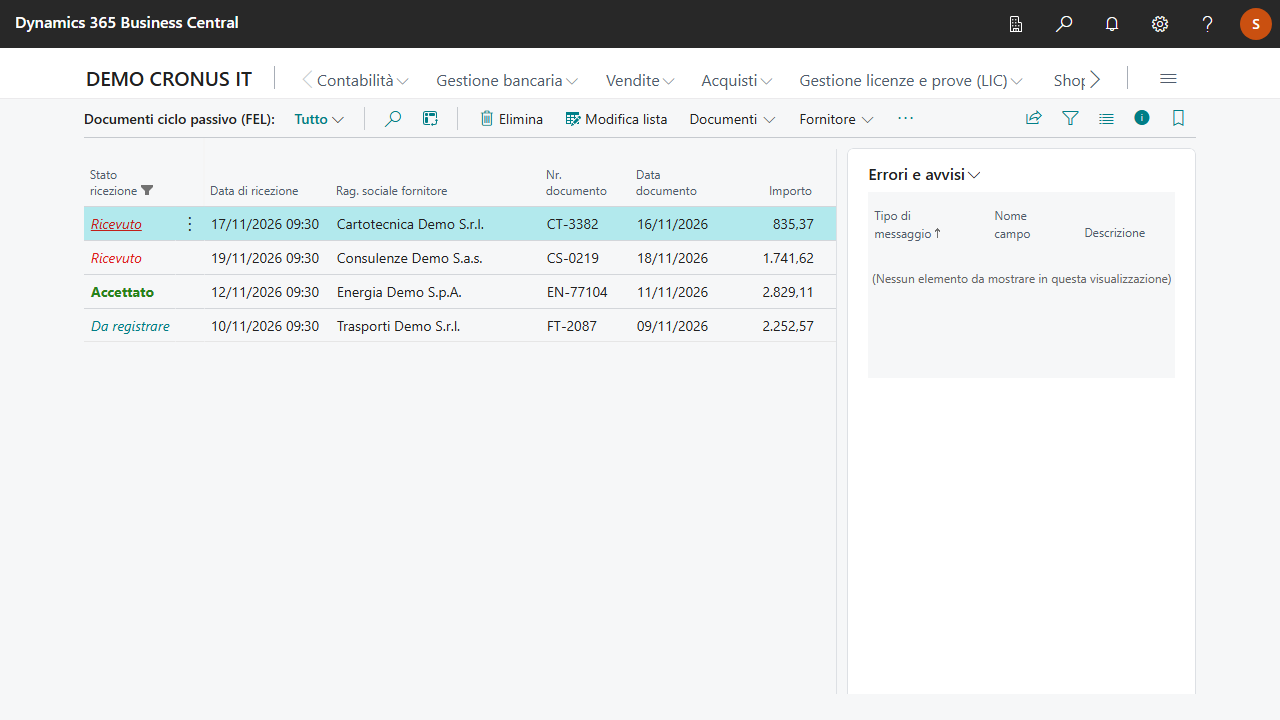
The status goes Received, Accepted, To Post (purchase document created), Posted (purchase document posted), and the row color follows it. Posting or deleting the purchase document updates it.
6.3 Step by step
- Read Passive Cycle Folder asks AL Bridge to read the folder. The reading is a job of the AL Bridge agent: you can follow it in the AL Bridge job queue. To read the folder periodically, create a job queue entry for codeunit 72499860 with the parameter string ReadPassiveFolder.
- Import Passive Cycle Documents brings into the list the files AL Bridge has read. The scheduled job (section 3.2) and the option Import Passive Documents on Page Opening do the same without asking. A document already in the list is not added again. Upload Passive Cycle Document adds a single .xml or .p7m file from your device.
- Link the vendor. At import the app links the vendor marked Default for Received E-Invoices with the same VAT registration number or fiscal code. For the others, in the Vendor group: Link to Vendor (you choose when several match), Suggest Vendors (links every document where exactly one vendor matches), Create Vendor (from the XML data, with the number series and posting groups of the setup). The linked vendor becomes the default for the next invoices.
- Accept Selected Documents accepts the documents that have a vendor. Accepting is an internal step: nothing is sent to SdI.
- Create Selected Documents creates a purchase invoice, or a purchase credit memo for the type marked as credit memo, for each accepted document. Accept and Create Selected Documents does steps 4 and 5 together.
- Open the purchase document with Show Document, complete it and post it.
6.4 What the purchase document contains
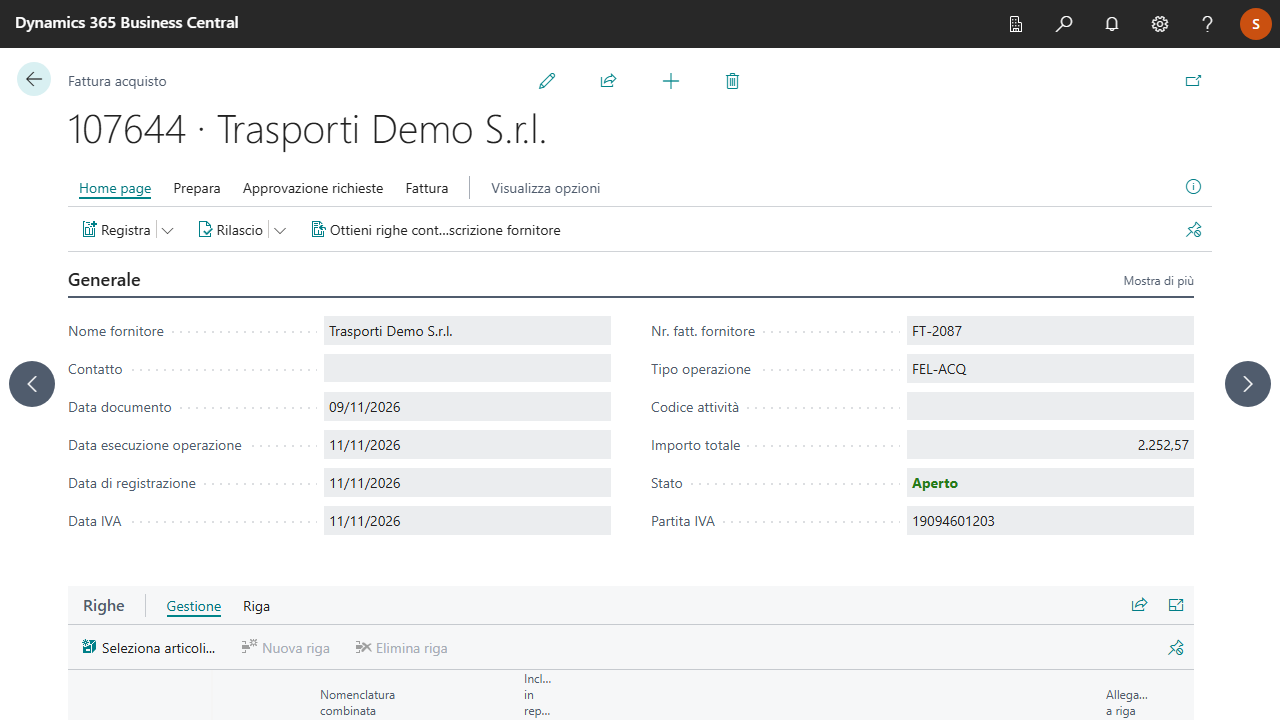
You complete the lines: enter them, or let the vendor's standard purchase codes set to be applied automatically fill them, as in standard Business Central; the check total makes sure the amounts match the invoice before posting.
6.5 Other actions
- Download: the XML, the invoice as HTML with the ministerial or the alternative stylesheet (through the AL Bridge web service), or its attachments.
- Passive Cycle Payment Lines (FEL): the installments read from DatiPagamento.
- The files that could not be imported, with the reason, are in the page Passive Cycle Document Errors (FEL), which you open with Tell Me.
7. Self-invoices and reverse charge
7.1 Setup
- On the VAT Business Posting Group of the purchases that need a self-invoice (reverse charge, EU purchases, purchases from abroad): Generate Self-Invoice and the Self-Billing Document Type to propose (TD16, TD17, TD18, TD19 ...). The type must have the self-billing flag.
- In the setup: Self-Invoice Customer No., Self-Invoice Text Code, Self-Invoice G/L Account (required for reverse charge) and the journal AUTOFATT.
7.2 What happens when you post the purchase
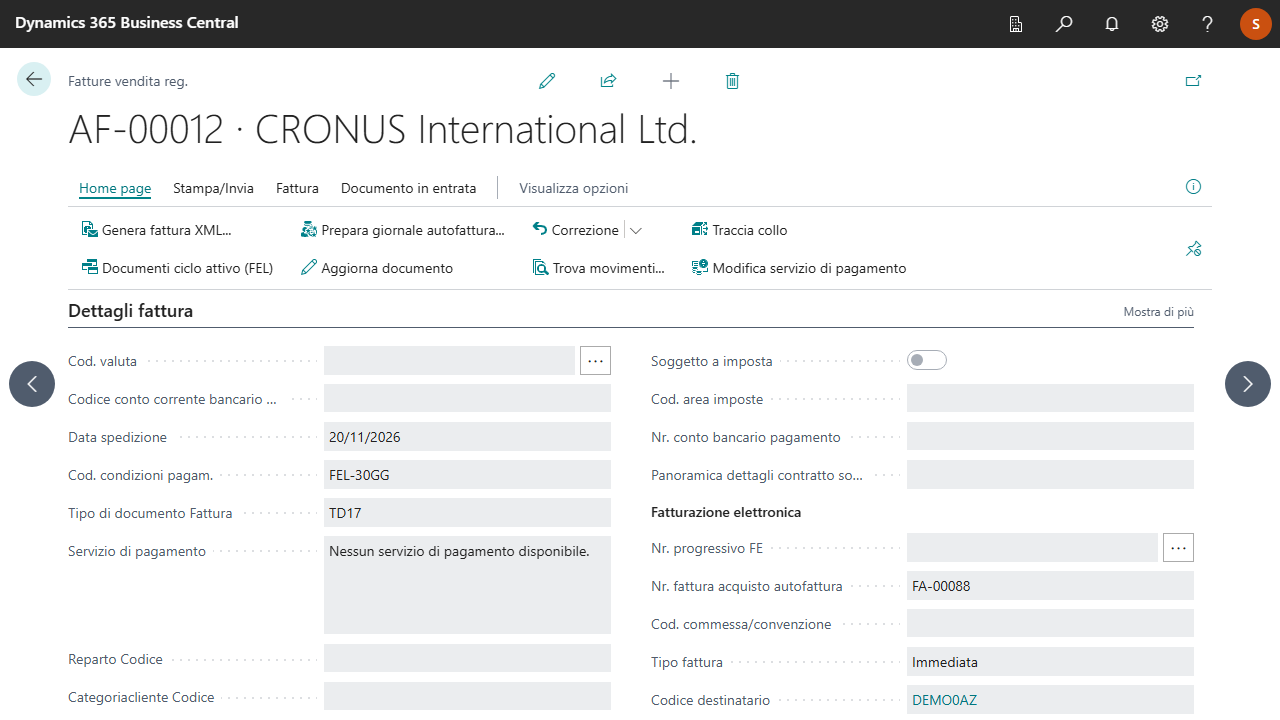
- On the purchase invoice or credit memo, Self-Billing Document Type is proposed by the posting group. For TD16 the Vendor FE Progressive No. of the vendor invoice is required: it is filled when the document comes from the passive cycle.
- Posting the purchase document creates the sales self-invoice (or self credit memo) on the self-invoice customer, with the same posting date, the operation type given by the reverse sales VAT series of the purchase number series, the standard text and the purchase invoice as reference.
- Reverse charge: when the purchase has reverse charge lines, the self-invoice is posted at once with Post without Entries: no G/L, VAT or customer entries, only the document from which the XML is issued. Outside Italy, either all the lines of the purchase are reverse charge or none.
- Other self-invoices open for review: check and post them. Posting prepares in the batch AUTOFATT the lines that close the self-invoice (customer, sales accounts, vendor VAT) and opens the journal: post it.
- The XML of the self-invoice is issued like any other (section 5): the vendor appears as seller, with its tax regime, and the purchase invoice is referenced in DatiFattureCollegate.
If a self-invoice was not created automatically, use Create Sales Self-Invoice on the posted purchase invoice (or Create Sales Self-Credit Memo on the posted credit memo). Prepare Self-Invoice Journal on the posted self-invoice, and Prepare Self-Credit Memo Journal on the posted self credit memo, prepare the closing lines again.
8. Competence of the previous year
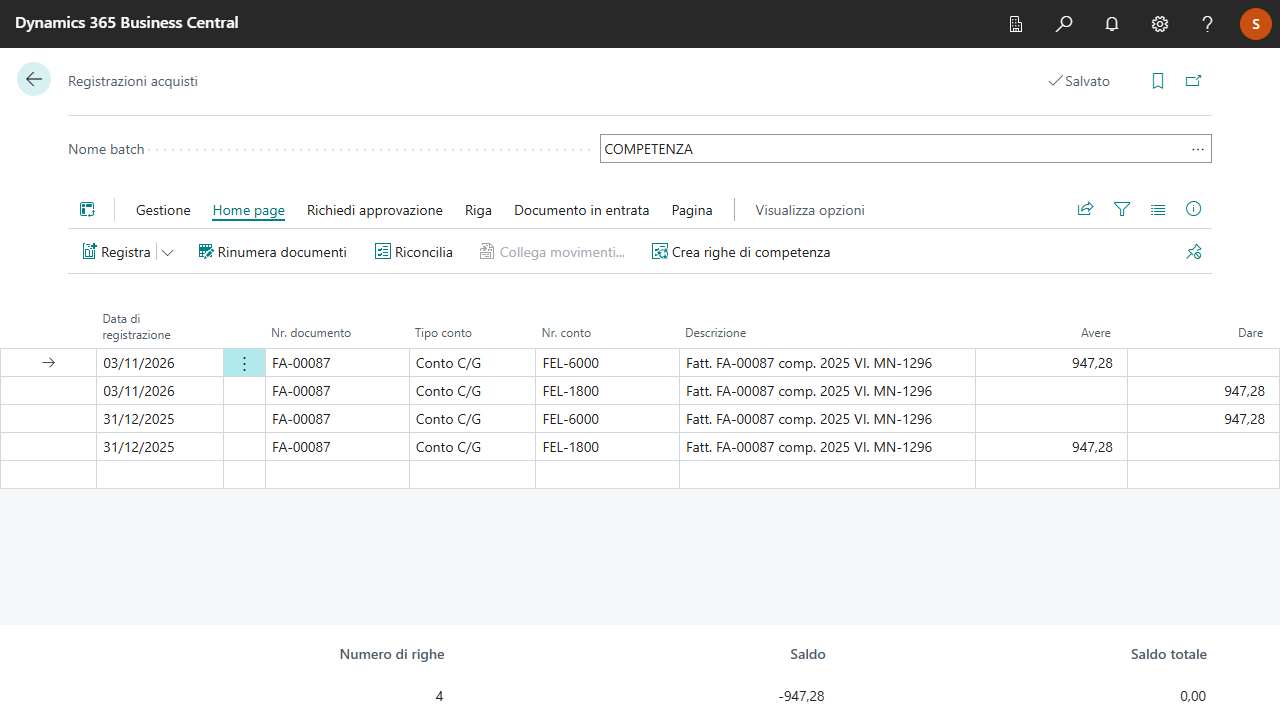
- In the setup turn on Enable Competence and fill Default Competence Invoice G/L Acc. and Default Competence Cr. Memo G/L Acc.; the purchase journal template and the batch COMPETENZA are proposed.
- Posting a purchase invoice or credit memo whose document date falls in the year before the posting year prepares the lines that take its cost out of the year of the posting, against the default competence account, and opens the journal.
- With Automatic Competence Lines the opposite lines dated December 31 of the previous year are added at once. Otherwise, in the purchase journal, choose Create Competence Lines: for each document that does not have them yet it adds the opposite lines dated December 31 of the year before the posting. Each document must balance, and the batch must be the competence batch of the setup.
- The lines are a starting point for the accountant, and nothing is posted by itself. Check them, change the accounts where your year-end closing needs it, complete them and post the journal.
Once posted, the cost is in the year of the document and the competence account holds the debt for invoices to receive at December 31, closed in the new year. For reverse charge purchases, whose self-invoice is posted at once, the accountant writes these entries in the journal.
9. Split payment and stamp duty
9.1 Split payment (art. 17-ter)
- Fill VAT Split Account No. on the VAT business posting group used for public administration customers. Sales with that group are split payment: the document is marked as split payment when it is posted, and the XML declares EsigibilitaIVA S.
- At posting, the VAT moves from the customer to the split account, so the customer owes only the net amount.
- With Split Payment Text Header Code in the setup, the standard text is added at the end of the document on release.
- The VAT settlement (section 10.1) leaves the split payment VAT out of the totals and of the postings, and closes its entries with the others.
9.2 Stamp duty
- Mark FE Stamp on the VAT posting setups whose base counts toward the threshold (exempt and non-taxable operations).
- When the total of those lines exceeds Stamp Threshold (77.47 proposed), the XML declares the stamp duty with Stamp Amount (2.00 proposed).
- With Generate Stamp Line on Sales and a Stamp G/L Account, a stamp line on that account is also added to sales invoices and credit memos on release and posting, so the customer is charged for it.
10. Fiscal reports
The three reports are rebuilt on the code of the standard reports of Business Central 29.0 IT, with the differences listed below. Find them in the Accountant role center under Electronic Invoicing (FEL) or with Tell Me (FEL).
10.1 Calculate and Post VAT Settlement (FEL)
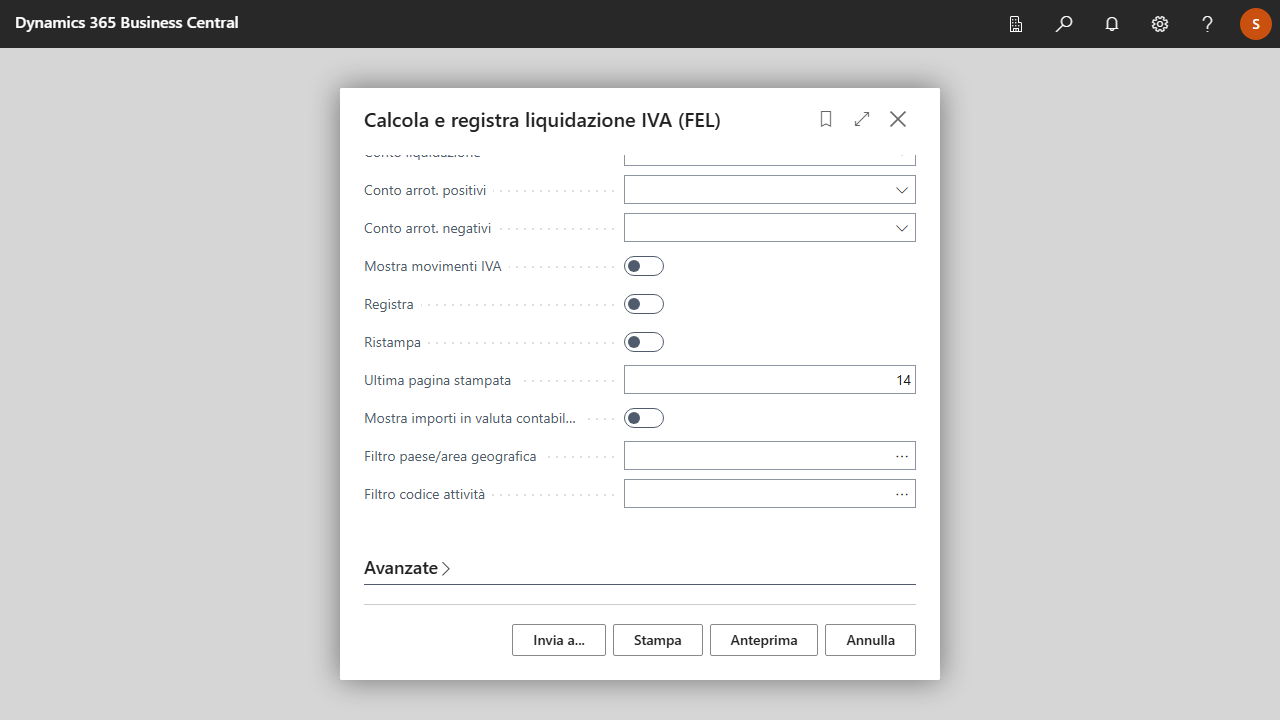
- Split payment: the VAT of a VAT business posting group with a split account stays out of the totals and of the postings, and its entries are closed with the others. The same rule applies when you run the standard report.
- Credit VAT compensation is shown with the totals.
- Page numbering by year: the pages are numbered year/page from the page after Last Printed Page. The field is proposed from Last Printed VAT Settlement Page of the setup, or zero for the first settlement of the year (starting date on January 1), and can be changed. A settlement that posts writes it to the setup and then reminds you: once the settlement is printed, update Last Printed VAT Settlement Page in the setup with its last page.
- Reprint is an option of the request page: turn on Reprint, enter the starting date of the settled period, and the report reads the VAT entries that settlement closed and prints them, without posting (Post is not available). The old report Reprint VAT Settlement (FEL) is obsolete and no longer in the search.
- Layout of the app on an A4 landscape page.
Request page: Starting Date (the Ending Date follows the VAT period), Posting Date, Document No., Settlement Account, the gain and loss accounts for rounding, Show VAT Entries, Post, Reprint, Last Printed Page, Show Amounts in Add. Reporting Currency, and the filters for country and activity code.
10.2 G/L Book - Print (FEL)
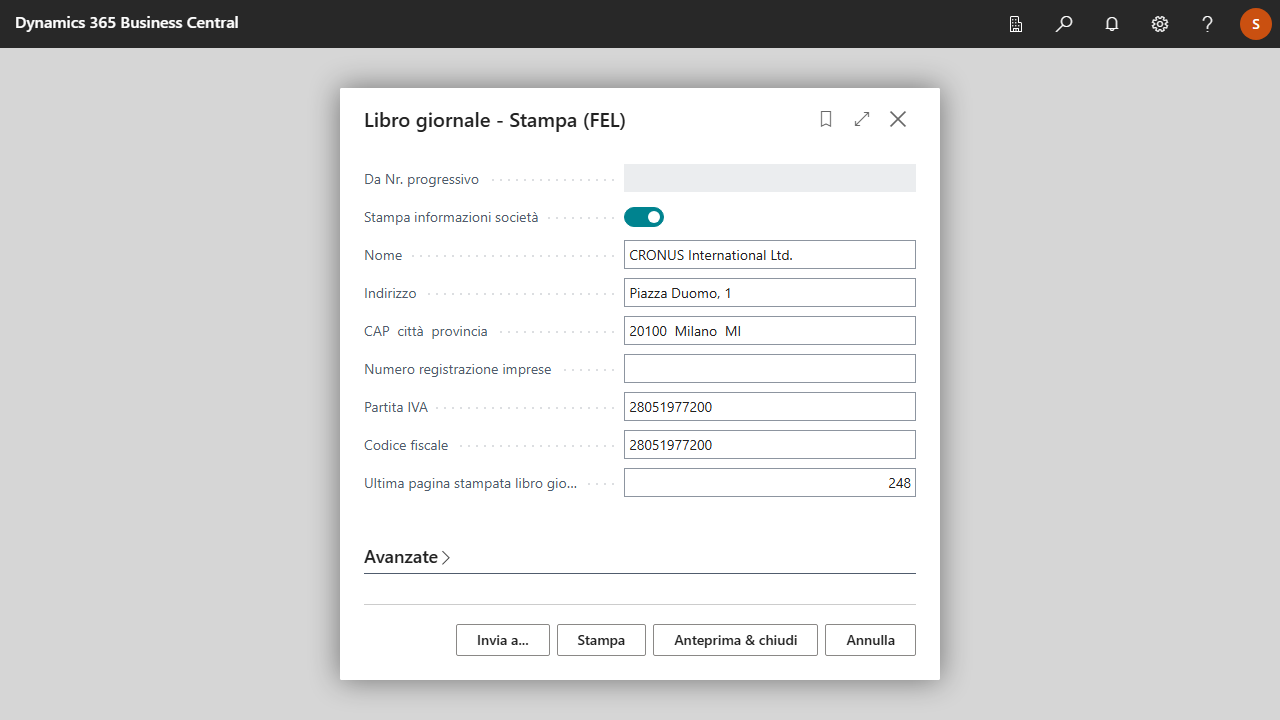
- Last Printed G/L Book Page is shown and can be changed in the request page. It is proposed from the General Ledger Setup, or zero at the start of the fiscal year, and you can change it also at the start of a fiscal year, to start the book from a page other than the first.
- The first page is the one after the last printed page, also when you print the company information.
Report Type: Test Print, Final Print or Reprint (with From Progressive No.). A final print writes the last printed page and the progressive number to the General Ledger Setup, marks the entries as printed, asks whether the report was printed correctly, and reminds you to update Last Printed G/L Book Page in the General Ledger Setup with the last page of the print.
10.3 VAT Fiscal Register - Print (FEL)
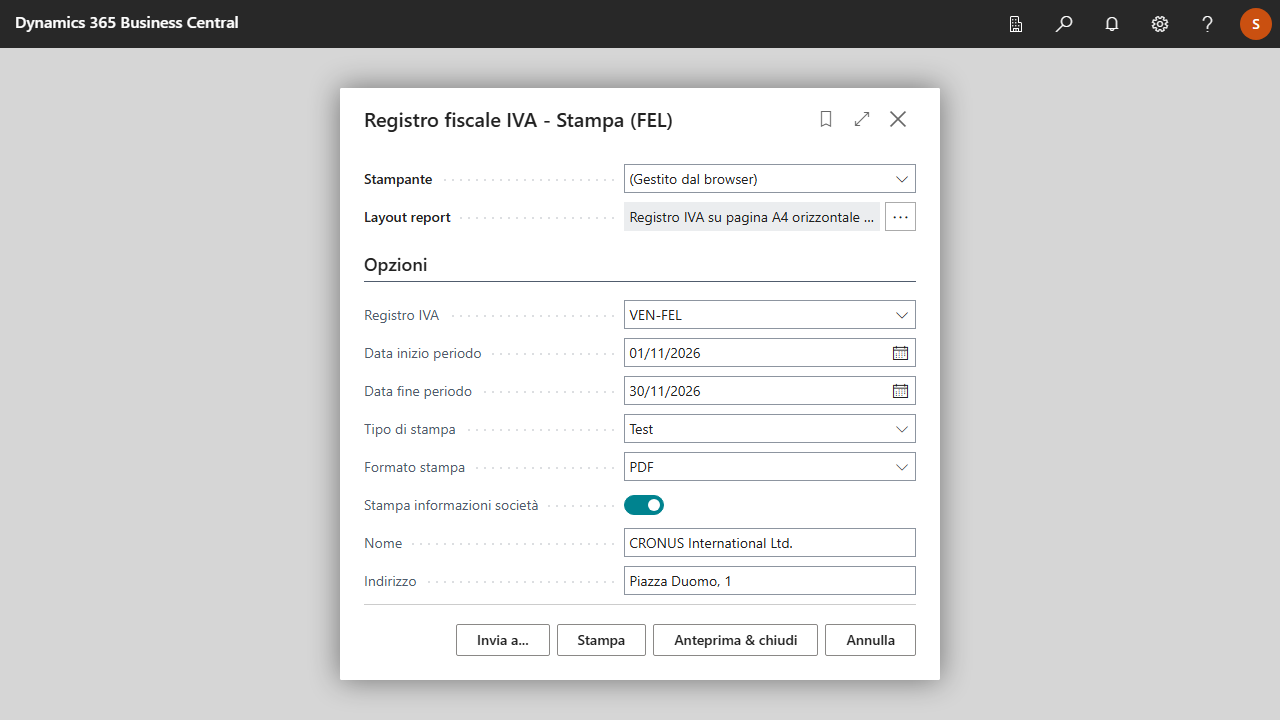
- Printing Format: PDF, or Excel for checking the figures. Excel is available only for a test print: choosing it sets Printing Type back to Test. The report produces the file and downloads it.
- Page count in the final print: Business Central counts the pages of the PDF and the report writes Last Printed VAT Register Page on the VAT register by itself, starting again from page 1 in a new year. If the count is not available, a message asks you to update it by hand.
- The numbering starts after the last printed page also when you print the company information.
- The VAT identifier on the lines: by default the register shows the description of the VAT identifier, which tells the title of a non-taxable or exempt operation; turn on VAT Identifier Code on VAT Register Lines in the setup to show the code, as the standard does.
- The description of the number series and the VAT identifier are columns of their own; a final print updates the last printing date of the register also when there was no entry to mark.
Request page: VAT Register, Period Starting Date, Period Ending Date, Printing Type (Test, Final, Reprint), Printing Format, Print Company Informations with the company data, Last Printed VAT Register Page (read only).
11. Permissions
- ALPFEL-USER (AL Fatturazione Elettronica - User): daily use. Passive and active cycle documents, the import, the three fiscal reports. The setup page belongs to ALPFEL-ADMIN: the Setup action of the role center is visible to everyone, but only ALPFEL-ADMIN opens the page. It includes the user sets of AL License and Trial Management, AL Foundation App, AL Message Passing, AL Message Passing IT and AL Bridge, so one assignment is enough.
- ALPFEL-ADMIN (AL Fatturazione Elettronica - Administrator): everything in ALPFEL-USER plus changing Electronic Invoicing Setup (FEL) and Customer Electronic Invoicing Setup (FEL).
- Users without these sets can still post sales and purchase documents and release them: what the app checks and adds when a document is released or posted works for them too.
- Coming from an earlier line: the old XML permission set AL FATTURAZIONE ELETTRONICA is replaced by these two. The update moves its direct assignments and its inclusions in your permission sets onto ALPFEL-ADMIN, so nobody loses access; review them afterwards and give ALPFEL-USER to whoever only works documents.
12. With other AppLibra apps
AL Fatturazione Elettronica is built to work with the other apps of the AppLibra platform: when they are installed, they take their part in the cycle by themselves, and you keep working on the same pages.
| App | What it adds |
|---|---|
| AL Arxivar | Sending, receiving and digital preservation through Arxivar. The XML you issue goes to Arxivar, which takes it to SdI and updates the Delivery Status; the invoices of your vendors arrive in Passive Cycle Documents (FEL) by themselves. |
| AL Document Template | The purchase document templates, to choose in Default Template Document No. of the setup. |
| AL Excise | The excise data in the lines of the XML. |
| Other apps of the platform | The data of their own documents in the XML lines, such as the components of a kit or the discounts of a price list. |
13. Troubleshooting
- No XML file in the folder after posting. Check Create FE on Sales Invoice Posting, Exclude from FE Export on the customer and on the document, and FE Active XML File Path. The file is saved by the AL Bridge agent: look at the AL Bridge job queue for a file job in error.
- Release stops on Fattura Document Type. The document has no type: run Generate Fattura Document Type List and check the flags (section 4.4).
- Warning or error on payment codes. The posted invoice has no payment method or payment terms, or they lack the Fattura PA codes. Mandatory Payment Codes turns the warning into a block.
- Delivery Status stays Generated XML. Normal without an intermediary connector app (section 5.4).
- A received file is not in the list. Run Read Passive Cycle Folder and then Import Passive Cycle Documents, and check the AL Bridge agent. If the file could not be imported, it is in Passive Cycle Document Errors (FEL) and in the error subfolder.
- "There is already a document ... with the same progressive no." The same vendor document (number, progressive and year) has already been imported: it is a duplicate.
- Accept skips some lines. They have no vendor: use the Vendor actions (section 6.3).
- "There is another vendor ... with the flag FE default active". Two vendors share the VAT registration number: leave Default for Received E-Invoices on only one.
- The purchase document was not created. Choose the number in Document Creation Errors to see why; the line stays Accepted.
- No self-invoice after posting a purchase. Check Generate Self-Invoice on the VAT business posting group, the Self-Billing Document Type (a self-billing type), the Vendor FE Progressive No. for TD16, and the self-invoice fields of the setup.
- The settlement pages do not continue. Check Last Printed Page in the request page and Last Printed VAT Settlement Page in the setup; for the first settlement of the year it is zero.
- The VAT register last page was not updated. Business Central could not count the pages: update Last Printed VAT Register Page on the VAT register by hand.
- The HTML download fails. The web service of AL Bridge (Webservice Setup) is not set up or not reachable.
- Every page has help. Press F1 on any page of the app to open the section of this guide that covers it.
14. Technical summary
- App: AL Fatturazione Elettronica, publisher AppLibra, app id
432067a0-2dd6-43e6-9940-09fdc390e6d9, tag FEL. - Supported product: Microsoft Dynamics 365 Business Central, version 29.0 or higher, online (SaaS) and on-premises.
- Application / runtime: 29.0.0.0 / 18.0. Languages: English (en-US), Italian (it-IT).
- Object range: 72499850-72499899, affix ALPFE.
- Main objects: the setup and customer setup pages, Active Cycle Documents and Passive Cycle Documents with their error and payment line pages; reports Calculate and Post VAT Settlement (FEL) 72499850, VAT Fiscal Register - Print (FEL) 72499851, G/L Book - Print (FEL) 72499852, Import Passive Cycle Documents (FEL) 72499853; permission sets ALPFEL-USER and ALPFEL-ADMIN; extensions of sales and purchase documents, customers, vendors, VAT posting groups, payment terms and Fattura document types.
- Dependencies: AL Bridge, AL Message Passing, AL Message Passing IT, AL Foundation App, AL License and Trial Management, AL Role Center.
- Transport to SdI: file exchange through folders, by AL Bridge, with an intermediary of your choice. No direct web service to SdI.
Support and resources
- Publisher: AppLibra - https://applibra.com
- Apps catalog: https://applibra.com/apps
- Privacy policy: https://applibra.com/privacy-policy
- License agreement (EULA): https://applibra.com/eula