AL GS1 - User guide
How to set up and use the app in Business Central.
1. Concepts in one minute
- A GS1-128 barcode is a chain of application identifiers (AI): each AI is a code plus a value - SSCC (00), GTIN (01/02), lot (10), production, best-before and expiry dates, serial (21), net and gross weight, package quantity, and more.
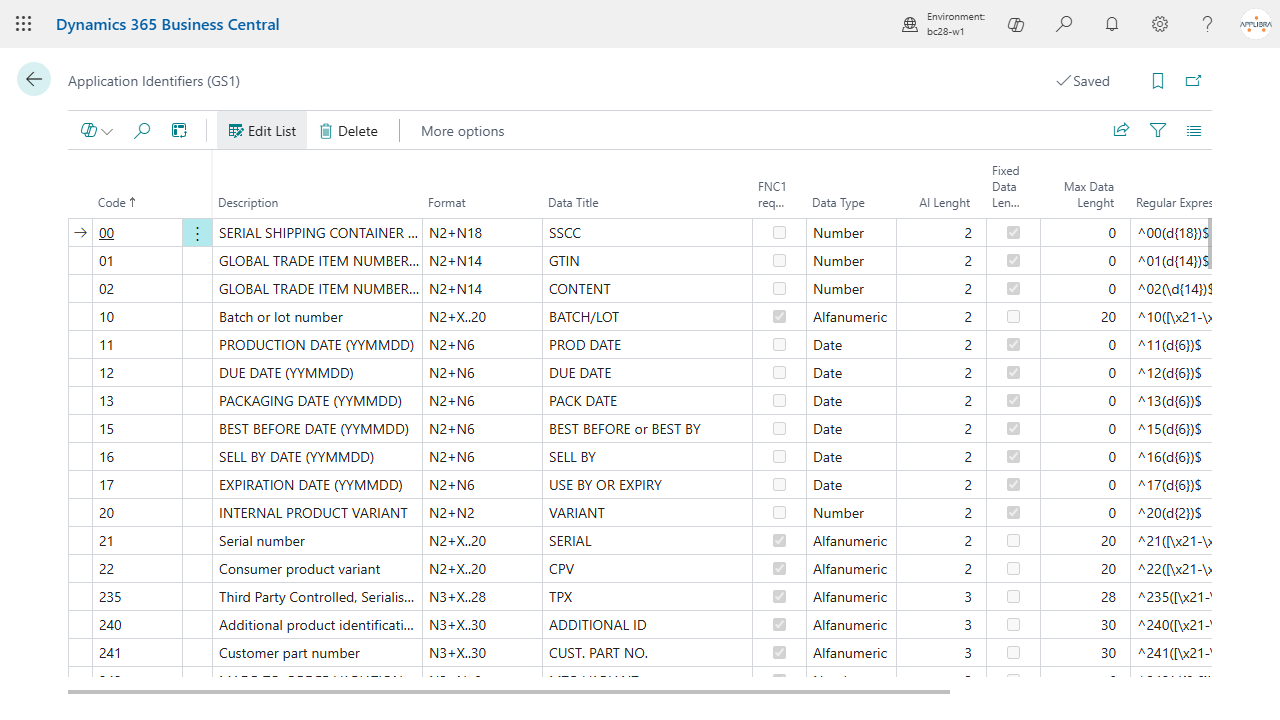
- An application identifier is defined once in a master list with its format, data type, length and validation rule; the app ships the full GS1 list and you can re-import it.
- A barcode model (a header with its lines) declares which AIs a barcode contains and where each value comes from. Only a model in Released status can be used to encode.
- A GTIN source resolves the GTIN (AI 01/02) for a given item by company, customer, vendor or barcode source group. The same table works both ways: decode a supplier barcode, encode a customer-specific one.
- Encoding builds a barcode from a document; decoding reads a scanned barcode back into its AIs.
- A scanned barcode is captured through a Web API and assigned to a document (lot, weight, SSCC) over the AL Message Passing bus, which forwards the data to AL Tracking and AL Catch Weight; the same bus feeds GS1 tags to AL Zebra Print Label.
2. Prerequisites
- Business Central 28.0 or higher (Cloud/SaaS).
- The dependencies installed: AL License and Trial Management, AL Barcode, AL Message Passing, AL Foundation App, AL Role Center.
- Permissions: assign the AL GS1 permission set (daily use) or AL GS1 Setup, which includes it and adds master data maintenance.
3. Setup
3.1 Activate the license
Open Setup (GS1): the record is created on first open and a trial is registered automatically. Use Add License to enter a license when you have one.
3.2 Setup (GS1)
On Setup (GS1), fill in:
- Default Barcode Source Group - the group used to resolve items when a scan has no more specific source.
- SSCC Nos. - the number series (an integer progressive) used to generate SSCCs.
- GS1 Prefix - your GS1 company prefix; it must be 7 or 9 characters long to build SSCCs.
- GTIN Progressive - the running number used to generate new GTINs.
- GTIN14 Prefix Digit - the packaging indicator digit (1 to 8) for new ITF-14 / GTIN-14 codes.
- AI Separator - the separator between variable-length AIs (GS, CD or CA).
- Zebra Label GS1 Tag Code - the tag code AL Zebra Print Label uses to inject GS1 values into a label.
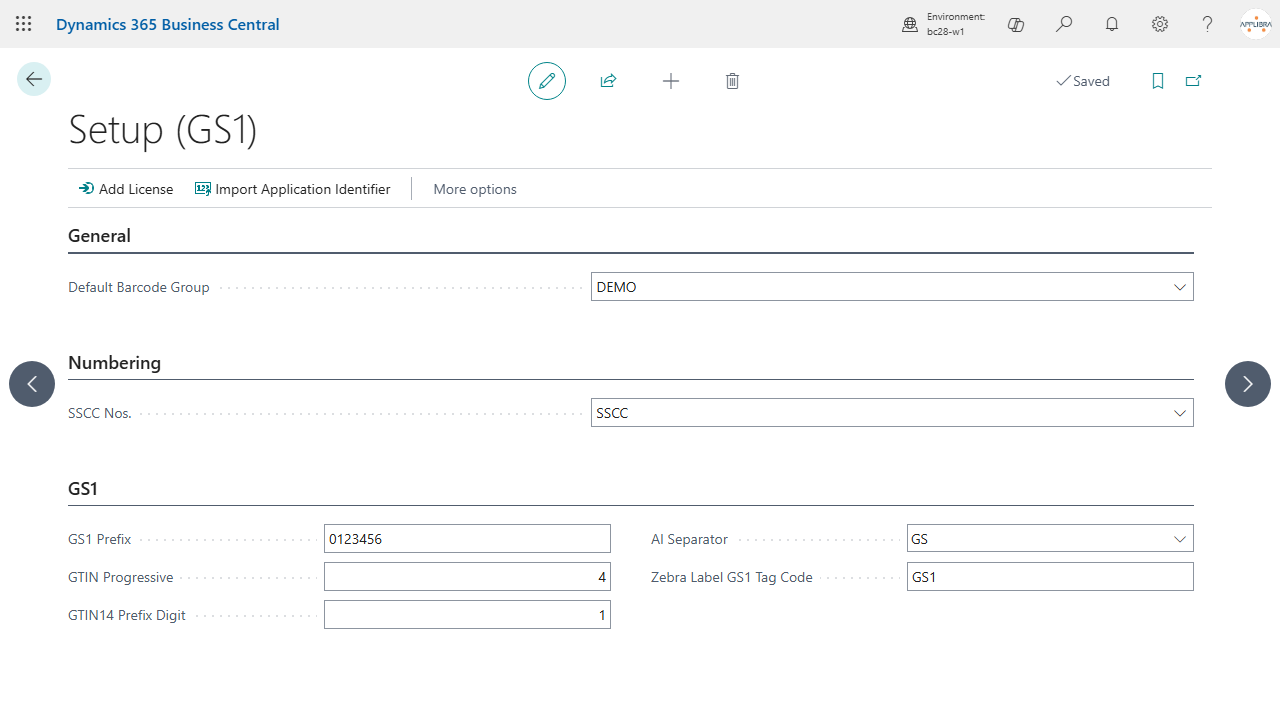
The setup is also registered in the Business Central Manual Setup list (search "AL GS1 Setup"), next to the standard features.
3.3 Import the application identifiers
From Setup (GS1) or the Application Identifiers (GS1) list, run Import Application Identifier and pick the Excel file with the AI list (code, description, format, data title, FNC1, regular expression). This fills or refreshes the AI master.
3.4 Barcode source groups
Open Barcode Source Groups (GS1) and create a group for each set of partners that share the same barcode standard. Assign a group to a customer or vendor in the card's Barcode group (Barcode Source Group No.).
4. GTIN and GTIN sources
Open GTIN Sources (GS1) (or the GTIN Sources (GS1) action on an item, customer or vendor card) and add one row per item and source:
- choose the Source Type (Company, Vendor, Customer, Barcode Source Group) and Source No.;
- set the Item No., Unit of Measure Code, Barcode Type and Accounting Type;
- leave GTIN empty to have a new one generated, or type an existing GTIN (for example a supplier's) to decode incoming barcodes.
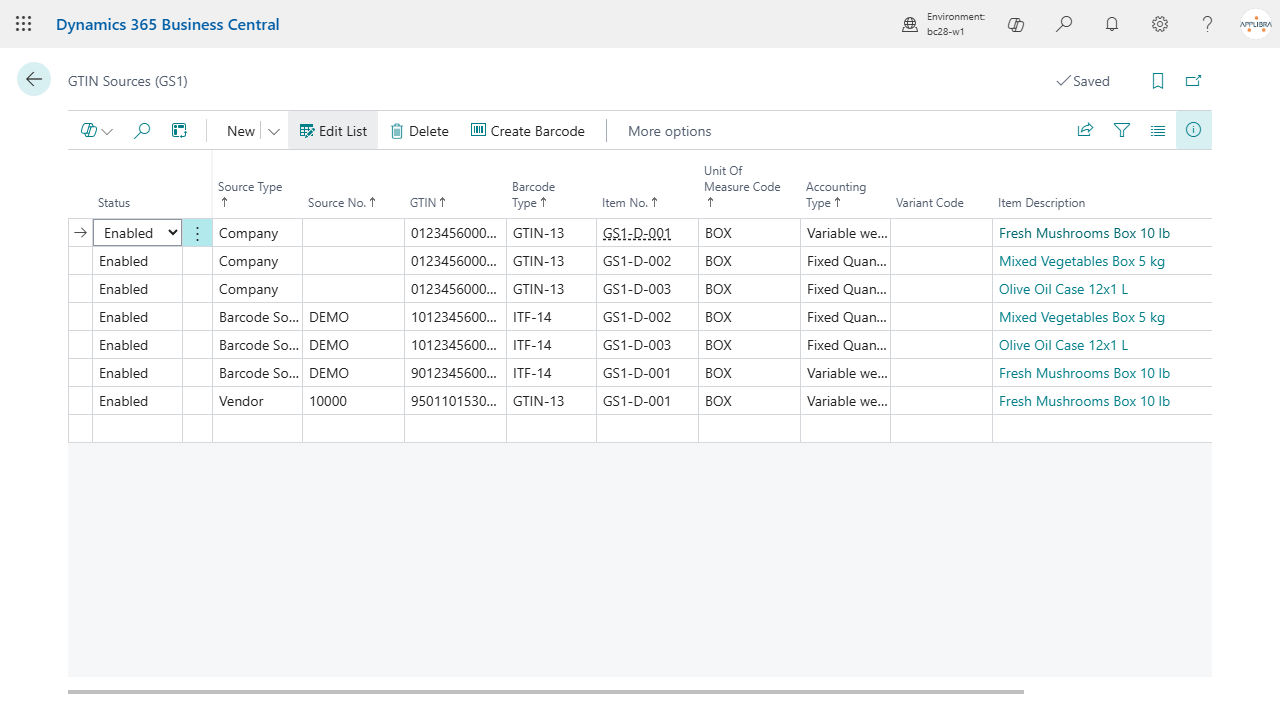
On the item card, the Barcode group carries the default Accounting Type (Fixed Quantity or Variable weight); variable-weight items build GTINs with the reserved prefix digit and connect to catch weight.
Generating codes. Adding a GTIN source with an empty GTIN generates a new GTIN from the GS1 prefix and progressive, with the correct GS1 check digit, and can convert it to an ITF-14 for packaging. SSCCs are generated from the SSCC Nos. series and the GS1 prefix, again with the check digit; they populate AI 00 when a model includes it. GTIN List (GS1) lists every generated code with its barcode type and progressive.
Barcode image. On GTIN Sources (GS1), Create Barcode renders the barcode image (through AL Barcode) and stores it on the row, shown in the Barcode FactBox.
5. Barcode models
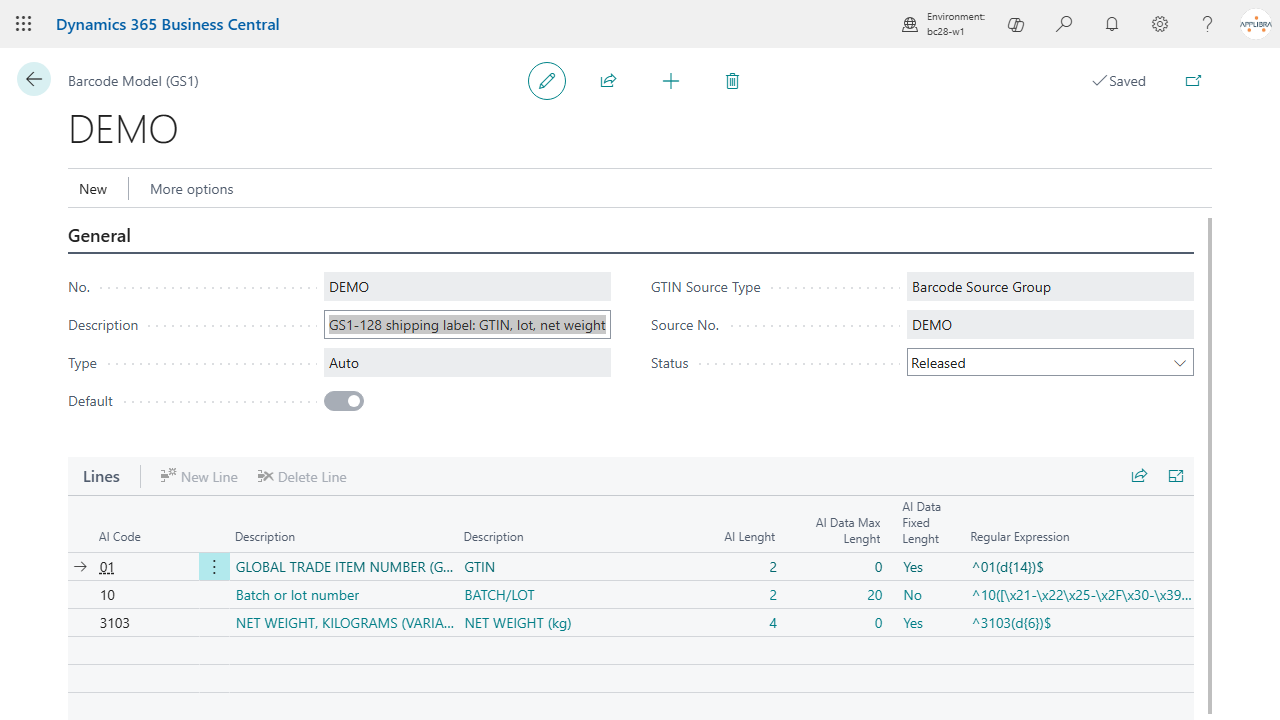
Open Barcode Models (GS1), create a Barcode Model (GS1), then:
- set Description, Type, the Source Type and Source No. the model is built for, and Default if it is the fallback model;
- in the lines, add one row per AI Code to include in the barcode;
- set Status to Released. A model that carries AI 02 must also carry AI 37, otherwise it stays Open.
6. Daily use
6.1 Encode a GS1-128 for a document
- Open the Barcode Model (GS1) of a Released model.
- Choose Encode GS1 128 and pick the source line (a sales order line, for a customer or source-group model).
- The app reads the item, GTIN, lot, dates, weights and quantities from that line and returns the full GS1-128 string, ready for a label or downstream use.
Two details of that string, both as the GS1 general specifications require them. A fixed length numeric value is padded with leading zeros up to the length its format declares, so a net weight of 15.5 kg under AI 3103, whose format is N4+N6, is written 015500 and not 15500. And the separator that closes a variable length value stands only between two identifiers: after the last one there is nothing left to delimit, so none is written. Labels printed with earlier versions of the app may show those weights without the leading zeros, or a separator hanging after the last value: the string changes, the data behind it does not, and a scanner reads the new one as the standard prescribes.
6.2 Print a Zebra GS1 label
When AL Zebra Print Label prints a label whose tag matches the Zebra Label GS1 Tag Code, AL GS1 expands it into one tag per application identifier (value and barcode form), so a single template prints a compliant GS1-128 label.
6.3 Scan to a document (inbound/outbound)
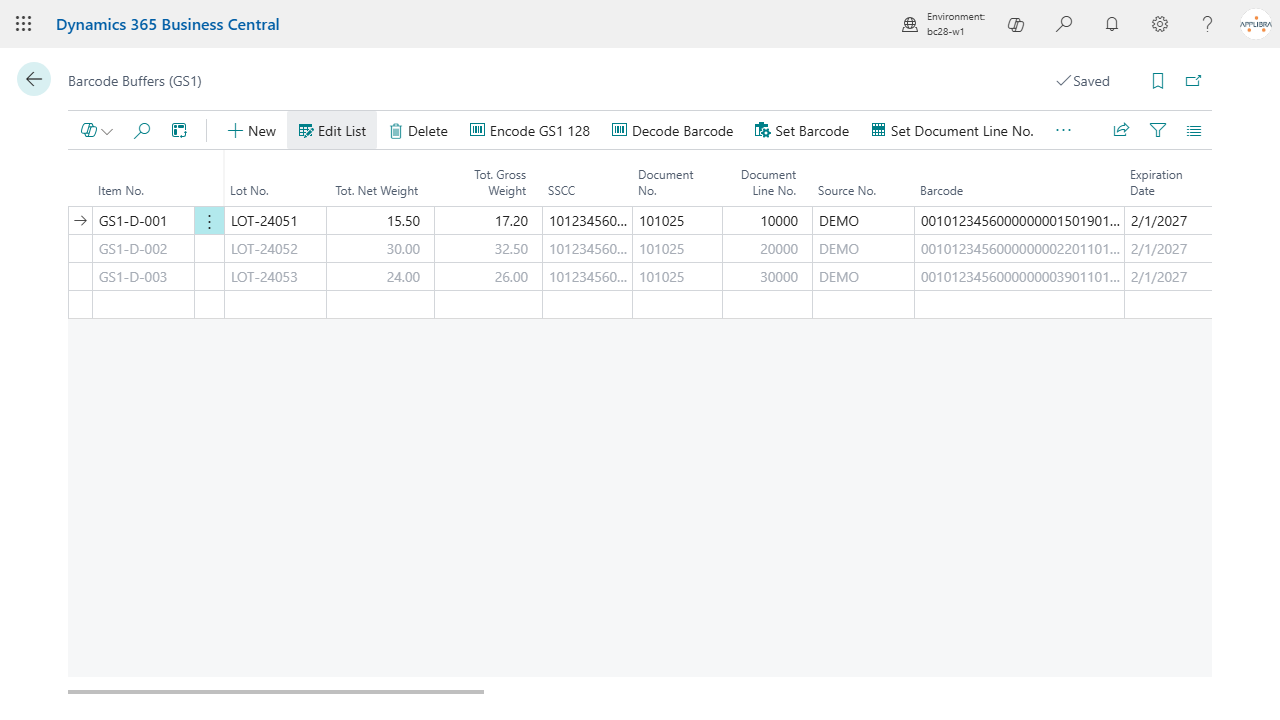
- A scanner posts the scanned barcode through the Web API; the app creates a record in Barcode Buffers (GS1) for the document line.
- The barcode is decoded into its AIs, and the app resolves the item (from the GTIN and its source), the lot, the weights and the SSCC. Weights come in kilograms (310x net, 330x gross) or pounds (320x net, 340x gross) and are converted into the company weight unit, so a label in pounds reads correctly in a company that weighs in kilograms and the other way round.
- The assignment is dispatched over AL Message Passing to AL Tracking (lot, pallet, external or supplier lot) and AL Catch Weight (weight), so the document is updated without manual typing.
- On a sales order line, the Has Logistic Error field lights up if a scan could not be resolved; drill into it to open the Operation Log (GS1) for that line.
6.4 Reading the results
- Barcode Buffers (GS1) shows the scans in process, with the resolved item, lot, weights, SSCC and any message.
- GTIN List (GS1) lists every generated GTIN/SSCC with its barcode type and progressive.
- Operation Log (GS1) records operations and errors.
7. Where to find it
The app is reachable four ways:
- Tell Me (the magnifier): search the page name, or "GS1" to see them all - Setup (GS1), Application Identifiers (GS1), Barcode Source Groups (GS1), GTIN Sources (GS1), Barcode Models (GS1), Barcode Buffers (GS1), GTIN List (GS1), Operation Log (GS1), Users (GS1).
- Shipping and Receiving role center: the GS1 group with its Setup subgroup, plus Barcode Buffers, GTIN List and Operation Log.
- AppLibra hub: Shift+F12 -> Explore other roles -> AppLibra; the GS1 group gathers all the pages of the app, and Setup (GS1) also appears in the shared Setup section.
- Manual Setup: the "AL GS1 Setup" entry in the Business Central manual setup list.
On the Item, Customer and Vendor cards you also find the Barcode group and the GTIN Sources (GS1) action.
8. Tips and troubleshooting
- SSCC will not generate. The GS1 Prefix must be exactly 7 or 9 characters and SSCC Nos. must be an integer number series.
- A model stays Open. A model that includes AI 02 (packaging GTIN) must also include AI 37 (count of items); add the line before releasing.
- Encode does nothing. Only a Released model encodes, and it must have at least one line; the barcode is built from the picked document line, so that line must carry the values (item, lot, weights).
- Duplicate GTIN error. A GTIN must be unique for the same source, item, unit of measure, variant, barcode and accounting type; reuse the existing row instead of adding a second one.
- A blocked item. Blocking an item disables its GTIN sources (supplier sources excepted), so it no longer resolves in encode or scan.
- "Weight unit not convertible". The company weight unit (the unit classified as weight in AppLibra) must be a kilogram or a pound, recognized by its International Standard Code (KGM or LBR) or, when that is blank, by the code KG or LB. Fill in the International Standard Code on the unit named in the message; the same unit is used when a label is printed, so the weights on the label are converted too.
- Scanning needs the Web API. Scan capture runs through the Web API and the Message Passing bus, not a built-in scanner driver; the scan is linked to the document line it targets, and the lot, weight and pallet assignment lands through AL Tracking and AL Catch Weight.
9. Support and resources
- Publisher: AppLibra - https://applibra.com
- App page: https://applibra.com/apps/al-gs1
- Online help: https://applibra.com/apps/al-gs1/help
- Privacy policy: https://applibra.com/privacy-policy
- Terms of use: https://applibra.com/terms