AL Tracking - User guide
How to set up and use the app in Business Central.
1. Concepts in one minute
- Standard Business Central tracks Lot and Serial. AL Tracking adds three more dimensions: Package No. (the carton), Pallet No. (the SSCC) and External Lot No. (the supplier's lot/carton number).
- Tracking is switched on per area in the Tracking Setup: the extra fields and actions appear only on the areas you enable (sales, purchases, transfers, journals, physical inventory, production, warehouse).
- Which dimensions an item uses is decided by its Item Tracking Code, exactly as for the standard Lot/Serial: the code gains Pallet and External Lot sections with the same specific-tracking and per-document requirements.
- On posting, the dimensions flow into the Item Ledger Entries and Warehouse Entries, so stock and history can be filtered and navigated by pallet and external lot as well as by lot and serial.
- Pallet No. Information and External Lot No. Information records are the master data of the new dimensions, and are created automatically at posting when missing.
2. Prerequisites
- Microsoft Dynamics 365 Business Central, version 28.5 or higher, online (SaaS) and on-premises. AppSource covers online environments; on-premises is distributed and installed directly by AppLibra, through the AppLibra License Manager.
- The dependencies installed: AL License and Trial Management, AL Message Passing, AL Role Center.
- Permissions: two assignable permission sets. Give ALPTRK-USER (AL Tracking - User) to whoever assigns tracking on documents, journals and warehouse activities: it reads the setup without changing it. Give ALPTRK-ADMIN (AL Tracking - Administrator) to whoever configures the app: it includes the user role and adds the setup and the right to delete a pallet or external lot card. Blocking a card is a change like any other, and the user role can make it too, as with the lot information of the standard. A user who opens the Tracking Setup action from the role center without the administrator role gets a permission error, which is the expected behaviour. Both roles include the user role of AL License (ALPLIC-USER), which the license check needs.
- Upgrading from an earlier version: the old permission set of the app (AL TRACKING, or AL ADVANCED LOT up to version 25) disappears with the upgrade. Every user who had it, directly or through a permission set of your own that included it, receives ALPTRK-ADMIN automatically, because the old set granted full access. One case has to be redone by hand: if the old set was among the permission sets given to new users by license (License Configuration page), replace it there with ALPTRK-ADMIN or ALPTRK-USER.
You reach the app from Tell Me: search the page name (for example "Tracking Setup (TRK)") or simply the tag "TRK" to list every page of the app.
3. Setup
3.1 Activate the license
Open Tracking Setup (TRK) (the record is created on first open). Use Add License to enter a license when you have one; a trial is available for evaluation.
3.2 Enable the areas to track
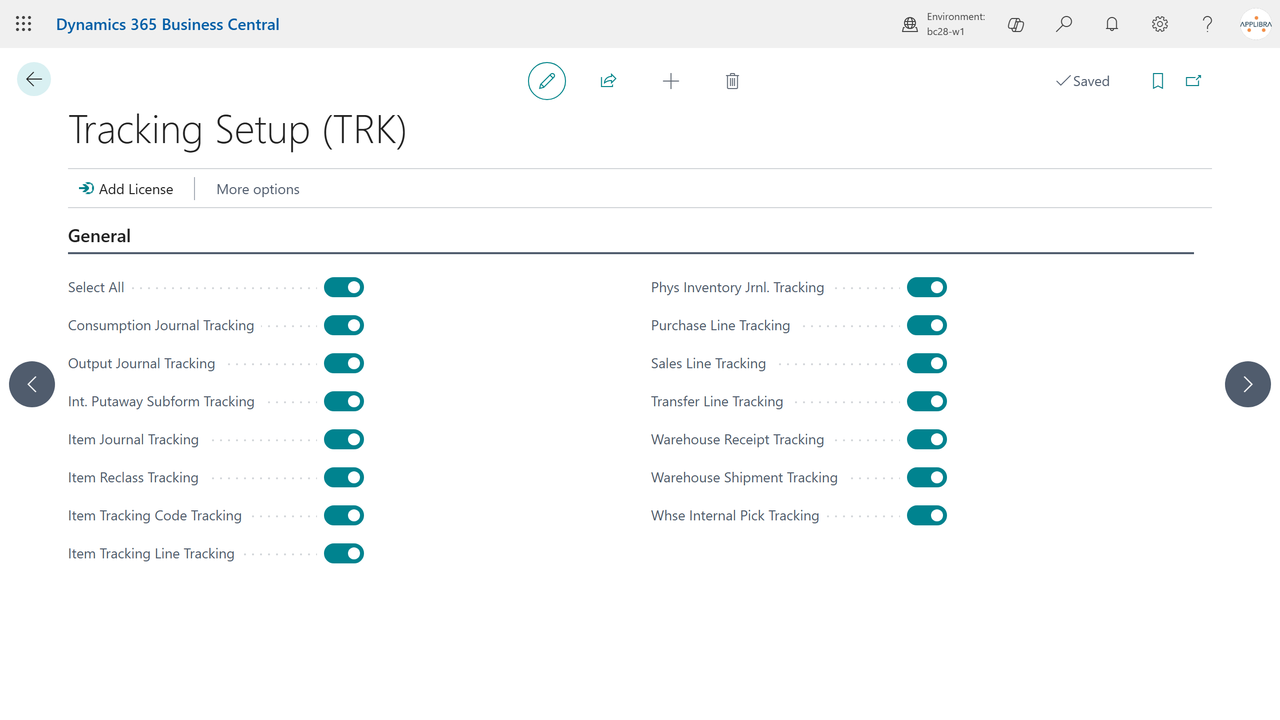
On Tracking Setup (TRK), turn on the areas where the extra dimensions must appear:
- Sales Line Tracking, Purchase Line Tracking, Transfer Line Tracking;
- Item Journal Tracking (its warehouse version too), Item Reclass. Journal Tracking, Phys. Inventory Journal Tracking (the warehouse physical inventory journal too);
- Consumption Journal Tracking, Output Journal Tracking: the second also governs the lines of released production orders, and the production journal shows the fields when at least one of the two is on;
- Warehouse Receipt Tracking, Warehouse Shipment Tracking, Warehouse Pick Tracking, Whse. Internal Pick Tracking, Whse. Internal Put-away Tracking, Internal Movement Tracking;
- Item Tracking Lines Tracking (the extended Item Tracking Lines) and Item Tracking Code Tracking (the extended Item Tracking Code card).
Use Select All to enable everything at once. Until the setup is opened for the first time, every area counts as off. An area that stays off keeps the standard Business Central behavior: the fields and the Assign Tracking action of AL Tracking do not appear, and the standard columns and actions they replace come back (lot, serial and package in the consumption and output journals, Calculate Inventory in the physical inventory journal). The Item Tracking Lines are the one exception: there the pallet and the external lot appear even with their area off when the tracking code of the item tracks them, because posting can require them and that is where they are entered.
3.3 Configure the Item Tracking Code
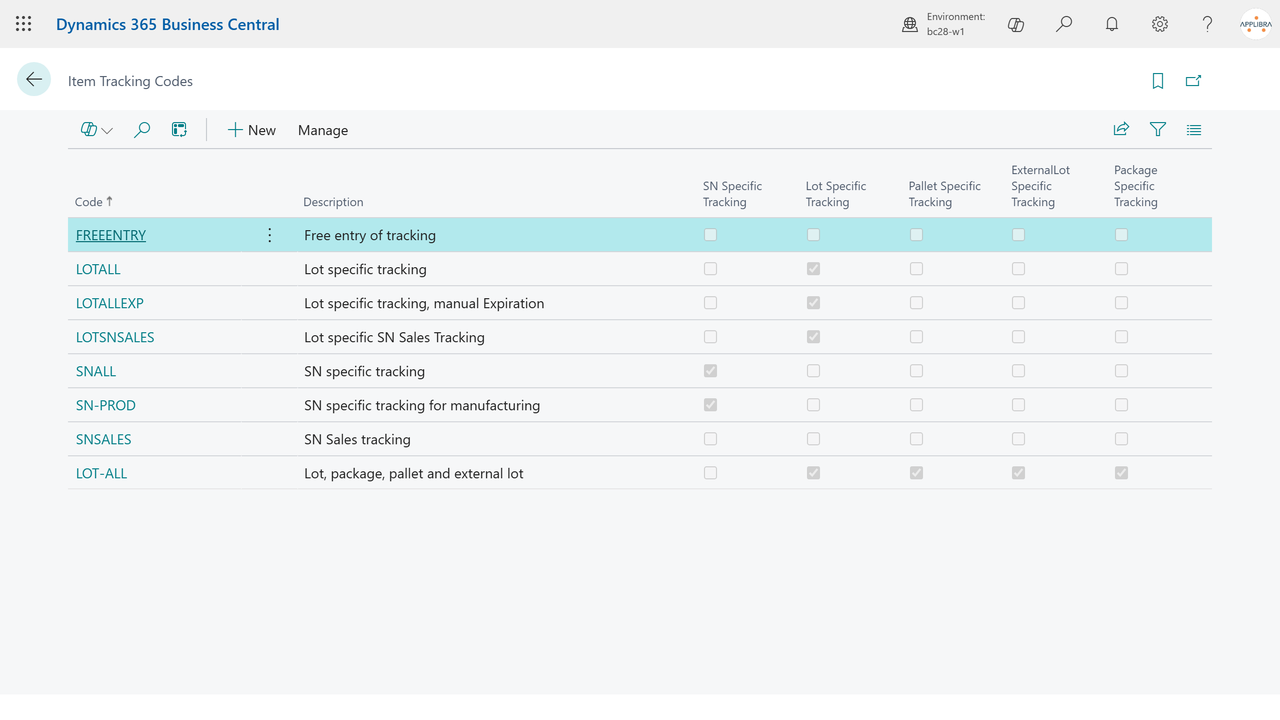
Open the Item Tracking Code of the item (with Item Tracking Code Tracking enabled in the setup, the card shows two new sections):
- Pallet Tracking - Pallet Specific Tracking works like the standard lot-specific tracking: on outbound you must state which existing pallet you handle. The Inbound and Outbound groups let you require the pallet number per document type (purchase, sales, positive/negative adjustment, assembly, manufacturing), plus Pallet Warehouse Tracking and Pallet Transfer Tracking. Pallet No. Info. Must Exist wants an information card for every pallet: if it is missing at posting, it is created. To stop a pallet, use the Blocked flag of its card.
- External Lot Tracking - the same set of options for the supplier's external lot: External Lot Specific Tracking, per-document requirements, warehouse and transfer tracking, and External Lot No. Info. Must Exist.
These settings say where the pallet and the external lot are required, not where they are forbidden, as the standard does with the lot: with no pallet setting at all, the pallet stays optional, recorded when it is given and never asked for. The same goes for the external lot.
The standard Serial No. section has one more flag, Assign Consecutive Serial Nos., off by default: turn it on for the items whose serial numbers follow each other, for example the ones you number yourself in production. How it works is explained in 4.1.
Assign the tracking code to the items as usual.
Open the code to review the settings per document type: enabling Pallet Specific Tracking switches on the whole pallet section (warehouse, purchase, sales, adjustments, transfer, assembly and manufacturing), and the external lot section behaves the same way.
3.4 Decide how lot numbers are made (Lot Types)
A lot type says how the lot numbers of an item are composed and how far they have to be free. Items inherit it from the item tracking code they already carry. Open Lot Types (TRK) and create the types you need:
- Composition - which rule makes the number. Number Series is what Business Central does on its own, and is the default. External Lot No. names the lot after the lot the supplier gave, so the same number is on the delivery note and in your warehouse.
- Lot Nos. - the number series used by Number Series. Left empty, the number series of the item is used, exactly as before.
- Lot No. Uniqueness - None (default) assigns the number as it comes. Item and Variant checks the number is free for that item before assigning it, looking at the lot information, the entries, the tracking of documents not yet posted and the lines still on screen. The check is never made across items: the same number on a semi-finished item and on the finished product made from it is a chain, not a collision.
- Max Composition Attempts - when a number is already used, the rule is asked for another one, and told which attempt this is, so it can tell the two lots apart. After this many attempts the assignment stops with an error instead of assigning a number that is not free.
- External Lot No. Suggestion - where the external lot number comes from when the supplier did not give one: Vendor Shipment No., the delivery note number, or Vendor and Shipment No., which puts the vendor in front, because a delivery note number is unique for the vendor who wrote it and not in the world.
On the Item Tracking Code card, Lot Type Code names the type to use. Left empty, lots behave as they do in Business Central and nothing changes.
Two habits worth keeping. Give the lot type the same code as the item tracking code when you want the two to coincide. Share one lot type between several tracking codes when you want those lots to resemble each other, never to save a line of master data: changing a shared lot type changes the numbering of every class of items that uses it.
About the suggestion, three things it does not do. It only fills an empty external lot, so a number somebody typed is never replaced. It does not replace the check that the external lot is there when the tracking code requires it: if there is nothing to suggest, the posting stops as before. And it never shortens a value to make it fit: if vendor and delivery note number together pass the 50 characters of the field, the assignment stops and says so, because a cut number looks good and no longer leads back to the supplier.
One consequence to know before you choose it: with either suggestion, the Vendor Shipment No. becomes required to post a receipt of those items. A fallback that leans on an empty field is not a fallback, so the setting carries the obligation with it. The delivery note number is usually typed after the goods arrive, when tracking has already been assigned: it is enough to type it on the document, and the external lots left empty are filled then.
4. Daily use
4.1 Item journal and reclassification
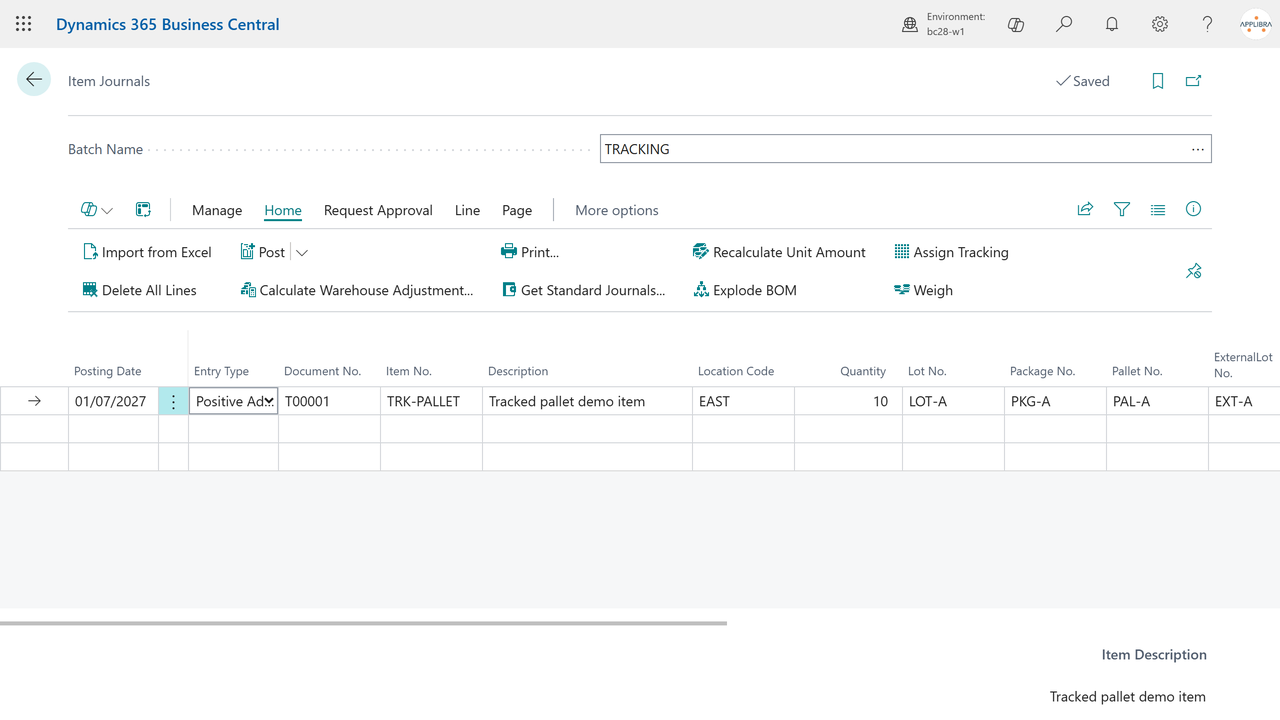
With Item Journal Tracking enabled, the item journal lines show the tracking fields directly on the line: Lot No., Serial No., Package No., Pallet No. and External Lot No. (each visible only if at least one tracking code uses that dimension).
- Enter the journal line as usual.
- Fill the tracking fields: type the values, or use the assist button on each field to pick from the existing combinations in inventory. From the serial number field the list shows the serial numbers, and the choice brings to the line the serial number with its lot; from the other fields it shows the lots and the combinations without a serial number.
- Run Assign Tracking: the lot, serial, package, pallet and external lot written become the tracking of the line in one step, with expiration date and quantity, and the fields are emptied.
- Post: the dimensions land in the item ledger entries.
A serial number is one piece. On a line of more pieces the serial number written goes to one piece only, and the rest of the line stays to be assigned: write the next serial number and run Assign Tracking again. If the item tracking code of the item has Assign Consecutive Serial Nos. turned on, on inbound lines (for example purchases, positive adjustments, output) the serial number written is the first of a run: Assign Tracking creates one serial number for each piece still without tracking, raising the final number by 1 (SN001, SN002, SN003), all with the lot, package, pallet, external lot and expiration date written. It is what the standard Create Customized SN action does with increment 1, with the same checks: the serial number must end with a number, and the serial number series of the item, if there is one, must allow manual numbers. On outbound lines and in the reclassification the serial number always goes to one piece only, because serial numbers come from the stock.
If a line reaches posting with values written and not assigned, posting stops on that line and says which values are not assigned. The journal batch has the Assign Tracking at Posting flag: when it is on, posting runs Assign Tracking itself on the lines that do not have it yet, as if you had pressed the button: for example, a second lot written on a line whose quantity you raised takes the quantity added. If the values written find no room left, because the line is already fully assigned to something else, posting stops anyway. Warehouse journal batches have the same flag. Documents (sales, purchases, transfers, warehouse shipments and receipts) have no such flag and posting always stops, because how much of a line goes out is decided by whoever posts it.
The Item Reclassification Journal works the same way and carries the old and new values, so a reclassification can move quantity from one pallet or external lot to another.
4.2 Physical inventory by traceability
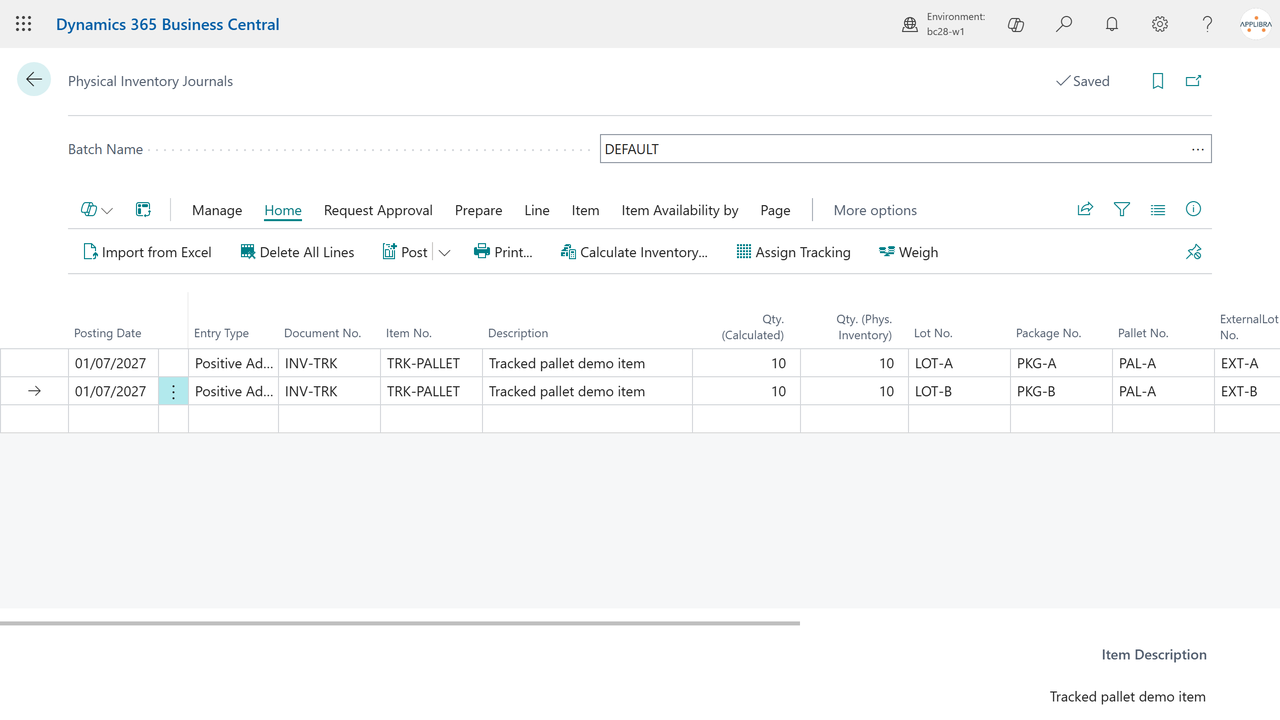
On the Physical Inventory Journal (area Phys. Inventory Journal Tracking), the app replaces the standard calculation with Calculate Inventory by Traceability (TRK):
- Run Calculate Inventory (Functions group). The request page accepts the usual filters (Item No., Location, Bin).
- The journal is filled with one line per tracking combination - lot, serial, package, pallet, external lot - instead of one line per item, on both standard and bin-managed locations.
- Count and enter the physical quantities per combination. The lines with a difference need their tracking assigned: run Assign Tracking, or turn on Assign Tracking at Posting on the batch (see 4.1).
- Post: the differences are written per tracking combination.
The lines are split by the full tracking key, not by a single dimension: the same pallet carrying two different lots produces two lines, so a mixed pallet is counted lot by lot.
On locations with directed put-away and pick, the count is made in the Warehouse Physical Inventory Journal with the standard Calculate Inventory. The standard makes one line per serial, lot and package; the app splits it by pallet and external lot, one line for each pair with its own calculated quantity: two pallets of the same lot in the same bin give two lines, and so does one pallet with two external lots. If the stock read does not add up to the quantity the standard calculated, for instance because another app narrowed the count, the line is left as it is.
4.3 Sales, purchase and transfer lines
With the corresponding areas enabled, the document lines show the tracking dimensions and an assignment action:
- Sales order and Purchase order lines: Assign Tracking assigns the dimensions for the line quantity. On purchase lines, and on warehouse receipt lines, the lot expiration date sits next to the lot: Assign Tracking gives it to the lot, for items that use expiration dates; left empty, the expiration date is set as Business Central does.
- Transfer order lines: Assign Tracking assigns the dimensions to the shipment, and the receipt takes them from the shipment, as in the standard item tracking lines. The same goes from the warehouse shipment; nothing is assigned from the warehouse receipt of a transfer, because its tracking already comes from the shipment.
- The assist button on the tracking fields filters the existing combinations for the item; from the serial number field it shows the serial numbers.
4.4 Consumption and output journals
With Consumption Journal Tracking and Output Journal Tracking enabled, the production journals carry the same tracking fields and the Assign Tracking action:
- Consumption Journal: assign which lot/package/pallet/external lot is consumed by the production order components.
- Output Journal: assign the tracking of the finished output.
- The same fields and action are available on the Production Journal.
- On the released production order lines, Assign Tracking assigns the values of the line for the quantity still to produce, and the Production Journal brings them onto the output of the last operation, the one that puts the item into inventory: intermediate operations post capacity, not goods, and take no tracking.
4.5 Warehouse
The warehouse documents and journals enabled in the setup (receipt, shipment, warehouse journals, internal picks and put-aways) carry the same dimensions, and the extended Item Tracking Lines and Warehouse Item Tracking Lines show the pallet and external lot columns alongside the standard ones.
In the Warehouse Item Journal and the Warehouse Physical Inventory Journal, Assign Tracking looks at the direction of the line. A line that brings goods into the bin (a positive quantity, or in the inventory a counted quantity above the calculated one) takes the values written as they are, for the quantity still without tracking: a new pallet or lot is assigned although it is not in stock, and a pallet already there takes all the quantity that comes in. A line that takes goods out looks for them in the stock, as the other warehouse lines do. For serial numbers, what 4.1 says applies.
When a line that takes goods out finds them in the stock, it takes all their tracking and dates: an external lot written alone brings the lot and the pallet it is stored with, which the posting asks for. An expiration date typed on the line stays when you write the AL Tracking columns; if the stock of those values has an expiration date, the line takes it. In the Warehouse Item Tracking Lines, once a pallet or an external lot already in stock is written, the expiration date is the one of the stock and cannot be changed, as the standard does for the lot.
On the warehouse pages the AL Tracking fields have no assist button: the values are typed on the line, or chosen in the item tracking lines the page opens, as in the standard.
On a location that asks for an inventory pick or put-away, the pallet and the external lot assigned on the activity line stay on the posted line: the posted inventory pick, put-away and registered movement carry both, so the history of what was moved is complete and can be searched.
The pallet and the external lot also show, read only, where they used to be stored without showing: in the Warehouse Entries, on the registered lines of warehouse picks, put-aways and movements, on the posted lines of inventory picks and put-aways and the registered lines of inventory movements, in the project ledger entries, and on the open lines of warehouse put-aways and movements and of inventory picks, put-aways and movements. On those open lines they come from the tracking of the source document; they are chosen on the warehouse pick only. As the other columns, they show when at least one item tracking code uses that dimension.
4.6 Find the entries of a pallet or of an external lot
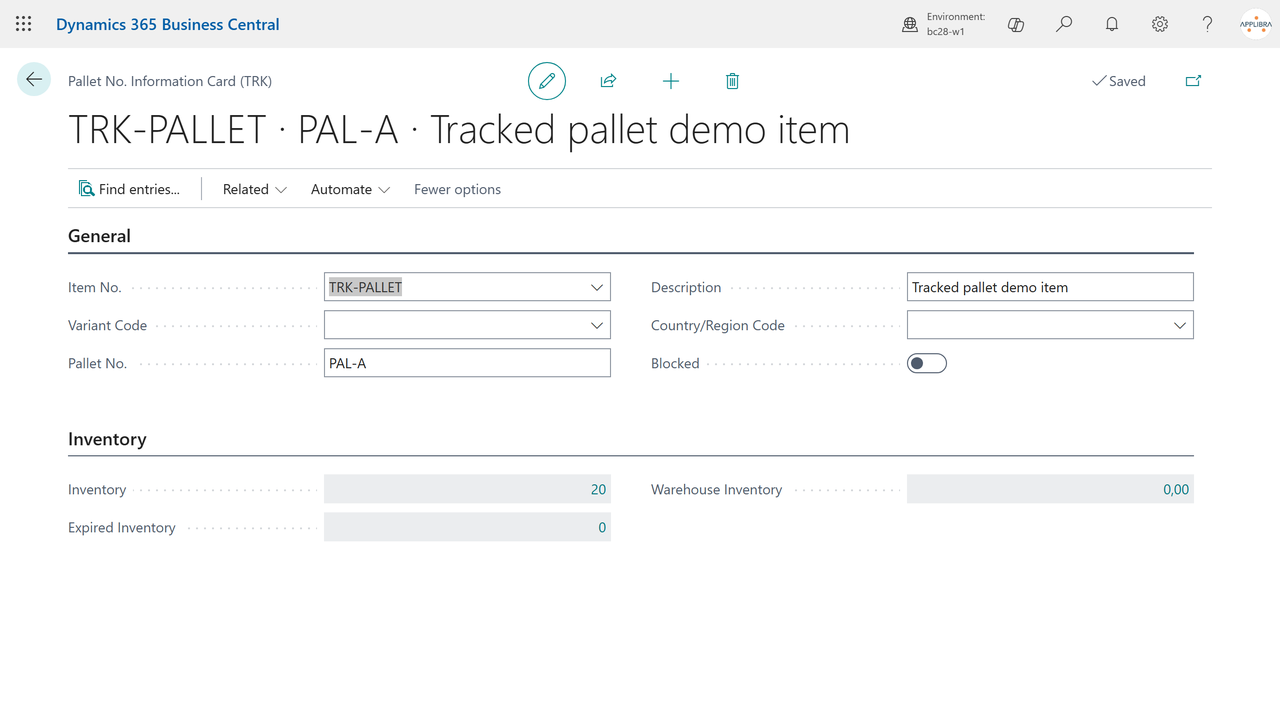
From Pallet No. Information List (TRK) and External Lot No. Information List (TRK), the Find entries action opens the standard Navigate page on the entries of that pallet or of that external lot: ledger entries, reservations, warehouse activities and warehouse entries, exactly as Find entries does for a lot.
The same search can be started from Navigate itself (Tell Me): next to Serial No. and Lot No. you can type Pallet No., External Lot No. and Package No., alone or together with the standard ones. Like serial and lot, what you type comes back in its field the next time you open the page, and the search uses what the fields show; opened from a pallet or external lot card, the page shows and searches the value of the card.
5. Master data
5.1 Pallet No. Information
Open Pallet No. Information List (TRK) (Tell Me). Each record identifies one pallet (SSCC) for an item/variant and carries description, country/region, a Blocked flag, comments and the calculated Inventory and Expired Inventory - filterable by location and bin, with the warehouse quantity alongside. When the card is born from a posting it also carries the expiration date and, in the Origin group, the entry type, the document, the dates and the source of that posting; the list shows the expiration date.
Where the pallet or the external lot shows, in the item ledger entries, the warehouse entries and the item tracing, clicking the value opens its card. The comments of a card are its own only, even when a lot has the same number. If the Inventory Setup gives the pallet or the external lot a name of your own, cards and lists use it in their title, as the columns do.
5.2 External Lot No. Information
External Lot No. Information List (TRK) is the same master data for the supplier's external lot: one record per item/variant/external lot, with the same descriptive fields, blocking, comments and calculated inventory.
5.3 Automatic creation
You do not need to create the records by hand. When you post a pallet or an external lot that has no information card yet, the app creates it if the item tracking code makes that dimension required for the movement, or if it asks for the card with the Must Exist flags: for AL Tracking a required card is a card that makes itself. The standard Create Tracking Information action of the purchase order and invoice creates them too, where the item tracking code wants them. To stop a pallet or an external lot, use the Blocked flag of its card.
In a reclassification onto a pallet or an external lot that has no card yet, the new card is a copy of the card of the source, as the goods are the same; if the source has no card, it is made from the posting as the others.
6. Where to find it
- Tell Me: search "TRK", or directly "Tracking Setup (TRK)", "Lot Types (TRK)", "Pallet No. Information List (TRK)", "External Lot No. Information List (TRK)".
- On documents and journals: the Assign Tracking action on sales, purchase and transfer order lines, item/reclassification/physical inventory journals, consumption and output journals, warehouse documents; Calculate Inventory on the physical inventory journal.
- Item Tracking Code: the Pallet Tracking and External Lot Tracking sections, and the Lot Type Code field.
- Find entries: the action on the pallet and external lot lists, and the Pallet No., External Lot No. and Package No. fields on the Navigate page.
- Role center: the Tracking (TRK) group carries Tracking Setup (TRK), Lot Types (TRK) and the two master data lists.
7. FAQ and limits
- What exactly is the Pallet No.? The SSCC of the pallet: 18 digits, 20 with the identifier (00) in front. The field takes up to 50 characters and does not check them, so pallet numbers that do not follow the GS1 standard fit too.
- What is the External Lot No.? The lot or carton number assigned by the supplier, kept alongside your internal lot.
- I do not see the tracking fields on a page. The dimensions must be enabled per area in Tracking Setup (TRK), and a field shows only if at least one item tracking code uses that dimension. Check both.
- The Pallet/External Lot sections are missing on the Item Tracking Code. Enable Item Tracking Code Tracking in the setup.
- Find entries on a pallet opens an empty window. It did until version 28.0.26.09251527: Navigate could only search by serial, lot and package. From the next version the pallet and the external lot are searched like the others, from the cards and by typing them on the Navigate page.
- My lot numbers still come from the number series. That is the default. A lot number is made differently only where the item tracking code names a lot type whose composition says so.
- Posting a receipt asks for the Vendor Shipment No. One of the items on the document has a lot type that takes the external lot number from the delivery note, so the delivery note number is required. Type it on the document: the external lots still empty are filled at the same time.
- Do other AppLibra apps use these dimensions? Yes: AL Tracking is the traceability engine of the platform, and the other apps assign tracking through its functions. AL GS1 reads the barcodes and publishes the values on the AL Message Passing bus; AL Logistic and AL WM pick them up and assign them with the functions of AL Tracking. AL Catch Weight Management calls them directly.
8. Support and resources
- Publisher: AppLibra - https://applibra.com
- Apps catalog: https://applibra.com/apps
- Privacy policy: https://applibra.com/privacy-policy
- Terms of use: https://applibra.com/terms