AL Commissions - User guide
How to set up and use the app in Business Central.
1. General commission setup
Once the app is installed, fill in the general setup. Open Commission General Setups (COM) and use the assisted setup, which fills the settings for you, or set the fields by hand. The assisted setup is also registered in the Business Central manual setup list, so you find it where you look for the setup of any other app.
For the calculation to work on margin, the default item cost is set to zero.
2. Salesperson commission setup
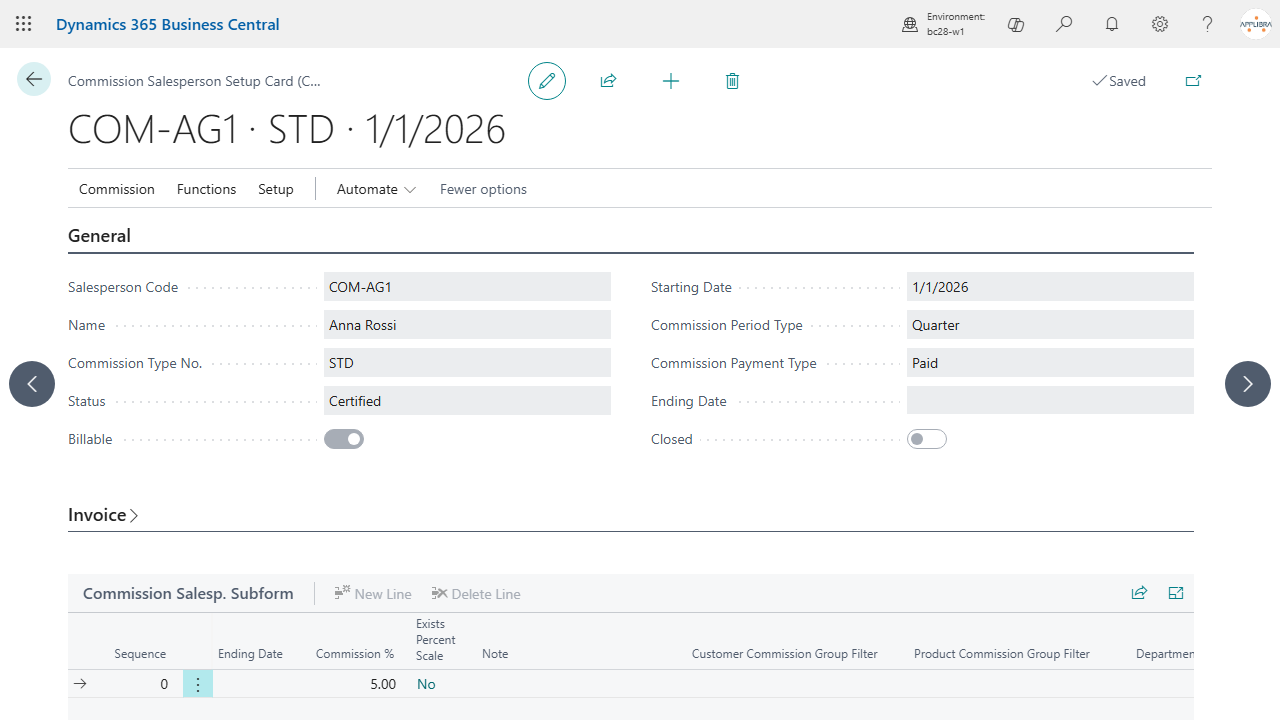
Open Commission Salesperson Setups (COM) and then the setup card. Choose the agent, the agent type and the commissions that apply. Say whether the agent can be invoiced and from which date. On the setup lines enter the values specific to that agent, using the criteria that suit you.
You can add commission types of your own: the two that ship are STD, standard agent, and SA, super agent, and nothing stops you adding, say, SHA for a shipping agent.
Press Functions and set the status to Certified to save the settings. 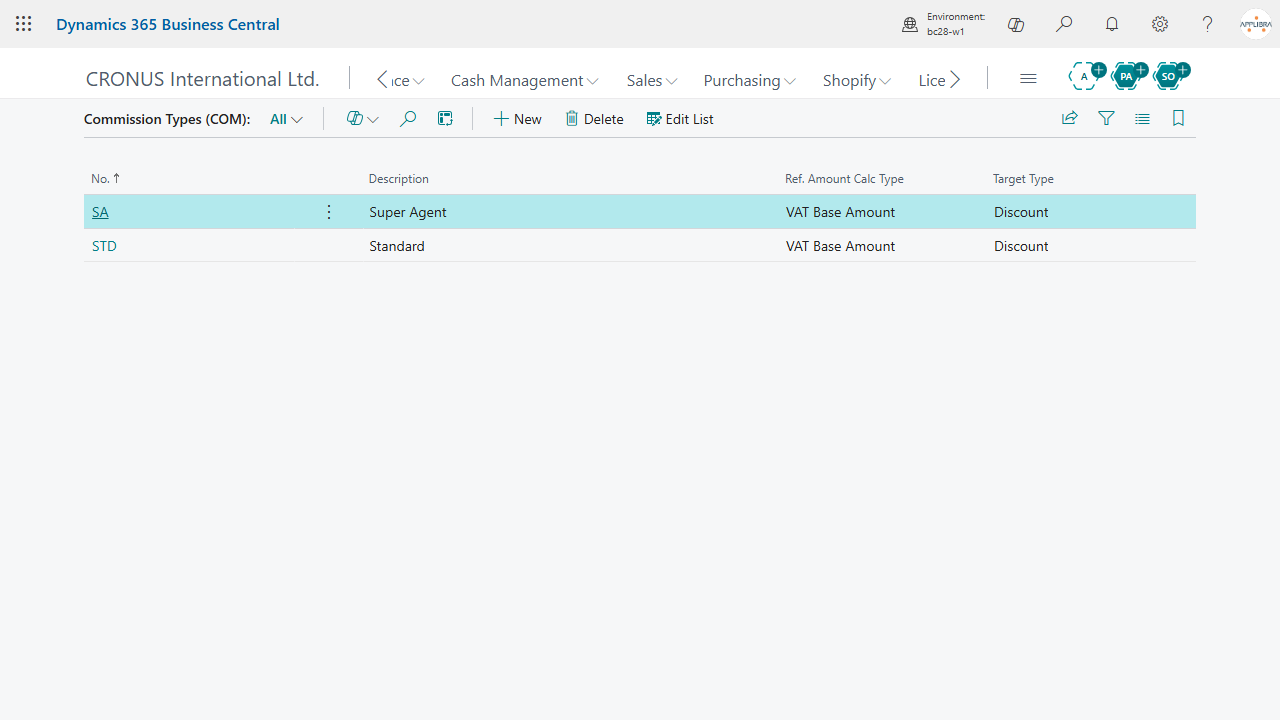
3. Commissions by customer and item group
On Commission Structures (COM) add the filters you need: choose the source type, customer or item, then the filter type and its description. Commissions are then calculated according to those filters.
4. The salesperson hierarchy
Every agent can be placed in a hierarchy, from Commission Salesperson Hierarchy Setup (COM). To create one:
- Create a batch. One batch per hierarchy, named after its super agent, keeps things readable later.
- On the first line, in Structure Name, enter the code of the super agent, the head of that hierarchy, and set Commission Type No. to SA.
- On the following lines enter the codes of the standard agents and set their Commission Type No. to STD.
- On every standard agent, enter the super agent code in Parent Structure Name.
- Certify the batch.
Once the batch is certified, Commission Salesperson Hierarchy (COM) shows the hierarchy as a tree: the super agent at the top and the agents below. 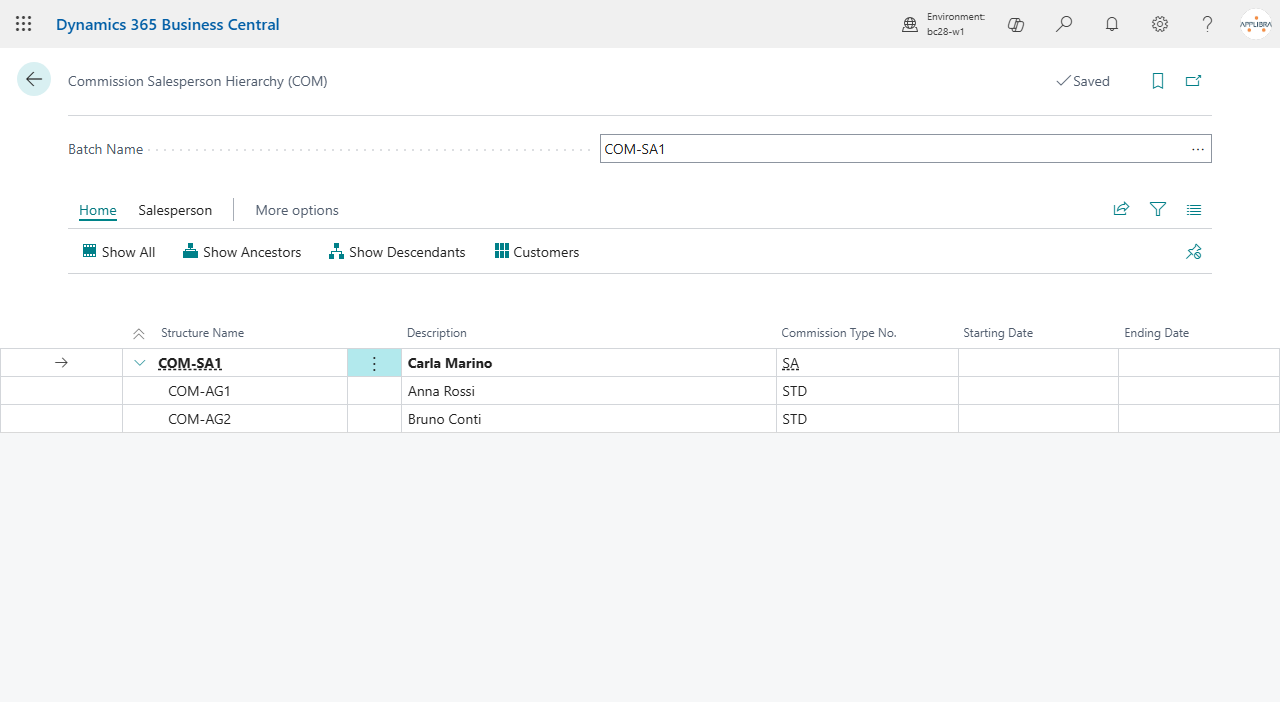
5. A sales order with an agent on it
Put the agent on the order in the Salesperson Code field, either when you create the order or later. The commissions for that agent, and for the agent's hierarchy if there is one, are calculated on their own.
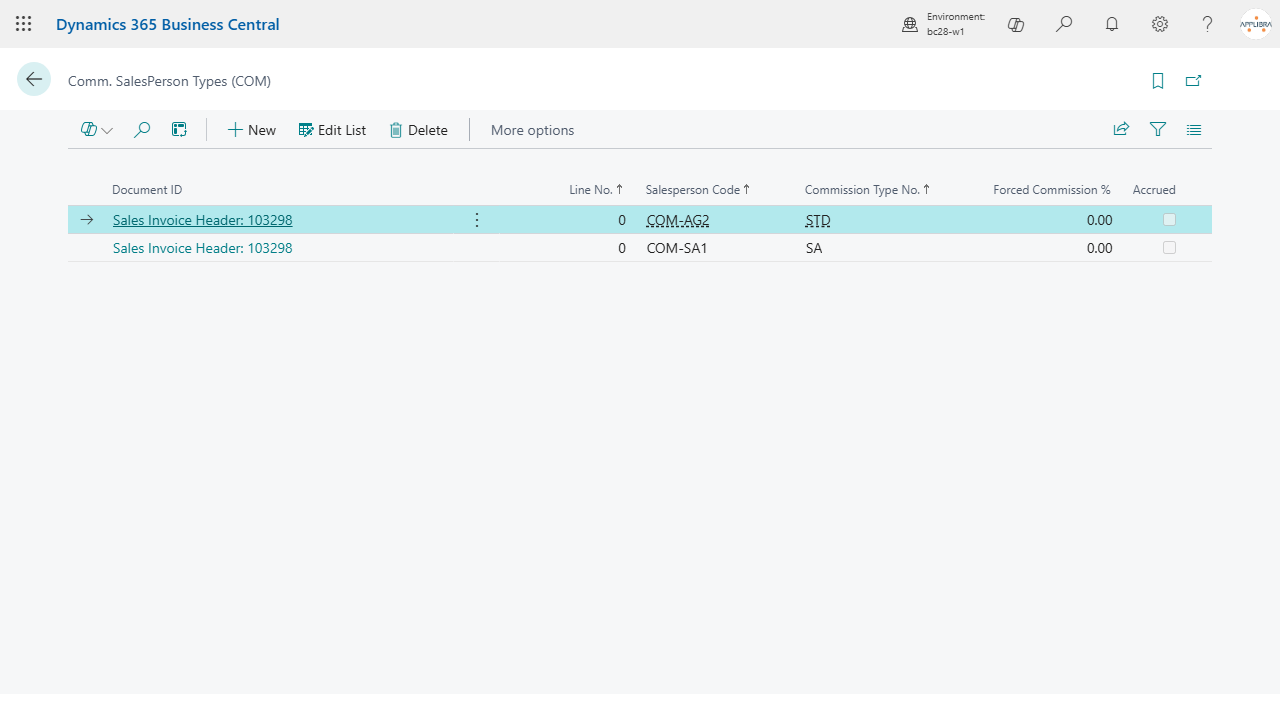
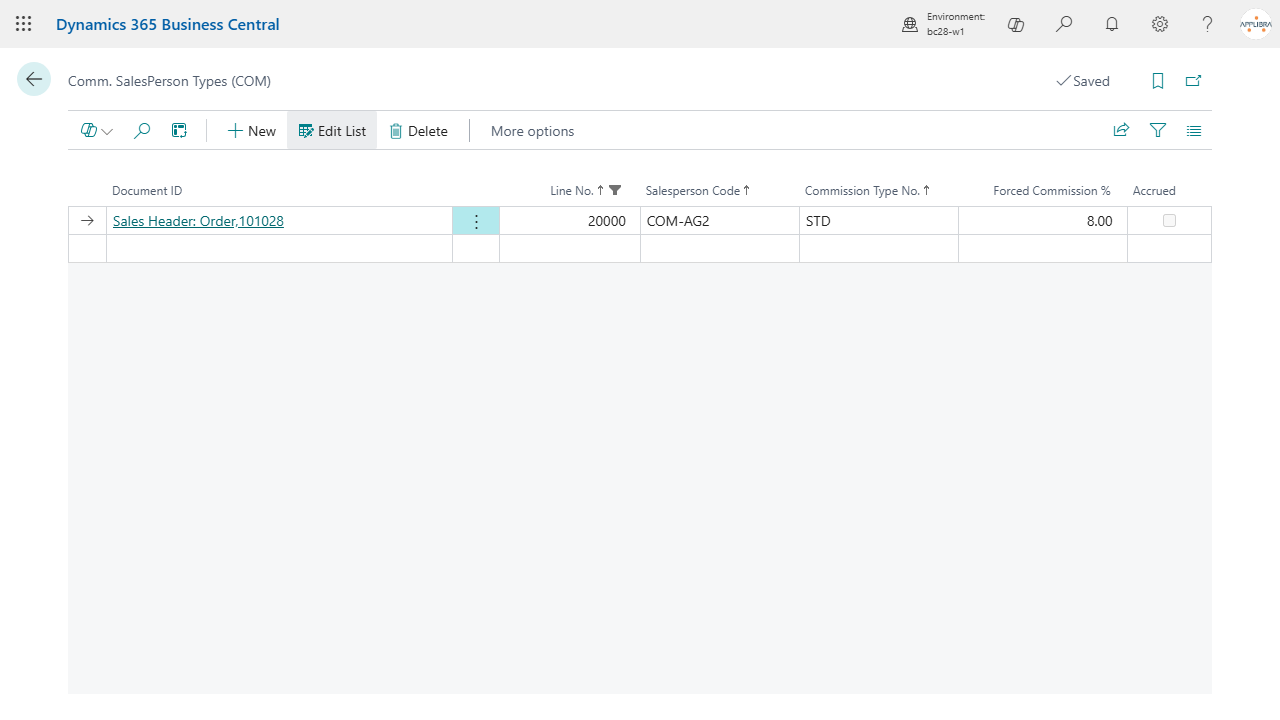
To change what applies to that order, open Order and then Salesperson Commission Type. There you can edit the Forced Commission % after clicking Edit List, and add or remove agents for that order alone. The rows with line number 0 apply to the whole order. 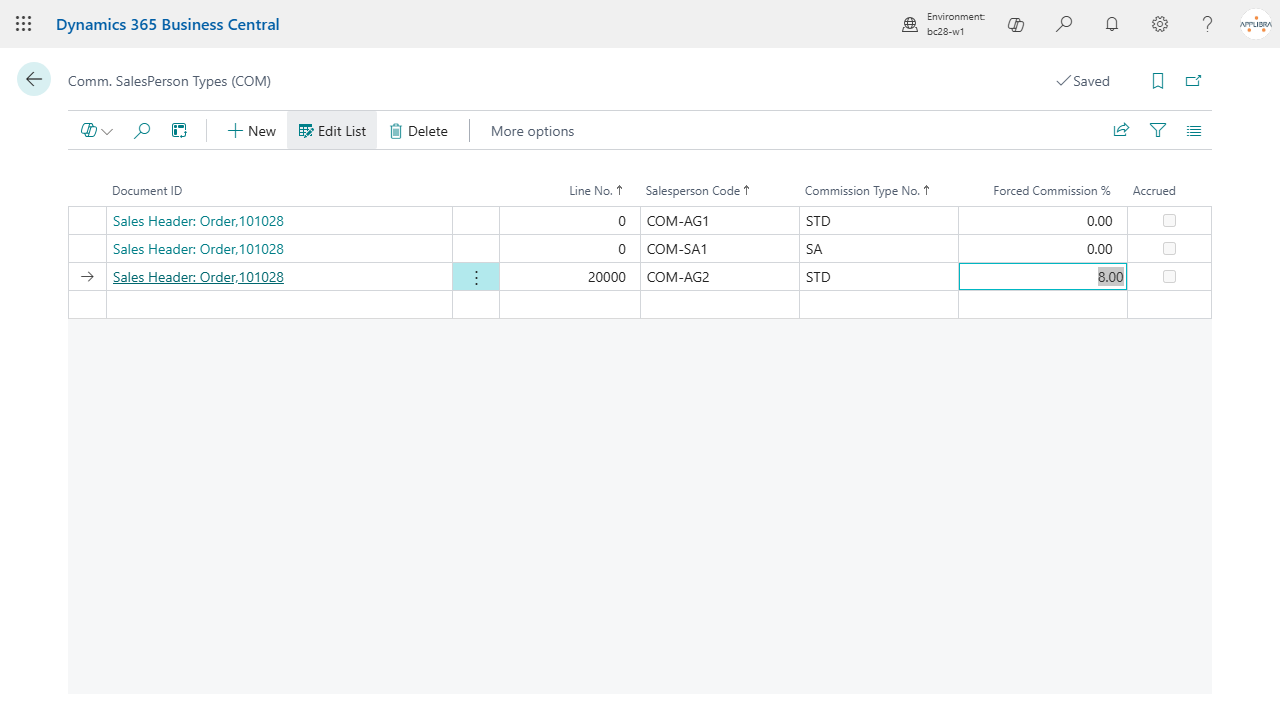
6. Reading accrued commissions
From Commission Salesperson Setups (COM), open the menu and choose Create Accrued Batch for a new batch of accrued commissions, or Open Accrued Batch for one that exists.
In the commission journal press Suggest Accrued Commission: the amounts due to the agent and to the super agent are calculated for you.
Check the lines, then press Release. 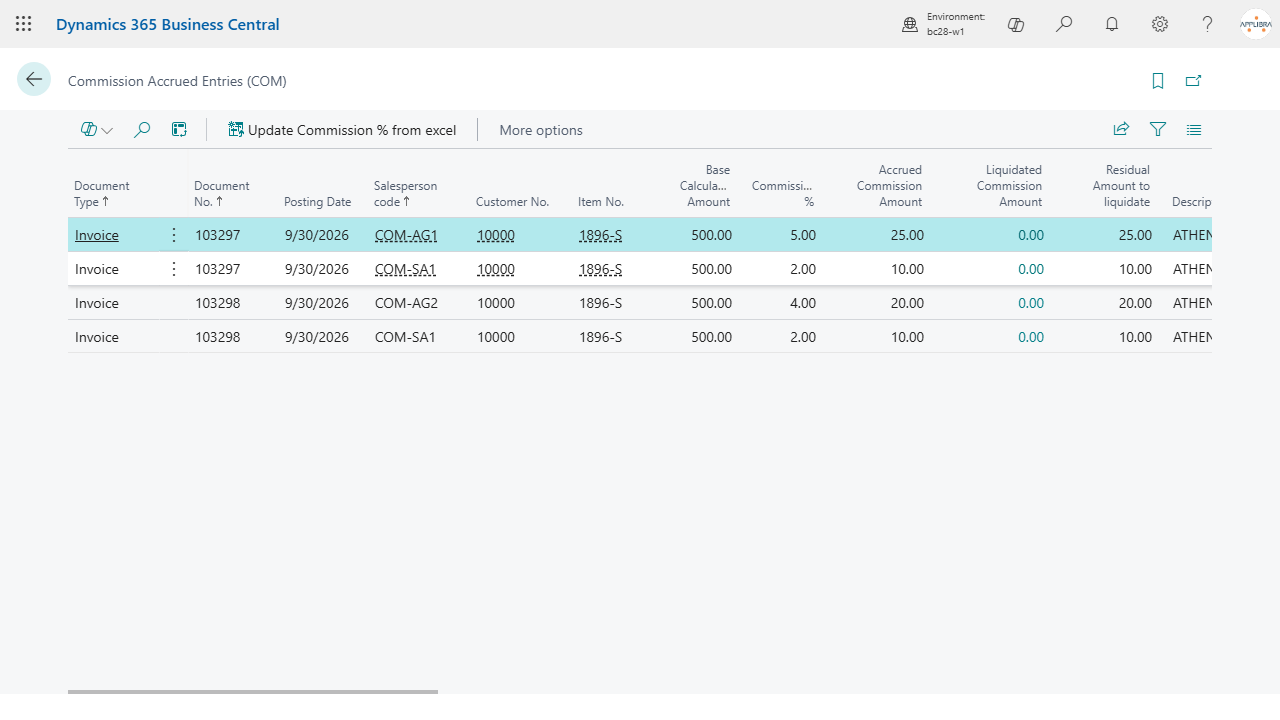
7. Settling commissions
From Commission Salesperson Setups (COM), open the menu and choose Create Commission Batch, to create a batch to settle or to open one that exists.
Where the sales invoices of an agent have been paid, the commission due can be calculated by agent type, rate, year and period. 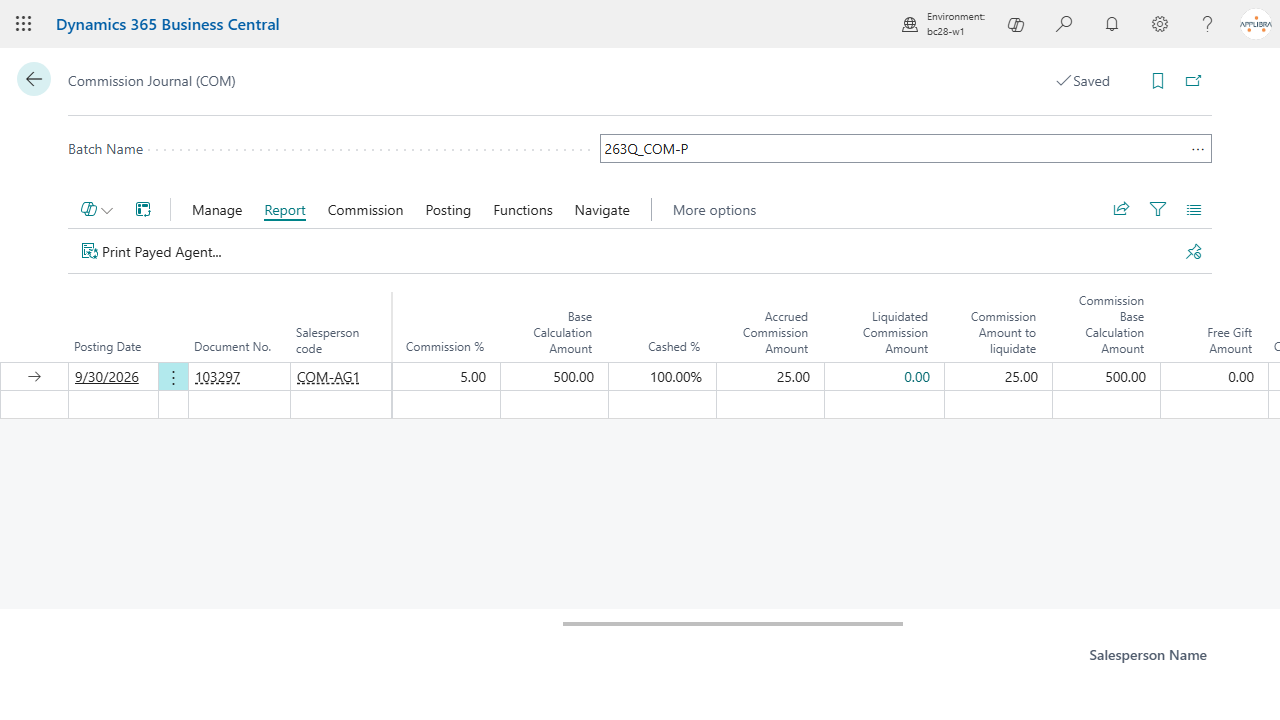
8. What the two roles can do
AL Commissions ships two assignable permission sets.
- AL Commissions - User (
ALPCOM-USER) is daily work: the commission journals, posting them, ledger entries, accrued entries, registers, and the commissions shown on a document. The configuration is readable but not editable, so an operator cannot change the rules that decide what is earned. - AL Commissions - Administrator (
ALPCOM-ADMIN) includes the user role and adds the rules, the agent hierarchy, the scales, the journal templates and the maintenance functions.
One consequence is worth knowing before it surprises someone. The role center shows the actions that lead to the setup pages to EVERY user, because that is how Business Central builds those menus. A person who only has the user role and clicks one of them gets a permission error. That is standard behaviour and it is not something the app can work around: assign the administrator role to whoever is meant to configure the app.
Upgrading from an earlier version
Up to version 25 the permissions of the app were in a single set, AL Commissions. The upgrade removes that set and replaces it with AL Commissions - Administrator, which grants the same permissions. The move is automatic: whoever had the old set assigned gets the new one, and if the old set was included in a permission set of your own, your set now includes the new one instead.
There is one case the upgrade cannot cover: if you listed the old set in the License Configuration, among the permissions Business Central gives to new users, that configuration has to be redone by hand with the new set. Business Central does not let an app change it. Existing users are not affected.